Cisco Router Show Command Explained with Examples
The show command is a versatile and one of the most used commands on the router. It supports various options and arguments, such as show ip route, show ip interfaces brief, show version, show flash, show running-config, show startup-config, and show controllers. This tutorial explains essential options used with the show command and their meanings.
Cisco Router (basic show commands)
The show command is a Privilege Exec mode command. When you connect to a router using a remote management protocol (such as Telnet or SSH) or a console cable, the router enters User Exec mode. User Exec mode is the router's first and default mode. You can access all other modes only through it. Use the enable command in User Exec mode to enter Privilege Exec mode.
Router>
Router>enable
Router#

Listing all show commands
To list all show commands with a short description, use the following command.
Router#show ?

Viewing ACLs and their entries
You have the following two show commands to view ACLs and their entries. Both display all ACLs and their entries.
Router#show access-lists
Router#show ip access-lists
To view entries of a particular ACL, specify its number as an argument. Use any of the following commands to view entries of ACL 10.
Router#show access-lists 10
Router#show ip access-lists 10

Displaying ARP caches
Routers use the ARP protocol to resolve IP addresses with MAC addresses. ARP maintains a table of translated addresses and uses them to resolve already learned addresses. The following show command lists ARP table entries.
Router#show arp

Getting information about interfaces
The following command displays information about all interfaces.
Router#show interfaces
To view information about a particular interface, specify its name and number as the argument.
Router#show interfaces [type slot_# port_#]
The following command shows information about the serial 0/1/0 interface.
Router#show interfaces serial 0/1/0

The output provides detailed information about the interface, including its status, encapsulation, interface type, MTU, and the last input and output packets. The first line in the production includes two statuses. The first status denotes the physical link layer. The second status represents the data link layer.
Possible values for the physical link layer status
- UP:- The Interface is receiving physical-layer signals.
- Down:- The Interface is not receiving physical-layer signals due to the following reasons.
- The cable is unplugged.
- The connected cable type is not supported.
- The device attached to the other end is down.
- Administratively down:- The Interface is turned off by using the shutdown command.
Possible values for the data link layer status
- UP:- Interface is operational.
- Down:- Interface is not operational due to the following reasons:-
- The physical layer is down.
- Incorrect encapsulation setting.
- Incorrect clock rate or bandwidth setting.
- Incorrect keepalives setting.
| Interface status | Description |
| UP and UP | Interface is operational |
| UP and Down | Interface is not operational due to a data link layer issue |
| Down and Down | Interface is down due to problems in both layers |
| Administratively down and down | The interface is manually shut down. |
- The second line shows the interface's hardware type and MAC address.
- The third line shows the IP address of the interface.
- MTU indicates the Ethernet frame size.
- BW refers to the link's bandwidth.
The show interfaces command provides detailed information. To view only the IP configuration and interface status, use the following command.
Router#show ip interface brief

Similarly, to view only hardware-related information, use the following command.
Router#show controllers [type slot_# port_#]

This command shows hardware statistics of the interface, including the clock rate and cable status, such as whether the cable is attached. One end of the serial cable is physically DTE, and the other end is DCE. If a cable is connected, it will display the cable type.
Displaying the contents of the flash memory
Routers use flash memory to store the IOS image files. The following command displays the contents of flash memory, used space, and available space. You can use it to check the available space when updating or restoring IOS image files.
Router#show flash

Getting information about the device
The show version command displays information about the IOS version, license agreement, and configuration register value. The configuration register value lets you customize the boot process. You can use it to reset the router's password in case you have lost it.
Router#show version

Viewing the startup configuration
Routers save startup configuration in NVRAM. The boot process loads it from NVRAM and processes it as a running configuration. The following command shows the startup configuration.
Router#show startup-config

Showing the running configuration
Routers keep running configuration in RAM. Any configuration changes you make, and the information the router learns from various protocols, remain in the running configuration. To view the running configuration, use the following command.
Router#show running-config

The show command examples
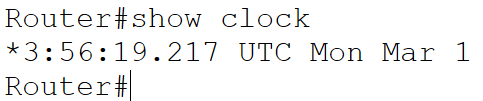
The show clock command displays the date and current time on the router.
Router#show clock
The show hosts command displays the names and addresses of the hosts on the network that you can connect to.
Router#show hosts

The show users command displays users currently connected to the router.
Router#show users

The show protocols command displays the status of configured Layer 3 protocols on the device.
Router#show protocols

The history command lists the commands you used on it.
Router#show history

Routers use a routing table to make forwarding decisions. The following command shows entries of the routing table.
Router#show ip route

CDP is a Cisco proprietary protocol. Cisco devices use it to exchange device-specific information. You can use the show cdp and its sub-commands to view CDP-related information.
Router#show cdp
Router#show cdp neighbors

IP is a layer three protocol. Routers make routing decisions in this layer. All routing protocols run in this layer. To view layer three-specific information, use the show ip subcommands.
Router#show ip ?

For example, RIP is a routing protocol. The following command shows its database.
Router#show ip rip database

Conclusion
The show command is an essential tool when working with Cisco routers. It provides a comprehensive overview of the router's operation and configuration. By utilizing different options and arguments with the show command, you can effectively monitor performance, troubleshoot issues, and manage network configurations.
By ComputerNetworkingNotes Updated on 2025-11-28