Cisco IOS Context Sensitive Help Features Explained
Cisco IOS includes thousands of commands and parameters. In addition, Cisco may update, change, or remove any command or its parameter in any IOS update. All these things make memorizing all IOS commands a near-impossible task. The solution to this issue is also available on IOS. IOS includes many help options, such as Word help, Command syntax help, Context-sensitive help, Command abbreviations, Auto-completion, and Command recall, at the Cisco IOS command prompt.
If you know how to use these options, you never need to memorize any IOS commands. This tutorial explains how to use the available help options at the Cisco IOS command prompt through examples.
Context-sensitive help
To use context-sensitive help, type a question mark and press Enter. It will list all commands or parameters you can use at the place of the question mark. You can use this help in three ways.
- To know all commands available in an IOS mode.
- To know all commands that start with a specific letter or letters.
- To know all the parameters you can use with a command.
Knowing all commands available in an IOS mode
To know all commands available in an IOS mode, type a question mark at the command prompt without entering any command and press Enter. For example, the following command lists all available commands in Privilege Exec mode.
Router#?

Knowing all commands that start with a specific letter or letters
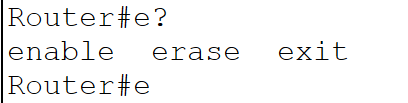
To know all commands that begin with a particular letter or letters, type a question mark after entering them and press Enter. For example, the following command shows all available commands in Privilege Exec mode that start with the letter e.
Router#e?
Knowing all the parameters you can use with a command
A command may support several parameters. Each parameter may support many other parameters. To know all supported parameters at a level, type a question mark in that level and press Enter. For example, to display all parameters available with the show ip command, use the following command.
Router#show ip ?

The output may contain a list of parameters, a <CR> option, or both. If it returns a list of parameters, you can use any listed parameter. If it shows only a <CR> option, the command supports no additional parameters. You can use it in its current state. If it shows both, you can run the command as is or use a listed parameter for additional options.
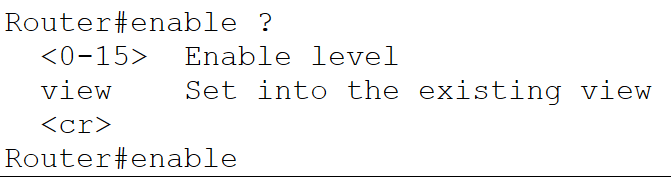
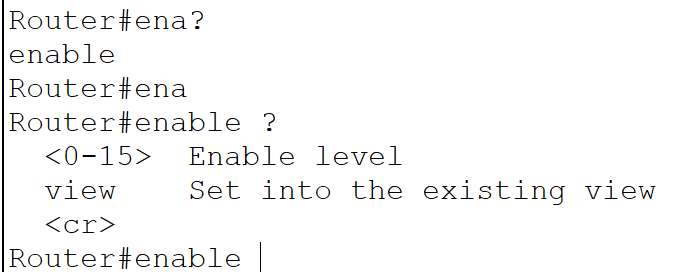
To find the commands that start with certain letters, use the letters and a question mark without including any spaces between them. To find the arguments or parameters that start with a particular word, use the word and a question mark with a space between them.
Command abbreviation and auto completion
IOS commands support abbreviation and auto-completion. These features let you enter commands quickly. To use the abbreviation feature, enter the characters of a command until it becomes unique. Once it becomes unique, you can execute it.

To use the auto-completion feature, type a few letters of the command and press the Tab key, and it will automatically complete the command. If multiple commands start with the typed letters, it will list all of them.

Recalling commands
Routers keep records of commands you execute. You can recall them using the Up and Down arrow keys. This feature lets you type frequently used long commands more easily. For example, when creating an extended access list, you can use this feature to recall previously entered commands and change them as needed to create new ones.

By default, it keeps a history of 10 commands. You can change it with the history size command. The history command lists commands in the same sequence in which you entered them. Use the Up arrow key to move in a backward sequence and the Down arrow key to move in a forward direction. You can also use the show history command in Privilege EXEC mode.

Summary
The following table summarizes all help options.
| Command | Purpose |
| (prompt)#? | List all available commands in this mode |
| (prompt)#xx? | List all available commands in this mode that begin with xx |
| (prompt)#command ? | List all available parameters for the command. |
| (prompt)# command keyword ? | List the following available arguments for the command. |
| (prompt)#abbreviated-command [tab key] | Auto-complete the partially entered command. |
Conclusion
Understanding the various help options provided by Cisco IOS can significantly enhance your efficiency and effectiveness in managing Cisco devices. With context-sensitive help, command abbreviations, auto-completion, and command recall, you can navigate and use Cisco IOS commands without memorizing them. By familiarizing yourself with these help options, you can maximize your productivity and streamline your interactions with the Cisco IOS environment.
By ComputerNetworkingNotes Updated on 2025-11-30