TACACS+ Explained with Examples
TACACS+ stands for Terminal Access Controller Access Control System. It is a Cisco proprietary AAA protocol. It separates each AAA function. It uses TCP port 49 for communication. It encrypts all communications. This tutorial explains how to configure, test, and verify it.
TACACS+ works in a client/server architecture. A client is a Cisco device that supports authentication. A server is a system that saves authentication details for clients. When a user sends their login information to the client, the client does not authenticate the user itself. It forwards the login details to the TACACS server. The TACACS server allows or denies login access.
Lab setup
Create a practice lab and assign IP configurations as shown in the following image. You can use real devices or a network simulator software for this lab. This tutorial uses Packet Tracer. It also provides the lab created and used in this tutorial.

Download the pre-configured practice lab
TACACS Server configuration
Click Server0, click Services, click AAA, and enable the service.

After enabling TACACS, you will create a database of client devices and their associated user accounts. The Network Configuration section lets you add client accounts. The User Setup section lets you add user accounts.
In this lab, you will have two routers: R1 and R2. You will use R1 as the client device and R2 as an end device for testing. The Network Configuration requires the following information.
| Field Name | Description | Value |
| Client Name | Name of the client device | R1 |
| Client IP | IP address of the client device | 192.168.1.1 |
| Secret | Password to the authentication client device | Cisco (You can pick any password of your choice) |
| ServerType | AAA supports two services: RADIUS and TACACS. | TACACS |

After filling in all values in all fields, click Add to add an entry for R1.

Add user accounts for R1. You can pick any names and passwords you like.
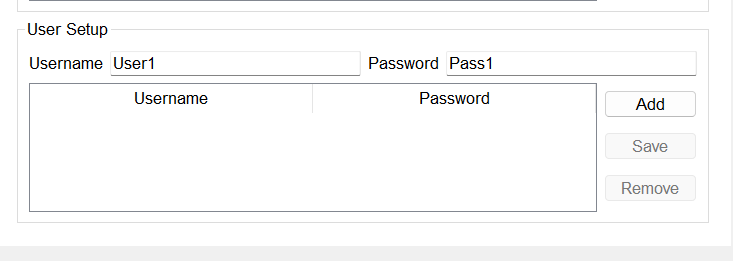
Click Add to add the user account.

The TACACS server uses this database to authenticate client devices and their users.

TACACS client configuration
Access the CLI prompt of R1 and run the following commands.
Router>enable
Router#configure terminal
Router(config)#hostname R1
R1(config)#aaa new-model
R1(config)#username admin secret pass
R1(config)#tacacs host 192.168.1.3 key Cisco
R1(config)#aaa authentication login default group tacacs
R1(config)#aaa authentication login default group tacacs local
R1(config)#aaa authentication enable default group tacacs
R1(config)#aaa authentication enable default group tacacs local
R1(config)#ip domain-name cisco.com
R1(config)#ip ssh version 2
R1(config)#crypto key generate rsa
R1(config)#line vty 0 4
R1(config-line)#transport input ssh
R1(config-line)#login authentication default
R1(config-line)#
The following commands set the hostname to R1.
Router>enable
Router#configure terminal
Router(config)#hostname R1
The following command immediately applies local authentication to all lines and interfaces except line console 0. The console line 0 allows you to access the router if you haven't set up a local user account.
R1(config)#aaa new-model
The following command configures a local user account using the username (admin) and password (pass).
R1(config)#username admin secret pass
The following command configures the TACACS server. It needs two parameters: the TACACS server's IP address and the password you used in the secret field when adding an entry for it on the TACACS server.
R1(config)#tacacs host 192.168.1.3 key Cisco
Routers and switches support two levels of authentication. At the first level, it uses the login authentication. Login authentication allows you to connect to the device. On the second level, it uses the 'enable authentication' option. It allows you to execute commands on the router.
The following command configures the router to use the TACACS server for the login authentication.
R1(config)#aaa authentication login default group tacacs
The following command configures the router to use the local username and password for login authentication if the TACACS server is unavailable.
R1(config)#aaa authentication login default group tacacs local
The following command configures the router to use the TACACS server for the enable authentication.
R1(config)#aaa authentication enable default group tacacs
The following command configures the router to use the local username and password for enable authentication if the TACACS server is unavailable.
R1(config)#aaa authentication enable default group tacacs local
After configuring the TACACS server and local login for authentication, you need to configure a remote management protocol. SSH is the default remote management protocol on all Cisco devices.
The following commands enable and configure SSH. You can choose any domain name of your choice. SSH uses RSA keys. RSA keys need a domain name.
R1(config)#ip domain-name cisco.com
R1(config)#ip ssh version 2
R1(config)#crypto key generate rsa
A router accepts remote connections on VTY lines. By default, all VTY lines are disabled. The following command enables all VTY lines and configures them to use authentication in the default order. By default, it first tries the TACACS server. If the TACACS server is down, it uses the local database as a backup.
R1(config)#line vty 0 4
R1(config-line)#transport input ssh
R1(config-line)#login authentication default
R1(config-line)#
The following image shows the above configuration on R1.

Download the configured practice lab
Testing the TACACS server
To test the TACACS server configuration, open an SSH connection from R1 to R2. Use the user account that you configured on the TACACS server.

As shown in the image above, the connection opened successfully. It verifies that R1 used the TACACS server for authentication.
If the TACACS server is up, R1 will not use the local database. To verify this, close the open SSH connection and open a new connection. This time, use the username and password you configured on R1 for login. R1 will not use the local login until the TACACS server is up.
Turn off the switch port connected to the TACACS server.

R1 has lost connectivity with the TACACS server. Now, log in again from R2 using the username and password you configured on R1.

As shown in the image above, R1 accepted the connection this time. If the TACACS server is unavailable, R1 will use the local database for authentication.
Conclusion
TACACS is a remote authentication service. It allows you to authenticate users from a single location. It is a Cisco proprietary service. It works in a client/server architecture. It uses TCP to exchange information between clients and the server. It encrypts all information between the client and server.
Author Laxmi Goswami Updated on 2026-05-06