RADIUS (Remote Access Dial-In User Service)
RADIUS (Remote Access Dial-In User Service) is a central authentication service. It works in a client/server architecture. A client is a network device that supports authentication. A server is a system that saves authentication details for clients. When a user sends their login information to the client, the client does not authenticate the user itself. It forwards the login details to the RADIUS server. The RADIUS server allows or denies the login access.
Why should you use a RADIUS server?
If you have a small network, you can use local authentication. But if you have thousands of devices, managing local authentication would be nearly impossible as you’d have to configure each device by hand. For example, if you want to change a password, it could take hours to update your network. Since maintaining the local database for each network device is complex and tedious, you can use a RADIUS server to manage all login credentials. A RADIUS server lets you manage all authentication from a single location. For example, if you want to change a login password, you only need to update it on the RADIUS server.
How does a RADIUS server work?
RADIUS uses UDP. It combines authentication and authorization services into a single process. It implements a client/server architecture. Network devices such as routers, switches, or APs work as clients. A Windows or Linux system running the RADIUS service works as a server. The authentication process goes through the following three distinct stages.
- The user enters his username and password on the client.
- The client encrypts the password and sends it with the username to the RADIUS server.
- The RADIUS server checks the username and password in its database and replies with one of the following:
- Accept: Username and password are correct. Allow the user to log in.
- Reject: Username and password are invalid. Deny the user from logging in.
- Challenge: Need additional information.
- Change Password: Prompt the user to select a new password.
RADIUS only encrypts the password. It exchanges the remaining information unencrypted.
RADIUS configuration (Lab setup)
Create a practice lab as shown in the following image on your favorite network simulator software and assign IP addresses. This tutorial uses Packet Tracer. It also provides download links for the lab used in this tutorial with various configuration stages.

The following link provides this lab.
RADIUS Practice Lab with IP configurations
RADIUS Server configuration
Click Server0, click Services, click AAA, and enable the service.

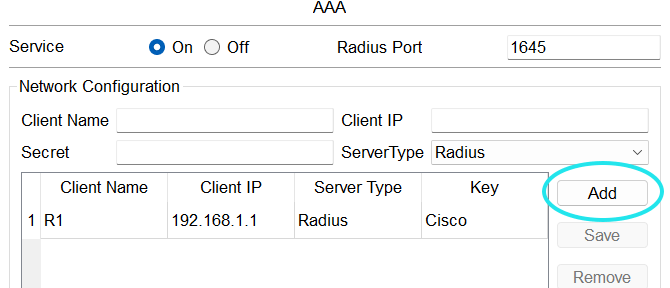
After enabling the RADIUS service, create a database of client devices and their associated user accounts. The Network Configuration section allows you to add client accounts. The User Setup section lets you add user accounts.
This lab has two routers: R1 and R2. Use R1 as the client device and R2 as the end device for testing. The Network Configuration requires the following information.
| Field Name | Description | Value |
| Client | Name | Name of the client device R1 |
| Client IP | IP address of the client device | 192.168.1.1 |
| Secret | Password to the authentication client device | Cisco (You can pick any password of your choice) |
| ServerType | AAA supports two services: RADIUS and TACACS. | RADIUS |

After filling in all values in all fields, click Add to add an entry for R1.
Add user accounts for R1. You can pick any names and passwords of your choice.

Click Add to add the user account.

The RADIUS server uses this database to authenticate client devices and their users.

RADIUS client configuration
Access the CLI prompt of R1 and run the following commands.
Router>enable
Router#configure terminal
Router(config)#hostname R1
R1(config)#aaa new-model
R1(config)#username admin secret pass
R1(config)#radius host 192.168.1.3 key Cisco
R1(config)#aaa authentication login default group radius
R1(config)#aaa authentication login default group radius local
R1(config)#aaa authentication enable default group radius
R1(config)#aaa authentication enable default group radius local
R1(config)#ip domain-name cisco.com
R1(config)#ip ssh version 2
R1(config)#crypto key generate rsa
R1(config)#line vty 0 4
R1(config-line)#transport input ssh
R1(config-line)#login authentication default
R1(config-line)#
Use the following commands to set the hostname to R1.
Router>enable
Router#configure terminal
Router(config)#hostname R1
The following command applies local authentication to all lines and interfaces except line console 0. The line console 0 allows you to access the router in case you haven't set up a local user account.
R1(config)#aaa new-model
The following command sets up a local account with the username (admin) and password (pass).
R1(config)#username admin secret pass
The following command configures the RADIUS server. It needs two parameters: the RADIUS server's IP address and the password you used in the secret field when adding an entry for it on the RADIUS server.
R1(config)#radius host 192.168.1.3 key Cisco
Routers and switches support two levels of authentication. At the first level, it uses Login authentication. It allows you to connect to the device. On the second level, it uses the 'enable authentication' option. It allows you to execute commands on the router.
The following command configures the router to use the RADIUS server for the login authentication.
R1(config)#aaa authentication login default group radius
The following command configures the router to use the local username and password for login authentication if the RADIUS server is unavailable.
R1(config)#aaa authentication login default group radius local
The following command configures the router to use the RADIUS server for the enable authentication.
R1(config)#aaa authentication enable default group radius
The following command configures the router to use the local username and password for enable authentication if the RADIUS server is unavailable.
R1(config)#aaa authentication enable default group radius local
After configuring the router to use the RADIUS server and local login for authentication, configure a remote management protocol. SSH is the default remote management protocol on all Cisco devices.
The following commands enable and configure SSH. You can choose any domain name of your choice. SSH uses RSA keys. RSA keys need a domain name.
R1(config)#ip domain-name cisco.com
R1(config)#ip ssh version 2
R1(config)#crypto key generate rsa
A router accepts remote connections on VTY lines. By default, all VTY lines are disabled. The following command enables all VTY lines and configures them to use the authentication in the default order. By default, it first tries the RADIUS server. If the RADIUS server is down, it uses the local database as a backup.
R1(config)#line vty 0 4
R1(config-line)#transport input ssh
R1(config-line)#login authentication default
R1(config-line)#
The following image shows the above configuration on R1.

The following link provides this lab with all the configurations listed above.
Practice with RADIUS configuration
Testing the RADIUS server
To test the RADIUS server configuration, open an SSH connection from R1 to R2. Use the user account that you configured on the RADIUS server.

As shown in the image above, the connection opened successfully. It verifies that R1 used the RADIUS server for authentication.
If the RADIUS server is up, R1 will not use the local database. To verify it, close the open SSH connection and open a new connection. This time, use the username and password you configured on R1 for login.

As shown in the image above, R1 does not allow local login until the RADIUS server is up. Turn off the switch port connected to the RADIUS server.
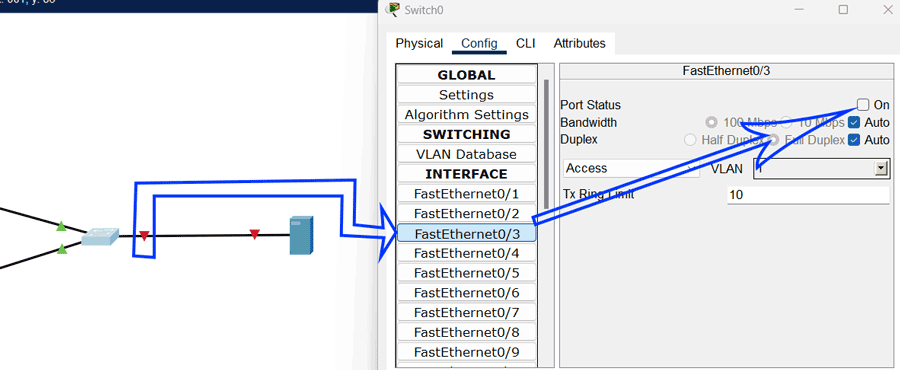
R1 has lost connectivity with the RADIUS server. Log in again from R2 using the username and password you configured on R1.

As shown in the image above, R1 accepted the connection this time. It verifies that if the RADIUS server is unavailable, R1 uses the local database for authentication.
Conclusion
RADIUS is a remote authentication service. It allows you to authenticate users from a single location. It is an open-standard service that operates in a client/server architecture. RADIUS uses UDP to exchange information between clients and the server, encrypting only passwords.
Author Laxmi Goswami Updated on 2026-05-05