Troubleshooting Wired and Wireless Client Connectivity
When a workstation reports Connected yet services refuse to load, that status icon tells you almost nothing. A wired port can show a link light in the wrong VLAN, a wireless client can pass authentication and fail DHCP, or routing can work while DNS breaks. In this tutorial, I will explain client troubleshooting as a disciplined sequence of small, testable boundaries. You will work outward from the endpoint, verify what works, and isolate the first broken stage before touching a switch or router.
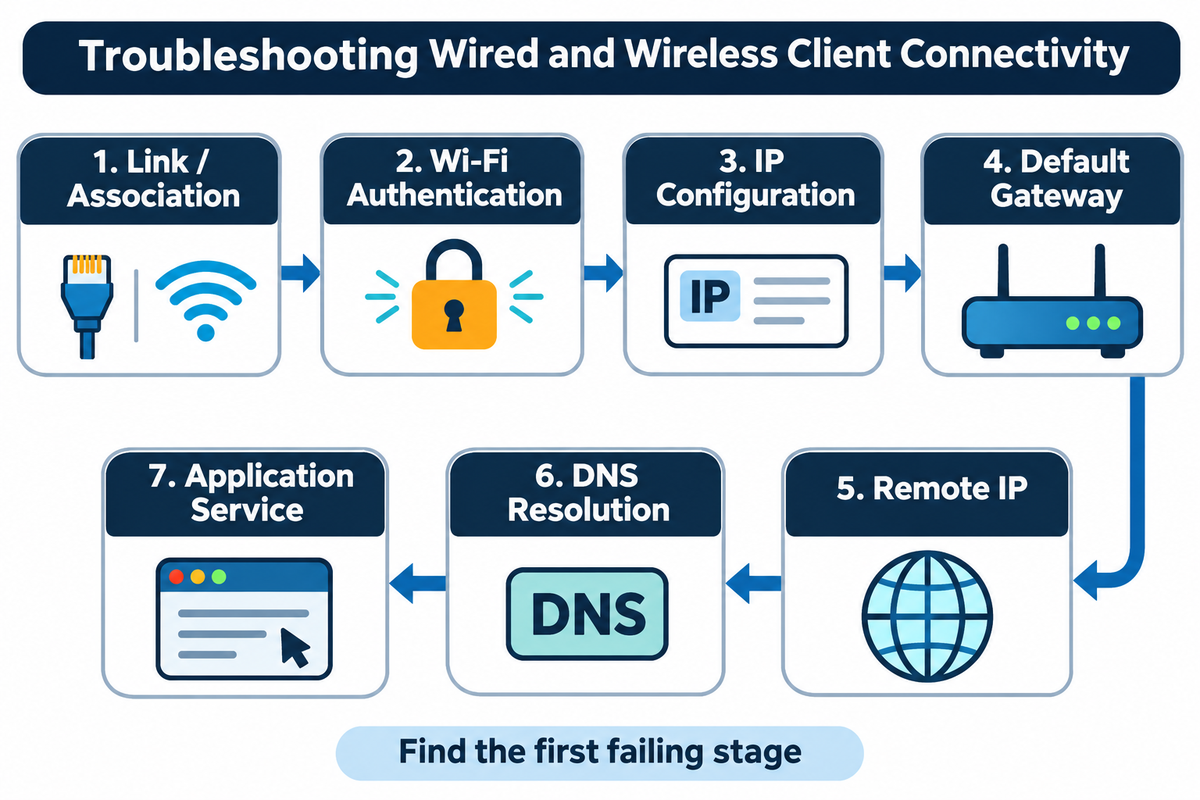
1. Follow the Seven-Stage Connectivity Workflow
Test outward from the client and stop at the earliest failing stage:
- Link or association (Layer 1/2): Confirm the wired NIC has an active link, or confirm the wireless adapter is associated with the intended SSID.
- Authentication and access control (Layer 2 gate): Verify Wi-Fi security negotiation (or wired 802.1X port authorization) succeeds before evaluating IP settings.
- IP configuration (Layer 3): Check the IPv4 address, subnet mask or prefix length, default gateway, and DNS servers.
- Default gateway: Confirm local reachability to the first-hop router.
- Remote IP reachability: Test a routed IP address beyond the local subnet.
- DNS resolution: Test hostname-to-IP lookup independently of IP routing.
- Application service: Verify the destination port, HTTPS certificate, proxy, VPN, or host firewall.
2. Verify Wired Links, Wireless Security, and RF Health
For wired endpoints, inspect the cable, adapter state, and switch port first. A green link light confirms physical signal, not correct VLAN membership or authorization. On managed switches, Port Security or BPDU Guard can place a port into err-disabled state and halt traffic immediately.
On wireless networks, separate association from authentication and IP delivery. A client must match the SSID, security mode, and credentials before DHCP runs:
- WPA2: Uses AES-CCMP encryption with Personal (PSK) or Enterprise (802.1X/EAP).
- WPA3-Personal: Replaces WPA2-Personal pre-shared-key authentication with Simultaneous Authentication of Equals (SAE), followed by the four-way handshake, and requires Protected Management Frames (PMF).
- WPA3-Enterprise: Uses 802.1X/EAP with mandatory PMF and offers an optional 192-bit CNSA (GCMP-256) mode.
- Wi-Fi Enhanced Open: Uses Opportunistic Wireless Encryption (OWE) for open public WLANs without a passphrase.
In an 802.1X WLAN, the Client (Supplicant) authenticates through the AP / WLC (Authenticator) to the RADIUS (Auth Server). Only after that Layer 2 security gate opens does client traffic cross the VLAN 20 Trunk toward the R1 Gateway (10.10.20.1)—configured with ip helper-address—to reach the DHCP Server.
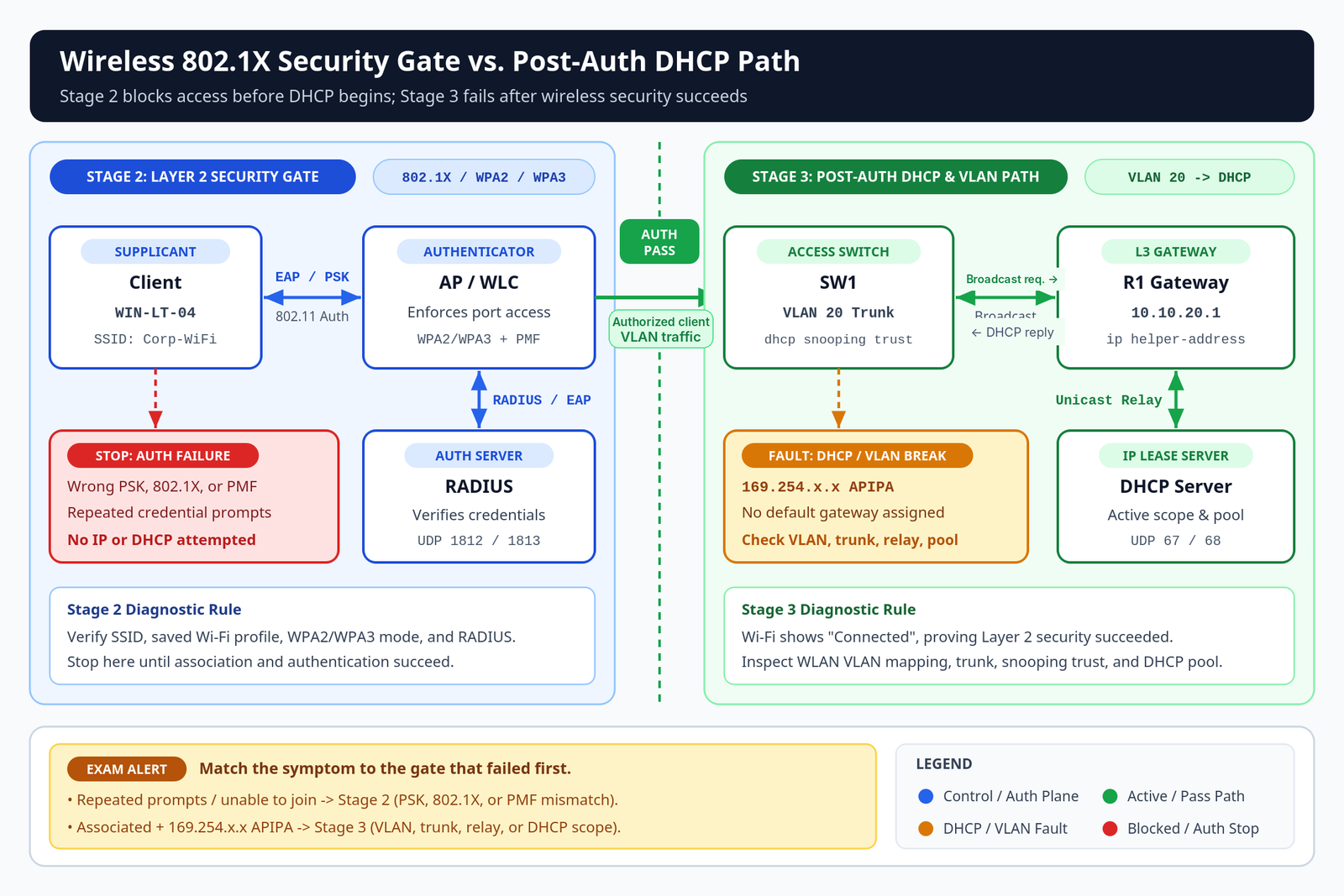
169.254.x.x) occurs only after association and authentication pass.An associated Wi-Fi client can still suffer radio-frequency (RF) degradation. Weak signal, thick walls, channel overlap, or 2.4 GHz interference trigger high retries and intermittent timeouts that mimic IP faults.
3. Check Client IP Parameters Across Windows, macOS, and Linux
On every operating system, gather the same five facts: adapter state, IP address, mask or prefix, default gateway, and active DNS servers.
| Evidence Needed | Windows | macOS | Linux |
|---|---|---|---|
| Adapter & IP/Mask | ipconfig /all | ifconfig en0, networksetup -getinfo "Wi-Fi" | ip -br address, ip address show |
| Default Gateway | ipconfig, netstat -rn | netstat -rn, route -n get default | ip route |
| Active DNS Servers | ipconfig /all | scutil --dns, ipconfig getpacket en0 | resolvectl status, /etc/resolv.conf |
| ARP / Neighbor Table | arp -a | arp -a | ip neighbor |
Keep three cross-platform behaviors in mind:
- APIPA (
169.254.0.0/16): Windows (APIPA) and macOS (Self-Assigned IP) assign a169.254.x.xlink-local address with no default gateway when DHCP fails. Linux behavior depends on the distribution, network manager, and connection settings. NetworkManager supports configurable IPv4 link-local addressing, including a fallback mode. - Interface naming: macOS Wi-Fi is not always
en0(verify withnetworksetup -listallhardwareports), and modern Linux uses predictable names likeens160orwlp2s0instead of legacyeth0orwlan0. - Dual-homed laptops: A laptop docked on Ethernet while connected to Wi-Fi installs competing default routes, letting interface metrics quietly steer traffic out the wrong gateway.
4. Test Reachability and Decode Ping Errors
Test one boundary farther at a time: ping 127.0.0.1 (local IPv4 stack), your gateway (R1 at 192.168.10.1 from Client 192.168.10.45/24 through SW1), a remote IP (1.1.1.1), and a DNS lookup (nslookup www.example.com). Run tracert -d 1.1.1.1 on Windows or traceroute -n 1.1.1.1 on macOS and Linux to inspect intermediate hops.
Do not treat every failed ping as identical. Read the exact error message:
General failure(Windows) orNo route to host(macOS/Linux): Check local interface state, routes, gateway, and neighbor resolution. These messages can indicate a local sending or reachability problem, but neither uniquely proves a missing gateway.Destination host unreachablefrom the client (192.168.10.45): Investigate local routing and neighbor resolution. For an on-link target, failed ARP is a common cause, not a certainty.Destination host unreachablefrom the gateway (192.168.10.1): The gateway reported that it could not deliver the packet. Inspect its route, next-hop resolution, and forwarding restrictions rather than assuming one specific cause.Request timed out: No ICMP Echo Reply arrived before the timer expired. This result alone cannot locate the drop or prove the request left the client. Check the request path, return path, ICMP filtering, and endpoint response.
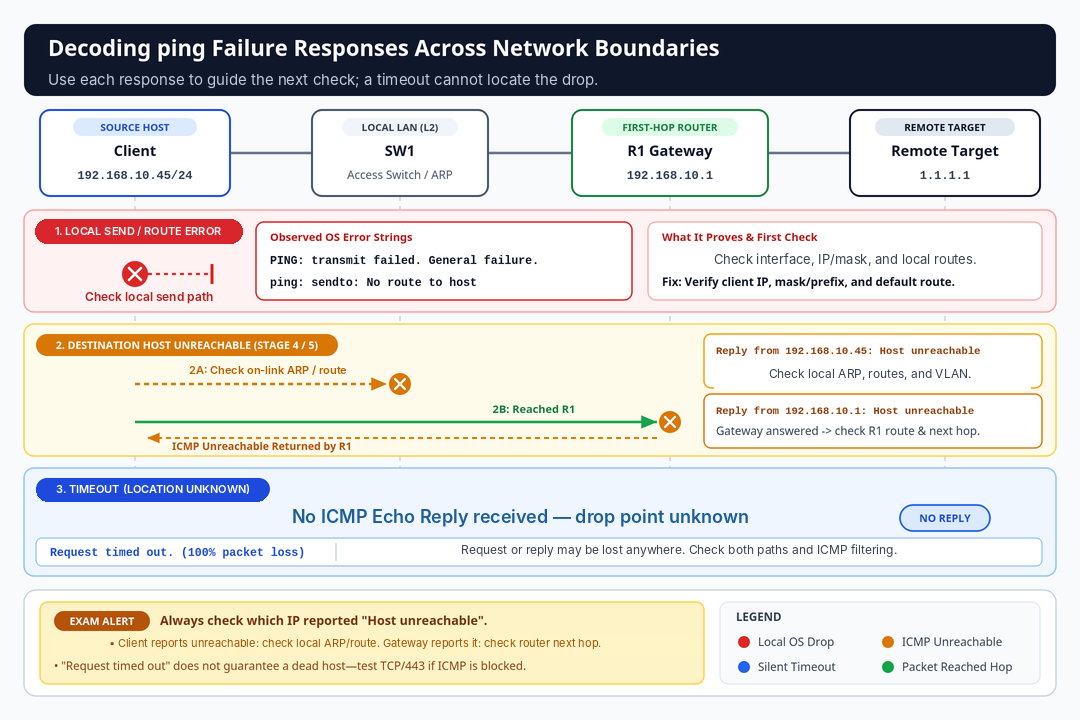
When local pings succeed but nslookup fails, compare the response: a timeout points to an unreachable DNS server or blocked UDP/TCP port 53, while NXDOMAIN proves the resolver answered and reported that the hostname does not exist.
5. Three Case Studies: Same Complaint, Different Root Cause
All three users report "Connected, but nothing loads." Follow the evidence to isolate the first failing stage in each ticket.
Case Study 1 (Windows): Link Active, Stuck on APIPA
Workstation Win11Pc1 connects to Ethernet0 with an active physical link, yet network shares and applications fail. Running ipconfig /all reports DHCP Enabled . . . : Yes, a link-local IPv6 address (fe80::f276:a33e:b0ae:875a%14), Autoconfiguration IPv4 Address . . . : 169.254.66.104(Preferred), mask 255.255.0.0, deprecated site-local DNS servers (fec0:0:0:ffff::1%1), and an empty Default Gateway.
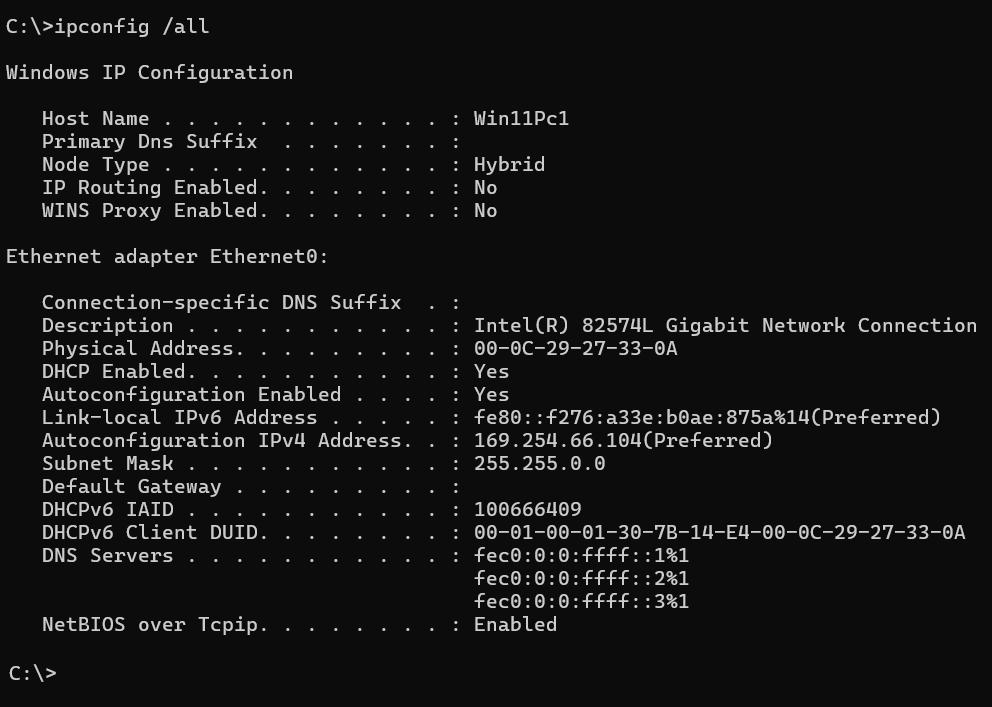
Pinging the intended gateway (ping 10.10.20.1) returns PING: transmit failed. General failure. with 100% loss.
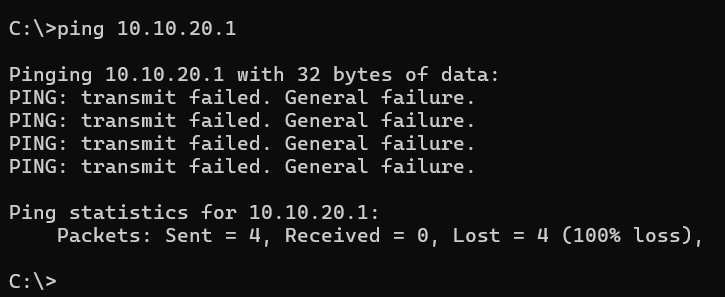
- Diagnosis (Stage 3 — IP Assignment): The reported Ethernet link is active, but the client did not obtain a usable DHCP IPv4 lease. The
fe80::...address andDHCP Enabled: Yesdo not establish successful IPv4 configuration. Check the route and local sending path before interpreting theGeneral failuremessage as a specific fault. - Fix: Check switch access VLAN assignment, trunk allowed VLANs to the router,
ip helper-address,ip dhcp snooping truston switch uplinks, and DHCP pool exhaustion.
Case Study 2 (macOS): Valid Private IP, Broken Subnet Math
A workstation uses a static IP on a 10.20.10.0/24 lab network (intended gateway 10.20.10.254). It pings local printer 10.20.10.12 cleanly, but ping 10.20.10.254 returns No route to host. Running ifconfig en0 shows inet 10.20.10.45 netmask 0xffffffc0 broadcast 10.20.10.63, and networksetup -getinfo "Wi-Fi" confirms mask 255.255.255.192 with router 10.20.10.254.
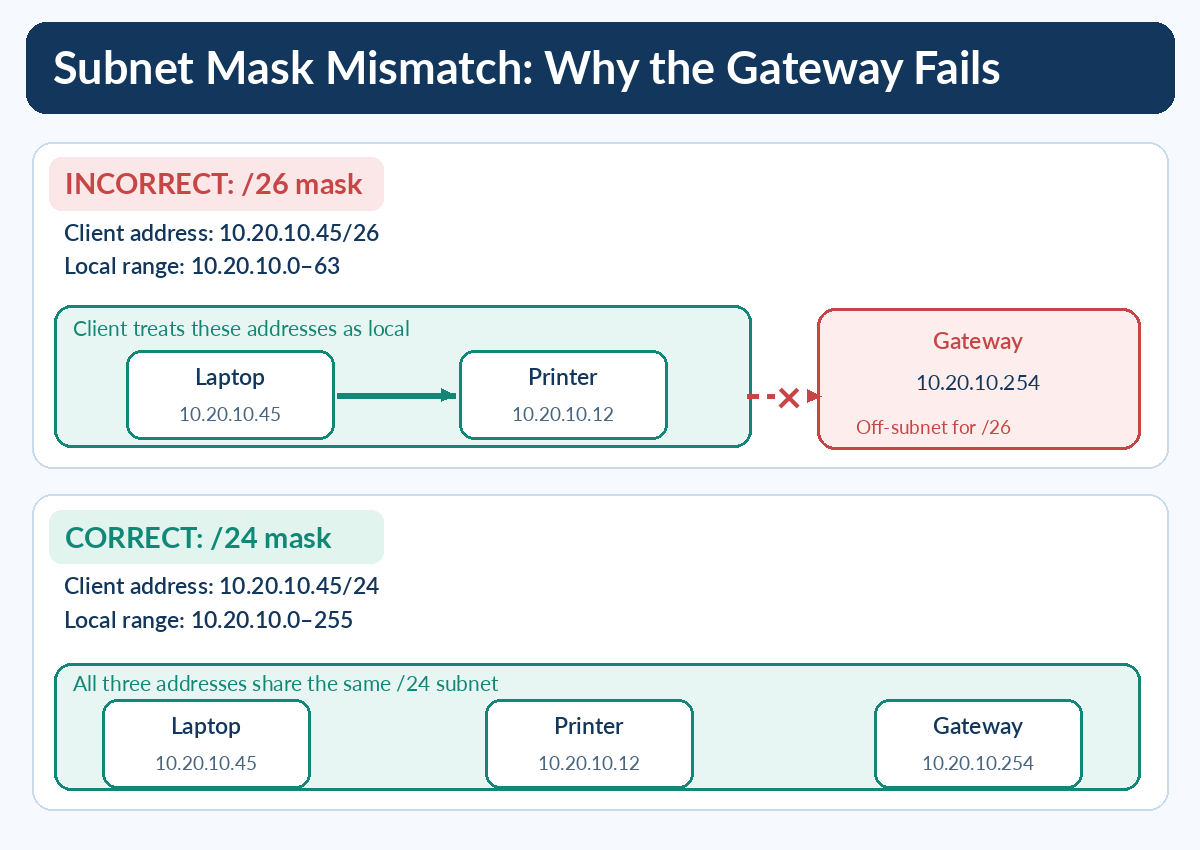
10.20.10.0/26, .0 and .63 are network and broadcast IDs (usable hosts .1–.62), placing .254 off-subnet.- Diagnosis (Stage 4 — Default Gateway): The
/26mask (0xffffffc0) includes printer.12on-link but excludes gateway.254, preventing ARP resolution for the router. - Fix: Change the subnet mask to
255.255.255.0(/24), confirm thedefaultroute innetstat -rn, and re-testping 10.20.10.254.
Case Study 3 (Linux): Local Gateway Works, DNS Times Out
Linux host Server1 shows interface ens160 in UP state with 192.168.1.1/24 via ip -4 -br address show, and default via 192.168.1.100 dev ens160 via ip route. Running cat /etc/resolv.conf reveals nameserver 172.16.99.53. Pinging the local gateway (ping -c 2 192.168.1.100) succeeds with 0% packet loss, while nslookup google.com fails with ;; communications error to 172.16.99.53#53: timed out.
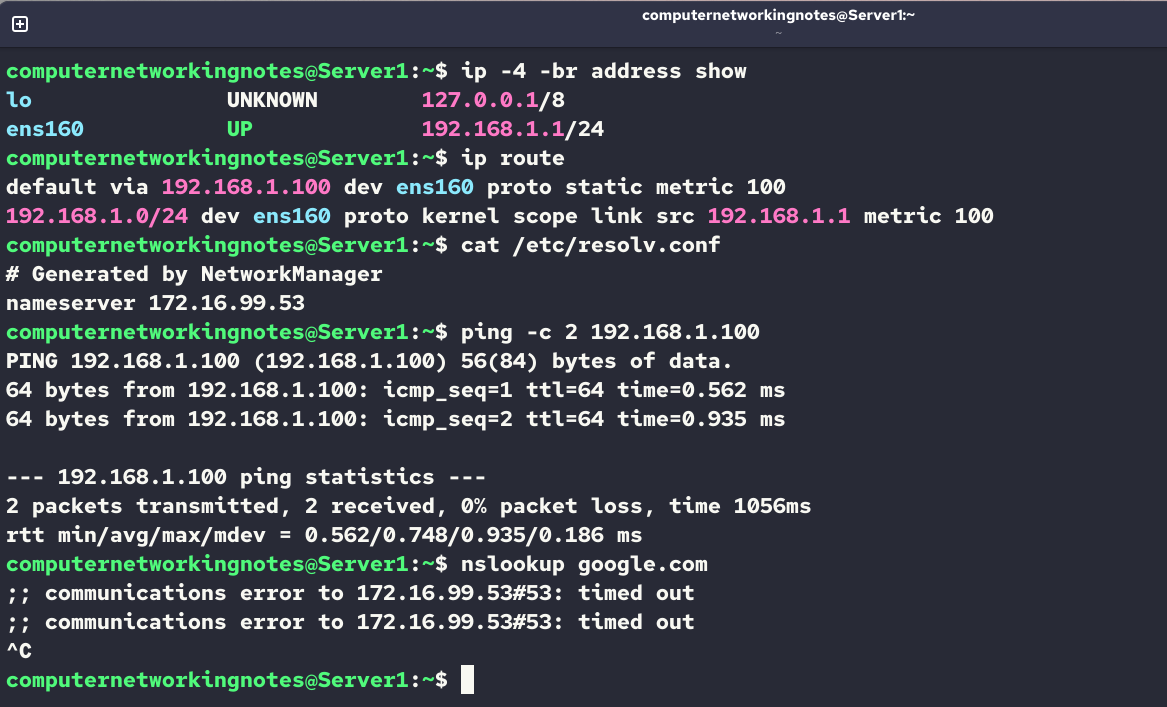
- Diagnosis (Stage 6 — DNS Resolution): Stages 1 through 4 are verified healthy on
ens160, and the timeout isolates name lookup failure to172.16.99.53. In a routed production network, always test Stage 5—pinging a remote IP or172.16.99.53directly—to confirm IP routing reaches the DNS server's subnet before blaming the DNS service itself. - Fix: Test
nslookup <target-hostname> <working-dns-ip>against a verified internal DNS server (or a permitted public resolver for external domains). Then correct DNS configuration at its source, such as DHCP, NetworkManager, or systemd-resolved. Do not assume that editing/etc/resolv.confdirectly will persist.
6. Escalate Cleanly to Cisco IOS
Inspect network gear only after client evidence identifies the failing segment. Watch for client MAC address randomization: modern wireless adapters randomize MACs per SSID, so always confirm the active interface MAC from the client OS before searching switch tables.
| Client Symptom | First Cisco IOS Command | What to Verify |
|---|---|---|
| Dead link or no traffic | Switch# show interfaces status | Port Fa0/1 in VLAN 20 (connected) vs. notconnect or err-disabled |
| AP/Router uplink trunking | Switch# show interfaces trunk | Trunk port Gig0/1 allowing VLAN 20 in forwarding state |
| Missing host or wrong port | Switch# show mac address-table dynamic | Dynamic MAC entries learned on Fa0/1 or trunk Gig0/1 |
| Gateway SVI/Subinterface | Router# show ip interface brief | Subinterface GigabitEthernet0/0.20 is 10.10.20.1 (up/up) |
| DHCP lease verification | Router# show ip dhcp binding | Client lease (10.10.20.2) bound to client MAC (0002.167D.043B) |
| Local ARP resolution | Router# show arp | Look for a learned client IP-to-MAC mapping (for example, 10.10.20.2). The shown 10.10.20.1 entry is the router's own interface, not evidence of client ARP resolution. |
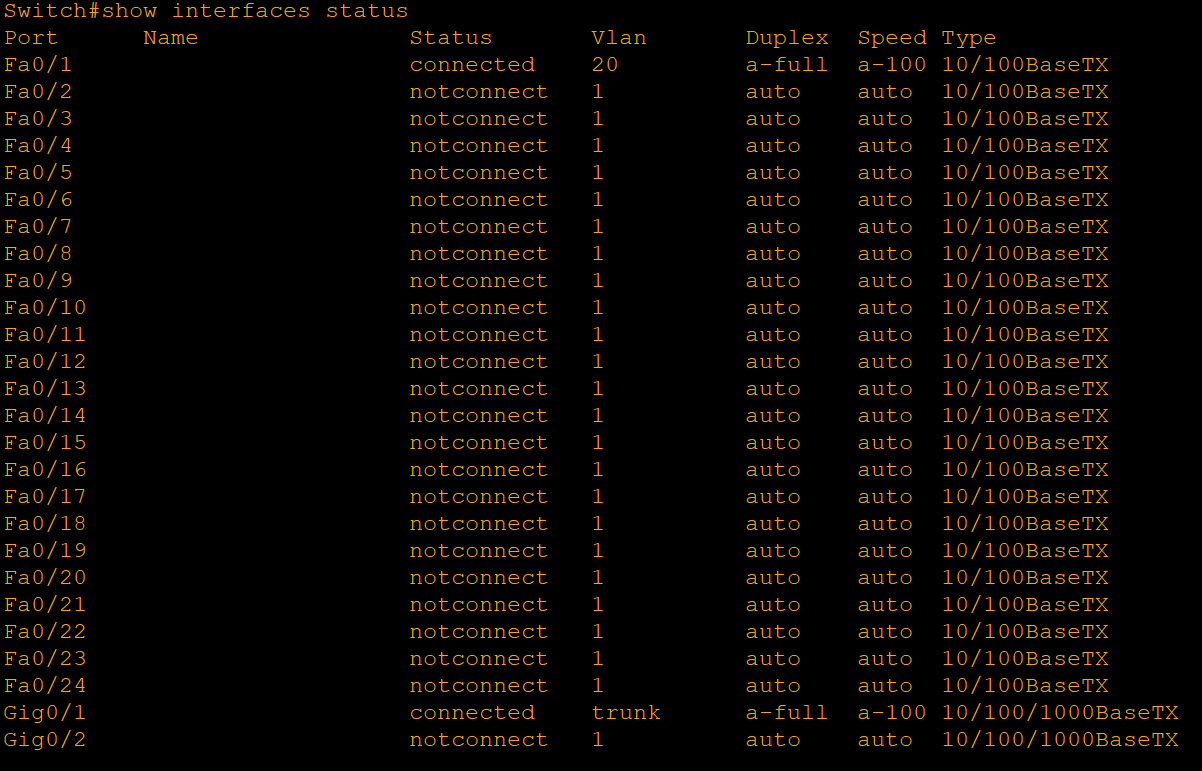
Switch# show interfaces status confirms client port Fa0/1 is connected in VLAN 20 and uplink Gig0/1 operates as a trunk.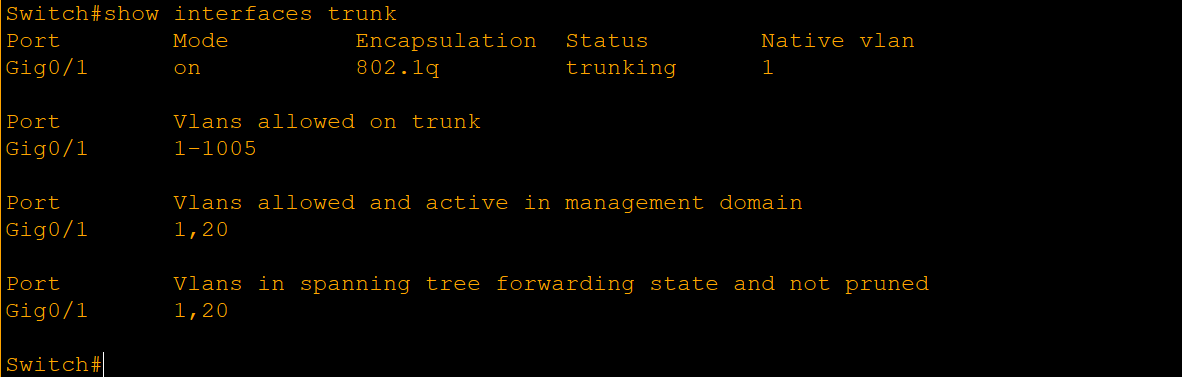
Switch# show interfaces trunk verifies 802.1q encapsulation with VLANs 1,20 active and forwarding on Gig0/1.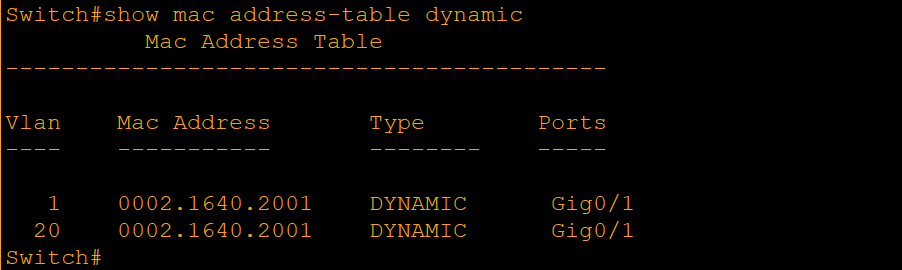
Switch# show mac address-table dynamic shows MAC 0002.1640.2001 learned on Gig0/1 across VLANs 1 and 20.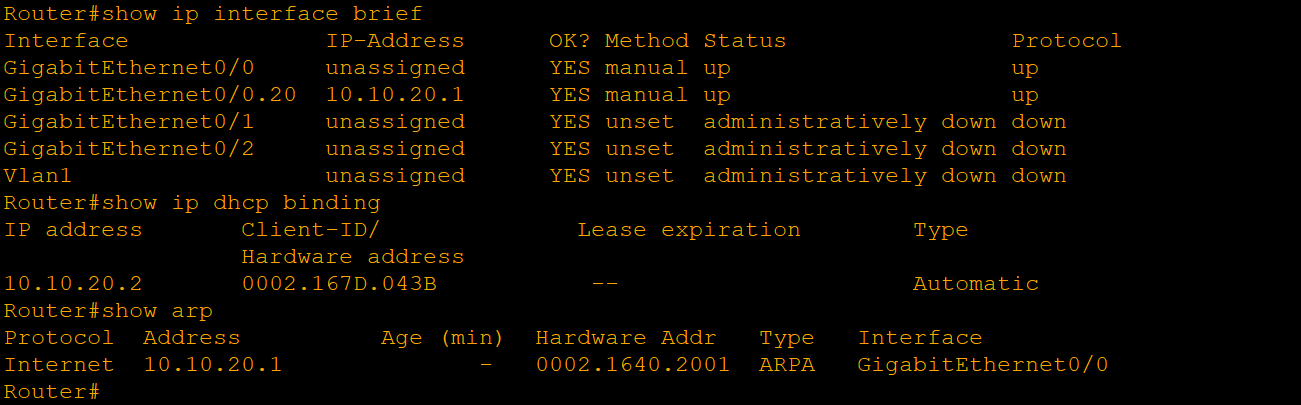
GigabitEthernet0/0.20 (10.10.20.1) is up/up, active DHCP lease 10.10.20.2 (0002.167D.043B), and the router's local ARP entry.Lab correlation walkthrough: First, show interfaces status confirms client port Fa0/1 is connected in VLAN 20 and uplink Gig0/1 operates as a trunk. Second, show interfaces trunk verifies Gig0/1 uses 802.1q encapsulation with VLANs 1,20 active and forwarding. Third, show mac address-table dynamic shows MAC 0002.1640.2001 learned on Gig0/1 in VLANs 1 and 20—evidence of prior source-MAC learning on the trunk, not proof that a particular client is currently forwarding traffic end to end. Finally, on the router, show ip interface brief verifies subinterface GigabitEthernet0/0.20 (10.10.20.1) is up/up, show ip dhcp binding confirms an active lease for 10.10.20.2 (0002.167D.043B), and show arp displays the router's local 10.10.20.1 interface entry. To verify client neighbor resolution, look for a learned mapping for client 10.10.20.2 after relevant traffic; that mapping is not demonstrated by the shown output.
7. Key Takeaways
- Stop at the first broken boundary: Work outward from Link/Association through Security, IP Config, Gateway, Remote IP, DNS, and Application instead of guessing from an application failure.
- Verify five client parameters on every OS: Check adapter state, IP address, mask/prefix, default route, and active DNS—and know which commands hide gateway or DHCP-learned DNS.
- Separate Layer 2 security from Layer 3 DHCP: Credential prompts point to PSK, 802.1X, or PMF mismatches; APIPA (
169.254.x.x) on an active link points to VLAN, trunk, relay, or DHCP delivery. - Decode the exact error: Match
pingreplies (No routevs.Host unreachablevs.Timed out) and DNS results (timeoutvs.NXDOMAIN) to the failing hop before touching Cisco IOS configurations.
8. Practice Questions
1. A wireless user sees the corporate SSID, gets repeated password prompts, and has no IPv4 address. What should you inspect first?
- Switch trunk allowed VLANs
- Wireless security mode, passphrase, or 802.1X credentials
- DHCP pool lease duration
- Active DNS server IP
Answer: B. Repeated credential prompts indicate failure at the Stage 2 security gate before DHCP runs.
2. A host at 192.168.20.40/24 pings its gateway 192.168.20.1 and receives Destination host unreachable from 192.168.20.40. What failed?
- DNS resolution
- Remote return routing
- Local ARP resolution on the client's subnet
- Wireless WPA3 PMF negotiation
Answer: C. With an on-link gateway, this client-generated unreachable response makes local neighbor resolution, including ARP, a first check. Verify the gateway route and ARP table rather than treating the message as conclusive proof of one fault.
3. Workstation Win11Pc1 connects to Ethernet0 cleanly, yet receives address 169.254.66.104 with no gateway. Which infrastructure check comes first?
- Reinstall the Windows network adapter driver
- Verify access VLAN assignment on
Fa0/1and trunk allowed VLANs onGig0/1 - Change client DNS server to
8.8.8.8 - Disable IPv6 on the client workstation
Answer: B. The reported active link makes a disconnected cable less likely, but APIPA alone does not prove the cabling is healthy. With link state confirmed, check VLAN membership, trunk forwarding, relay configuration, and DHCP availability.
Author Laxmi Goswami Updated on 2026-11-23