The show interface Command On Routers and Switches
The show interface [interface ID] command is a privileged mode command on Cisco routers and switches. It provides detailed information about the interface’s operational status. You can use this information to diagnose and troubleshoot issues that prevent the interface from functioning properly. This tutorial explains how to read interface status, speed, duplex, collisions, errors, and physical-layer fault patterns in the output of this command, and how to use that information to fix the issue.
The following CCNA 2.0 exam objectives are addressed in this tutorial.
1.0 Network Infrastructure and Connectivity
1.1 Diagnose interface and cable (copper and fiber) issues such as collisions, errors, mismatched duplex, speed, distance, interface, signal levels, pinout, and cable types.
Interface status
Interface status is the first thing to check when diagnosing and troubleshooting interface issues. An interface has five operational states: up, administratively down, down, flapping, and degraded.
- The up state represents an operational interface. In this state, the interface is fully functional.
- An administratively down state shows an interface that is manually shut down from the configuration.
- A down state indicates that the interface is not usable. This could be due to a physical issue or a configuration error.
- A flapping state shows an unstable link that repeatedly changes its state.
- A degraded link represents an up link that carries traffic poorly.
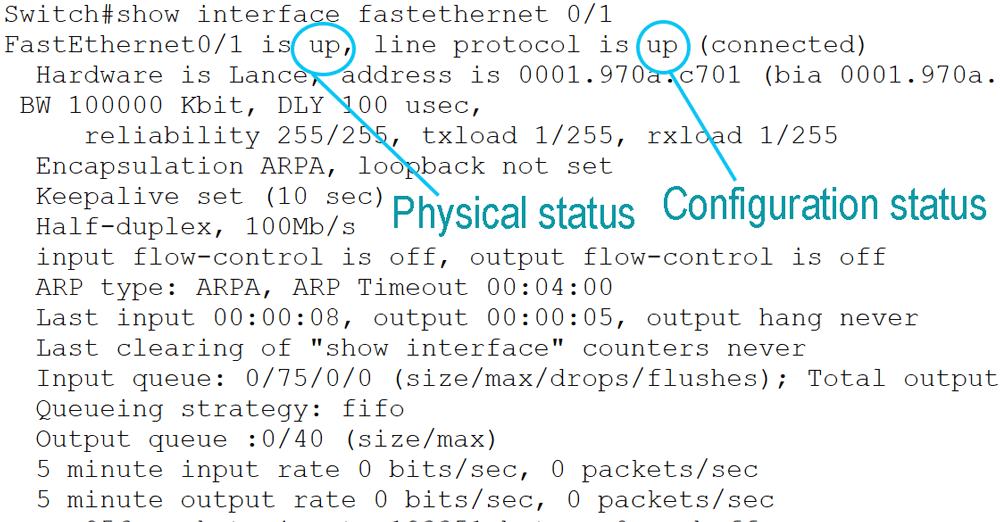
The following image shows this command's output on a switch for the interface F0/1. The first line of the show interface output shows the interface status. It shows two statuses. The first indicates the link's physical state, while the second denotes the configuration state.
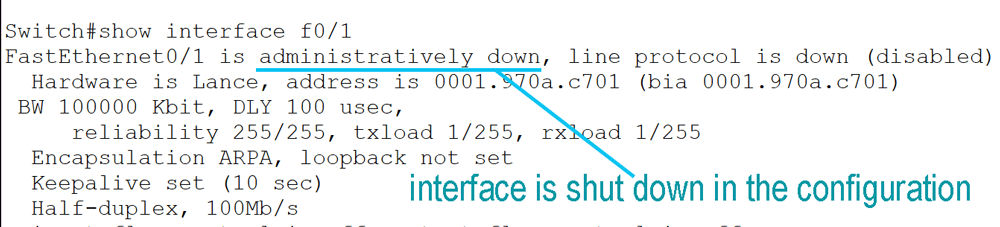
If the status shows Administratively down, the interface is shut down in the configuration.
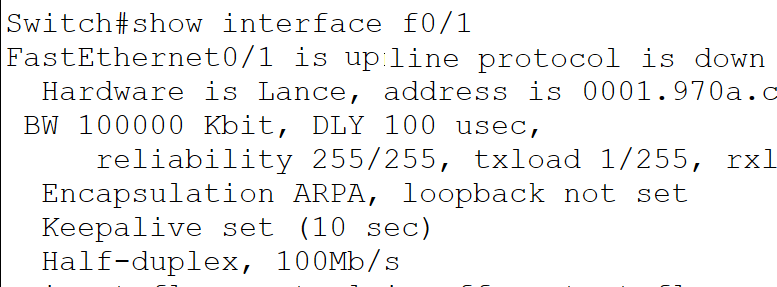
If it shows UP/down, the physical link is UP, but the interface is not functional due to missing configuration or a configuration error.
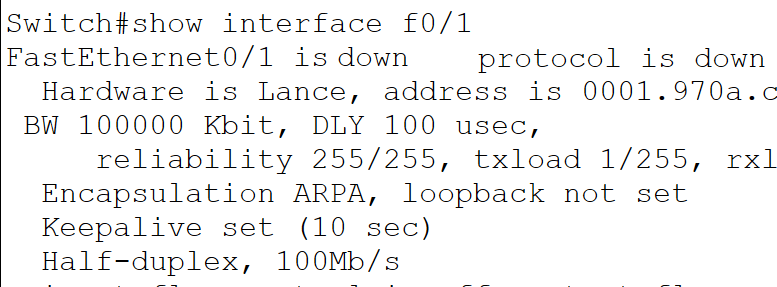
If it displays down/down, the interface is down due to both physical and configuration reasons. Possible reasons include a disconnected or broken cable, no signal, unsupported transceivers, the interface on the other side of the cable is manually shut down, loose connectors, or intermediate device failure.
If both states are up, the link is operational.
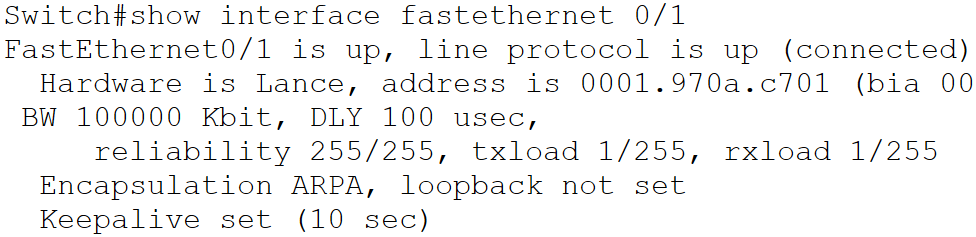
If the first state changes each time you run this command, the link is flapping. A flapping link generates repeated up-and-down log messages and shows counters that reset each time the interface renegotiates. Possible causes include loose connectors, weak signals, a cable that exceeds the supported length, faulty transceivers, or inconsistent speed negotiation.
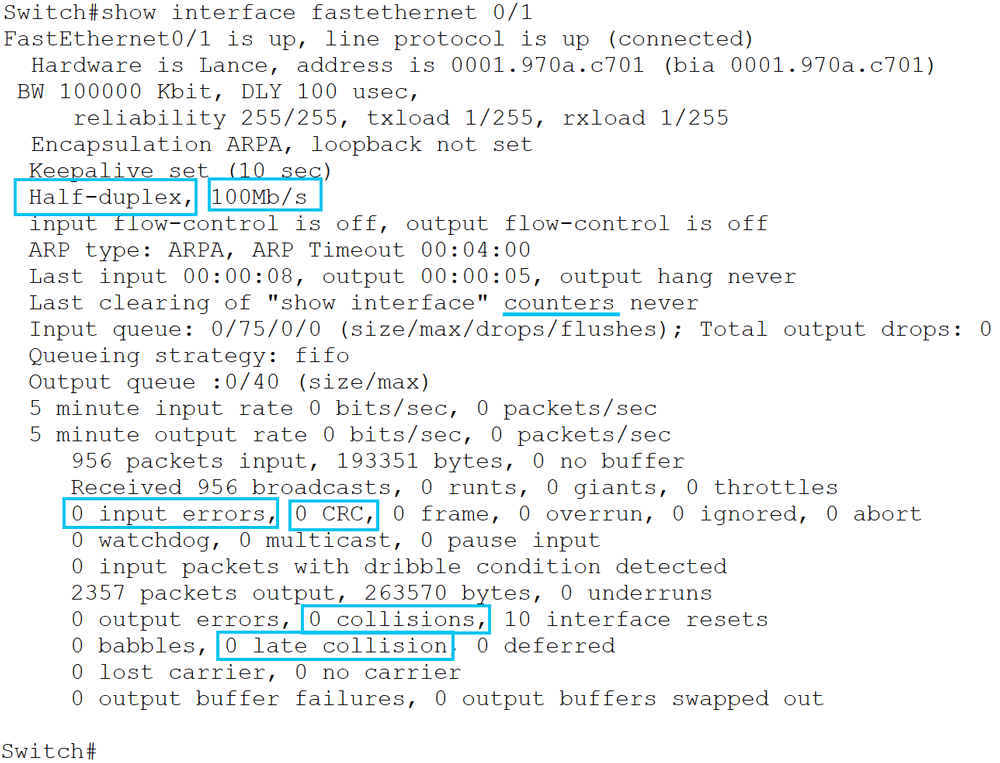
If a link is slow while both states are up, it is considered a degraded link. A degraded link is functional now but can fail at any time in the near future. To fix a degraded link, check the counters in the output. They provide the information you need to fix it, such as input errors, CRC errors, collisions, drops, late collisions, or poor throughput.
CRC errors occur when received frames fail the frame check sequence. They often indicate damaged media, interference, poor signal quality, or a duplex-related problem.
Input errors are generic and broader. Instead of indicating a single cause, they cover many possibilities, such as CRC, frame, cable overrun, or ignored errors, depending on platform and output.
There are two duplex modes: half and full. In half duplex, an interface can only send or receive frames at a time. In full duplex, it can transmit and receive simultaneously. A duplex mismatch occurs when both sides of a link operate in different duplex modes. In that case, the link remains up, but its performance decreases. To confirm the issue is related to duplex mismatch, check the counters. The half-duplex side shows collisions and late collisions, while the full-duplex side reports CRC or input errors. Late collisions occur outside the normal collision window. They are the strongest evidence of a duplex issue. So if you see a growing collision count, check the duplex configuration first.
Based on the connected cable, interfaces usually automatically adapt to the appropriate transmission speed. However, you can change it in the configuration. If you do, you need to match it on both sides. Many interfaces fail to establish a functional link if their configured speeds differ or are incompatible. A few limited Interfaces may establish a working link even if their speeds differ, but they may settle on an unexpectedly lower speed. Check the transmission speed on both sides of the link.
Diagnosing / Troubleshooting steps
- Run the 'show interface [interface ID]' command on interfaces connected to both ends of the link.
- Check the link status in the first line of the output.
- If the status is administratively down, the interface is manually shut down. Bring the interface up from interface configuration mode.
- If the status is down/down,
- Check the LED indicator on the port.
- If it is orange or red, check the connectors and cable for faults. Possible causes include loose connectors, incompatible wire placements in connectors, an unplugged cable, a broken cable, cable overrun, and a break in the cable.
- If it is blinking green, check for configuration errors.
- Check the speed and duplex configurations on both sides. They must match.
- Clear counters, generate controlled traffic, and observe the counters.
- Compare the local and remote interface settings for any mismatch.
- Replace one component at a time and observe the counters for impact.
- Check the LED indicator on the port.
Cheat sheet for troubleshooting
The table above uses the output of the 'show interface [interface ID]' command as the reference.
| Status | Related Layer | Possible reasons | Verification | Troubleshooting |
| Administratively down/down | Data Link | Manually shutdown | Explicitly mentioned | Enter interface configuration mode and run the no shutdown command. |
| Down/down | Physical | No signal, cable break, hardware failure | No link light on the port | Check connectors and the cable. |
| Flapping link | Physical | Loose connectors or a cable break | Repeated link-state log messages | Clean the connectors and reseat media. |
| Increasing collisions | Physical / Data-Link | Duplex mismatch | Check collision counter under traffic. | Compare duplex settings on both ends. |
| Increasing late collisions | Physical / Data-Link | Duplex mismatch or cable overrun | Check Late-collision counter. | Check duplex configuration and cable length. |
| CRC and input errors | Physical/ Data-Link | Weak or broken cable, loose connectors | Counters increase as traffic flows. | Check cable, optics, duplex, and speed settings. |
| Unexpected low speed | Data-Link | Configuration mismatch, congestion, collisions | Interface is up at a lower data transfer speed. | Compare configured and supported speeds. |
Conclusion
The show interface [interface ID] command provides vital information about the interface and connected media. Understanding this information helps you identify the possible cause of the issue. In this tutorial, I explained how to read and interpret this output to diagnose and troubleshoot interface and link issues.
Author Laxmi Goswami Updated on 2026-11-07