Wi-Fi Security: 802.11 Troubleshooting Guide
When an end user reports that their device is "Connected, no internet," network support teams often jump straight to running ping sweeps against the default gateway, checking DHCP address scopes, or inspecting recursive DNS forwarders. While these validation steps are essential in wired Ethernet environments, they are fundamentally flawed as first steps in wireless local area networks (WLANs). In IEEE 802.11 networks, Layer 2 wireless security acts as an absolute gatekeeper before any IP-level communication can begin. A client station (STA) must discover a compatible access point (AP), complete link-layer authentication, establish an association state, and execute cryptographic key derivation (or enterprise identity verification) before its data port is unblocked to bridge higher-layer protocols. If this security gate fails, Layer 3 (DHCP/ARP) and Layer 7 (DNS/HTTP) traffic are unreachable by design.
The following CCNA 2.0 exam objectives are addressed in this tutorial.
1.5 Describe wireless principles
1.5.c Security protocols
1. The 802.11 Connection Sequence: Understanding the States
A station progresses through strict operational states defined by the IEEE 802.11 standard before application data can traverse the radio link. The exact execution order depends on whether the network uses legacy WPA2 or modern WPA3.

Step 1: RF Discovery and Passive/Active Scanning
Before negotiating parameters, the client's wireless interface scans the configured regulatory domain across 2.4 GHz, 5 GHz, or 6 GHz channels:
- Passive Scanning: The station listens across channels for periodic Beacon Frames (typically broadcast every 100 Time Units / ~102.4 ms) announcing the Service Set Identifier (SSID), supported basic data rates, Radio Resource Management (802.11k) capabilities, and security suites.
- Active Scanning: The client broadcasts or unicasts Probe Request frames containing supported data rates and either a wildcard or specific SSID. Nearby APs configured for that WLAN respond with Probe Response frames.
Security Note: SSID Cloaking / Hidden SSIDs
Hiding an SSID (suppressing the network name in beacon frames) is not an effective security mechanism. Probe requests, probe responses, and association requests still transmit the SSID over the air in cleartext, where standard spectrum and packet analyzers instantly detect it. Furthermore, hidden SSIDs force client devices to continuously broadcast active probe requests searching for the network, leaking client identity and draining device battery life.
Step 2: 802.11 Open System Authentication vs. WPA3 SAE
Once an AP is selected based on Received Signal Strength Indicator (RSSI), signal-to-noise ratio (SNR), and capability vectors, the client initiates link-layer authentication:
- WPA2-Personal & WPA2-Enterprise: Historically relies on 802.11 Open System Authentication—a trivial two-frame exchange (Authentication Request and Authentication Response). It serves purely as an architectural formality inherited from original 802.11 standards and does not validate the Pre-Shared Key (PSK) or enterprise credentials.
- WPA3-Personal: Replaces Open System authentication with Simultaneous Authentication of Equals (SAE). SAE is a variant of the Dragonfly handshake (a zero-knowledge, password-authenticated key exchange). The client and AP mutually prove knowledge of the password using commit and confirm frames before association, establishing forward secrecy and eliminating offline dictionary attacks.
Step 3: Association (Establishing Link-Layer Tracking)
After authentication succeeds, the client transmits an Association Request frame. This frame declares critical station capabilities, such as supported channel widths (20/40/80/160/320 MHz), Modulation and Coding Schemes (MCS), listen intervals, and specific vendor Information Elements (IEs). The AP verifies its own admission control policies, allocates an Association ID (AID) and client state tracking tables, and returns an Association Response with a status code (e.g., Status 0 = Successful).
Crucial Distinction: An association state only proves link-layer connectivity has been accepted. Until security authorization finishes in Step 4, the AP's 802.1X/controlled port remains closed, blocking all normal unicast data frames.
Step 4: Cryptographic Key Handshake & Port Authorization
Upper-layer data frames remain restricted until key establishment is completed:
- WPA2/WPA3-Personal (4-Way Handshake): The client and AP execute an EAPOL-Key 4-Way Handshake. They exchange nonces (ANonce and SNonce) to derive a dynamic Pairwise Transient Key (PTK) from the Pairwise Master Key (PMK) without ever transmitting the pre-shared key over the air. If the client entered an incorrect password, it fails at this step (Message 2/3 validation failure).
- WPA2/WPA3-Enterprise (802.1X/EAP Exchange): The AP acts as an authenticator, encapsulating EAP packets inside RADIUS access requests to a centralized authentication server (such as Cisco ISE or FreeRADIUS). Once the identity/certificate is verified, the RADIUS server passes a Master Session Key (MSK) to the AP, which then initiates the 4-Way Handshake to install temporal encryption keys.
Step 5: Layer 3 Addressing and Upstream Reachability
Once the 4-Way Handshake installs the PTK and Group Temporal Key (GTK), the controlled port enters the authorized state. The client can now broadcast a DHCP Discover to obtain an IPv4 lease, request gateway/DNS options, and perform IPv6 SLAAC or DHCPv6.
2. WPA2 vs. WPA3 Comparison: Personal and Enterprise
| Security Architecture | Authentication Method | Cryptographic Key Derivation | Required Protection Standards |
|---|---|---|---|
| WPA2-Personal | Open System (Null) + PSK | PBKDF2 hashes the passphrase to form PMK; 4-Way Handshake yields PTK (AES-CCMP)[cite: 1]. | Optional PMF (802.11w). Susceptible to offline dictionary attacks if 4-way handshakes are captured. |
| WPA3-Personal | Simultaneous Authentication of Equals (SAE) | Dragonfly key exchange derives PMK dynamically per session; 4-Way Handshake confirms keys. | Mandatory PMF (802.11w). Forward secrecy; resilient against passive capture and offline dictionary cracking. |
| WPA2-Enterprise | 802.1X / EAP (PEAP, EAP-TLS, EAP-FAST, etc.) | Centralized RADIUS server verifies identity, yields MSK; AP and client derive PTK/GTK. | Optional PMF. Vulnerable to rogue deauthentication attacks when PMF is disabled. |
| WPA3-Enterprise | 802.1X / EAP with authenticated suites | Similar to WPA2-Enterprise, with optional 192-bit mode (B-192: CNSA profile using GCMP-256). | Mandatory PMF (802.11w). Eliminates insecure cipher/hash suites (TKIP/WEP completely removed). |
Troubleshooting WPA2-Personal: The Cached Stale Profile Trap
A common operational fault occurs when an administrator changes a WLAN's pre-shared key, but users report their devices "Cannot connect to this network" or loop endlessly between connecting and disconnecting.
Modern desktop and mobile operating systems cache security profiles. When the connection initiates, the OS silently attempts to complete the 4-Way Handshake using the old, cached PMK. Because the initial 802.11 Open Authentication and Association frames succeed, the OS does not immediately prompt the user for a new password. Instead, Message 2 or 3 of the 4-Way Handshake fails integrity checks, prompting the AP to deauthenticate the client with reason codes such as Reason 2 (Previous authentication no longer valid) or Reason 15 (4-Way Handshake timeout). Clearing or forgetting the cached wireless network profile forces the client operating system to prompt for the new passphrase.
Troubleshooting WPA3-Personal: PMF and Transition Mode Gotchas
WPA3 enforces Protected Management Frames (PMF / IEEE 802.11w) to prevent attackers from spoofing disassociation and deauthentication frames. However, mixed environments running WPA2/WPA3 Transition Mode (allowing WPA2-PSK and WPA3-SAE on the same SSID) frequently trigger interoperability bugs on older legacy IoT chips or outdated client drivers. Some legacy clients do not parse the Transition Mode Information Elements correctly or reject connections when PMF is listed as optional/required. In enterprise architectures, the recommended design is creating a dedicated WPA3-only SSID rather than relying on transition mode across mission-critical devices.
Troubleshooting WPA-Enterprise: 802.1X, PKI, and RADIUS Failures
Enterprise Wi-Fi decouples the radio medium from client identity validation. When an 802.1X client fails to join, the fault rarely lies within the radio environment. Investigate these root causes:
- Certificate Trust Failures: In EAP-TLS and PEAP-MSCHAPv2, the client must validate the RADIUS server's certificate against its local trusted root Certificate Authority (CA) repository. Expired server certificates, missing intermediate certificates, or mismatching Subject Alternative Names (SAN) cause instant client-side termination.
- Client Certificate Expiration (EAP-TLS): In mutual authentication (EAP-TLS), expired machine or user certificates on the endpoint halt the TLS tunnel negotiation.
- RADIUS Communication Timeouts: Misconfigured RADIUS shared secrets, MTU mismatches on intermediate routers causing fragmentation of large EAP-TLS certificate payloads, or firewalls blocking UDP ports 1812/1813 or 1645/1646 prevent authentication entirely.

3. Troubleshooting Wi-Fi by Fault Boundary
Isolating network faults requires identifying the exact layer where negotiation stops. Never adjust upstream routing tables or change DHCP scope scopes when a client is failing at Layer 2.

| Observed Symptom | Exact Fault Boundary | Root Causes & First Checks |
|---|---|---|
| SSID missing from scanning list | RF / PHY Layer (L1) | AP radio disabled; client band incompatibility (e.g., 2.4 GHz client scanning 5/6 GHz network); DFS channel blackouts; low RSSI (< -75 dBm). |
| "Unable to join network" / Association failure | 802.11 Association (L2) | Client/AP capability mismatch (e.g., 802.11r FT requirement missing); maximum BSSID client limit reached; AP admission control rejection. |
| Repeated connecting/disconnecting loop | Security Key Handshake (L2) | Stale cached profile; incorrect PSK/passphrase; SAE commit failure; missing PMF support on client. |
| "Action needed: authentication required" / 802.1X denied | Identity / EAP / AAA (L2/L3) | Invalid credentials; expired user/machine certificate; untrusted RADIUS server certificate; shared secret mismatch between AP/WLC and RADIUS. |
IPv4 assigned: 169.254.x.x (APIPA) | Address Assignment / DHCP (L3) | Security gate passed, but DHCP Discover timed out. Check WLAN-to-VLAN mapping, 802.1Q trunking, DHCP pool exhaustion, or DHCP relay (ip helper-address). |
| Valid IP; cannot ping Default Gateway | Local Layer 2/3 Boundary | Client isolation enabled on the WLAN; upstream switchport ACL blocking traffic; ARP resolution failure; gateway interface down. |
Can ping Gateway, cannot ping 8.8.8.8 | Upstream Routing / NAT (L3) | Default route missing on first-hop router; upstream ISP outage; Network Address Translation (NAT) table exhausted or misconfigured. |
Can ping 8.8.8.8, cannot open web URLs | Name Resolution / L7 | Misconfigured DNS server IPs via DHCP; UDP/TCP port 53 blocked; captive portal intercepting requests; web proxy/filtering failure. |
4. Practical Command-Line Diagnostics (Windows, macOS, Linux)
Diagnosing client-side state requires running platform-specific diagnostic tools to inspect link-layer metrics alongside network configurations.
Windows Commands
# 1. View detailed Wi-Fi connection metrics (SSID, BSSID, Radio type, Signal, Channel)
netsh wlan show interfaces

# 2. Inspect configured network profiles
netsh wlan show profiles

# 3. Delete a stale/cached profile to clear corrupt keys
netsh wlan delete profile name="Enterprise-SSID"

# 4. Generate an in-depth HTML diagnostic report tracking connection transitions
netsh wlan show wlanreport
macOS Diagnostic Commands
# 1. Query full link-layer status (RSSI, Noise, Tx Rate, Security, Channel width)
/System/Library/PrivateFrameworks/Apple80211.framework/Versions/Current/Resources/airport -I

# 2. Clear a saved network entry from the system keychain
networksetup -removepreferredwirelessnetwork en0 "Corporate-WLAN"
Linux Diagnostic Commands
# 1. Review link-layer operational parameters using iw
iw dev wlan0 link

# 2. Trace 802.11 connection and authorization logs in real time
journalctl -u NetworkManager -f
# or if running standalone wpa_supplicant:
wpa_cli status
5. CCNA Exam Scenarios: Dissecting Question Wording
Cisco certification exams (CCNA 200-301) frequently present connectivity problems where the correct answer depends on identifying the exact operational layer.
Scenario A: The Pre-Association Failure
Question Prompt: A newly deployed laptop cannot connect to an office WLAN. The user states that the operating system immediately reports "Unable to connect to this network." Other users in the same room are connected without issue. What should the network engineer verify first?
Exam Analysis: The immediate rejection before establishing an active link points to a pre-association capability or security mismatch. Investigating DHCP scopes or pinging the default gateway is incorrect because the client never associated. The correct troubleshooting action is verifying the laptop's Wi-Fi adapter capabilities, ensuring the correct SSID is selected, and confirming matching security protocols (e.g., verifying client PMF/SAE compatibility if WPA3 is enabled).
Scenario B: The 169.254.x.x Fallback
Question Prompt: A wireless technician notices that several tablets display a connected Wi-Fi status icon with an exclamation mark. Running ipconfig reveals an IPv4 address of 169.254.12.44 with a subnet mask of 255.255.0.0. What does this indicate?
Exam Analysis: The connected status confirms that 802.11 authentication, association, and cryptographic key establishment succeeded. However, the 169.254.0.0/16 address is an Automatic Private IP Addressing (APIPA) / link-local address assigned when a DHCP client receives no reply to its DHCP Discover packets. The engineer must check upstream DHCP relay agents (ip helper-address), VLAN mappings on the Wireless LAN Controller (WLC), and DHCP pool availability.
Scenario C: Resolving IPs but Not FQDNs
Question Prompt: A connected corporate smartphone can successfully ping an external IP address (198.51.100.10), but users cannot open web pages using internal or external domain names (e.g., intranet.local or cisco.com). Where does the issue lie?
Exam Analysis: Successful ICMP reachability to an external IP confirms Layer 1 (RF), Layer 2 (802.11 association/security), and Layer 3 (IP, gateway, routing, and NAT) are fully operational. The failure to load domain names isolates the fault to Layer 7 DNS name resolution. Check the DNS server IP addresses assigned by DHCP and confirm UDP port 53 is not blocked by upstream access control lists (ACLs).
6. Frequently Asked Questions (FAQ)
Can a Wi-Fi client be associated without being authenticated?
In standard 802.11 terminology, association requires successful 802.11 authentication first. However, in WPA2 networks, that initial authentication is purely Open System (null authentication). Full security authorization (e.g., 802.1X/EAP validation or 4-Way Handshake key installation) occurs after association. Until security authorization completes, the AP blocks user traffic.
Does an APIPA (169.254.x.x) address indicate a Wi-Fi security issue?
No. An APIPA address proves that the client successfully passed the Layer 2 wireless security gate. The failure occurred at Layer 3 because the client did not receive a response from a DHCP server. Troubleshooting should focus on DHCP servers, relay configurations, and VLAN interfaces.
Why does a device show "Connected, no internet access"?
This status indicates that the client associated and completed link-layer security, but operating system connectivity checks (such as HTTP/DNS requests to verification endpoints like msftconnecttest.com) failed. Common causes include unassigned/APIPA addressing, gateway reachability failure, captive portal blocks, DNS server timeouts, or an upstream ISP outage.
Conclusion
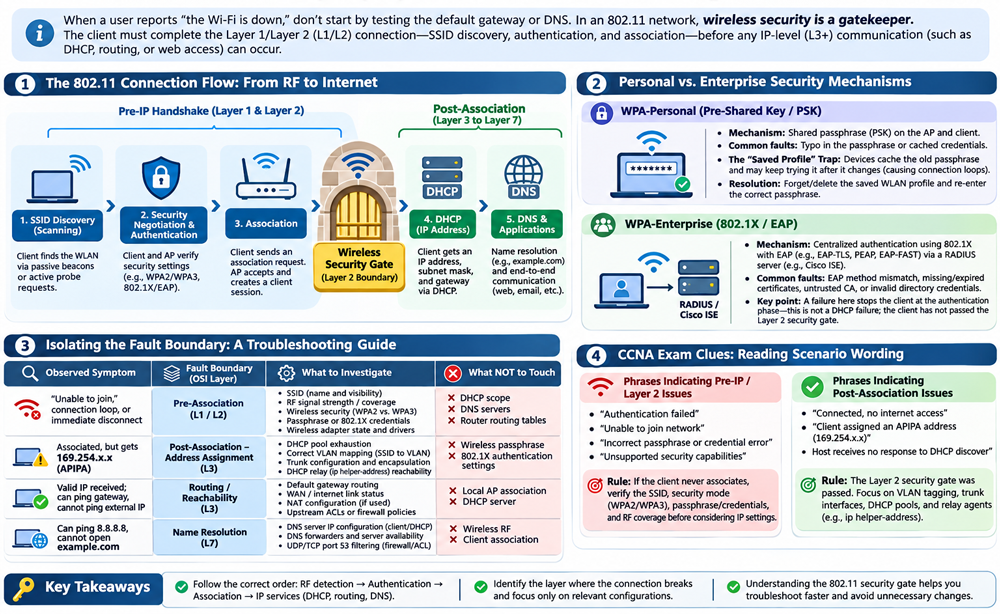
Isolating 802.11 connectivity issues requires adhering to an evidence-based, layer-by-layer troubleshooting framework:
- RF Discovery: Verify SSID visibility, signal quality (RSSI > -67 dBm for voice, > -72 dBm for data), and channel congestion.
- 802.11 Association: Verify matching physical/MAC capabilities between client and AP.
- Security Authorization: Validate passphrase accuracy, SAE/PMF support (WPA3), or certificates/RADIUS connectivity (802.1X Enterprise).
- Layer 3 Addressing: Confirm DHCP lease acquisition, subnets, and VLAN tagging.
- End-to-End Routing & Services: Validate default gateway reachability, upstream NAT/firewall policies, and DNS name resolution.
By determining the exact layer where the failure occurs before changing configurations, network engineers eliminate guesswork and resolve wireless outages efficiently.
Author Laxmi Goswami Updated on 2026-11-12