Enabling or Disabling Automatic Login
When you start your Ubuntu system, it presents a login screen. On it, you need to authenticate with your login password. This is a handy feature for keeping unauthorized users away from your system. However, in some cases it can cause unnecessary delay. For example, your system is physically accessed only by you, or you are the only person who uses the system. In such a situation, typing your username and password each time you start the system causes an unnecessary delay. In that case, you can enable automatic login.
Once you enable automatic login, the system will not present the login screen. It will automatically log in to the user account you enable automatic login for. It will not ask you to enter your username and password. This feature is good only if this system is physically accessed only by you. Anyone with physical access to this system can access the data stored on it. It creates a huge security risk. Instead of permanently enabling this feature, you can enable it as required. You can enable it when you need it and disable it when you do not. In this tutorial, I will explain the steps to enable and disable the automatic login feature.
Enabling automatic login
Log in with your username and password.
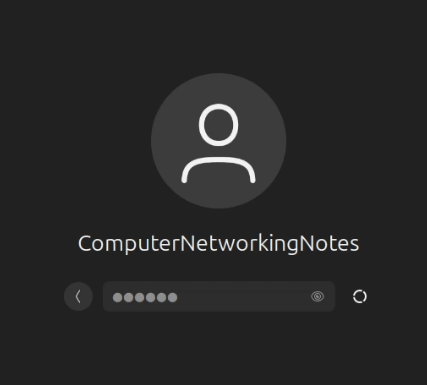
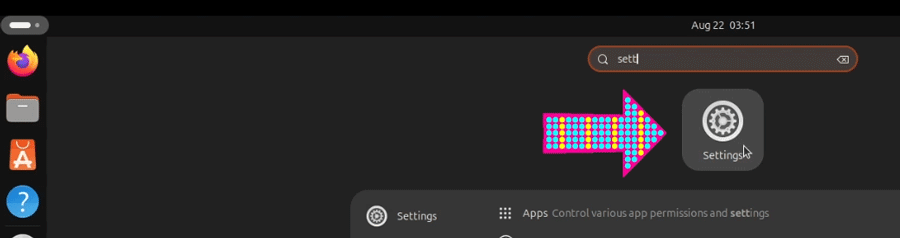
Open Settings.
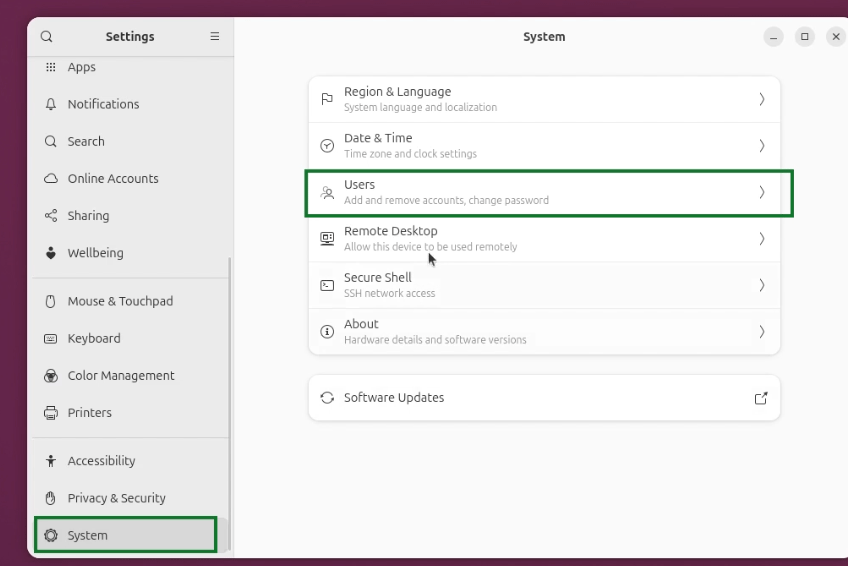
Click System in the left pane, then Users in the right pane.
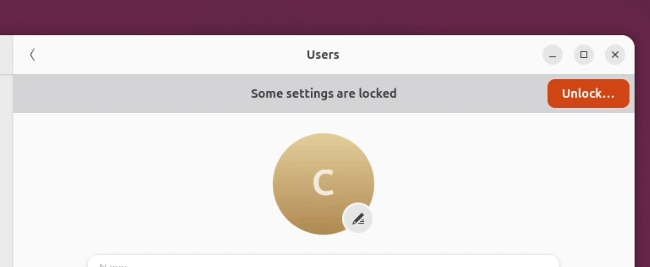
Click Unlock in the top bar.
Enter your password to complete the authentication.
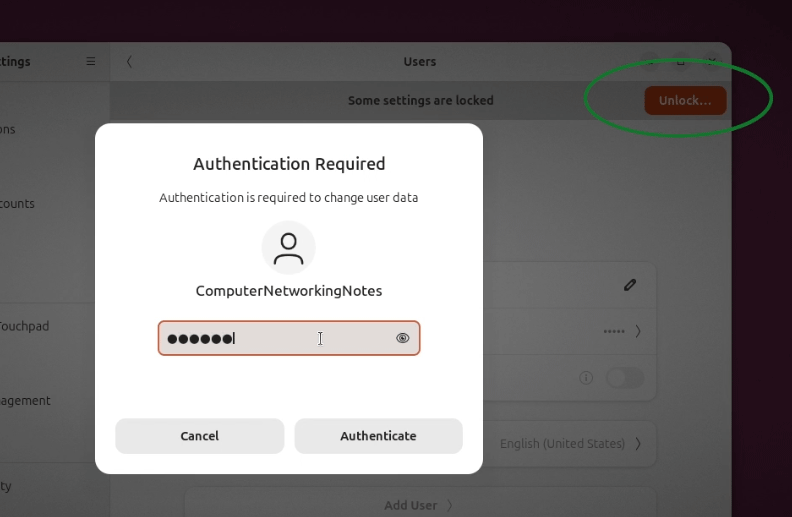
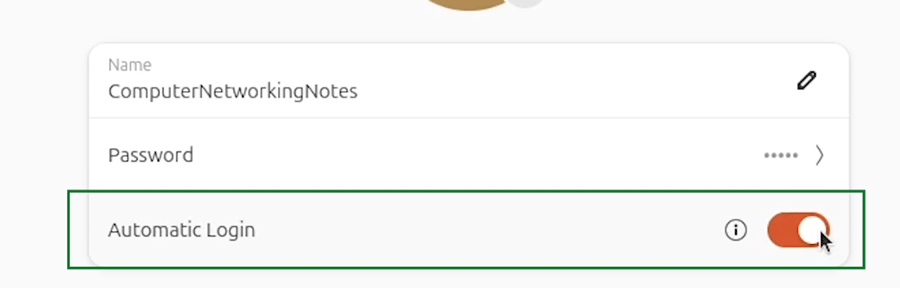
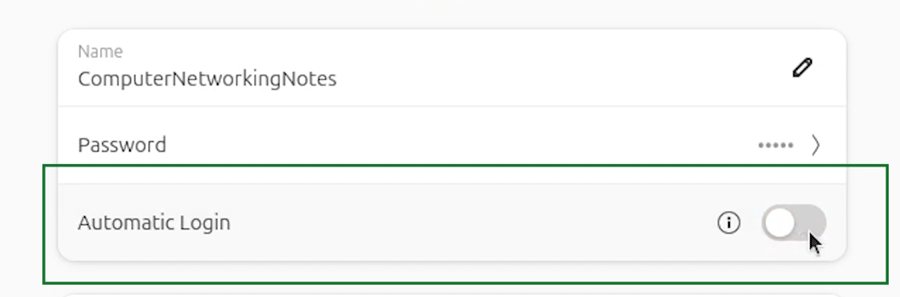
Toggle the button next to the Automatic login option.
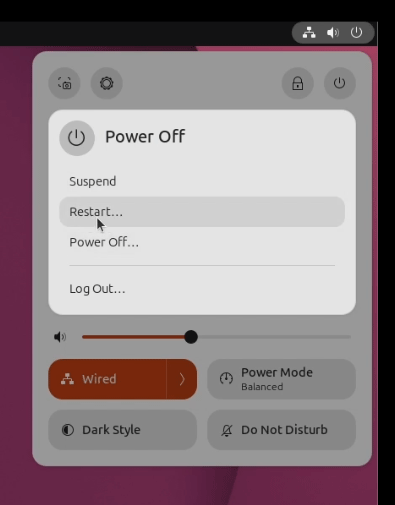
Reboot the system to verify that automatic login is enabled.
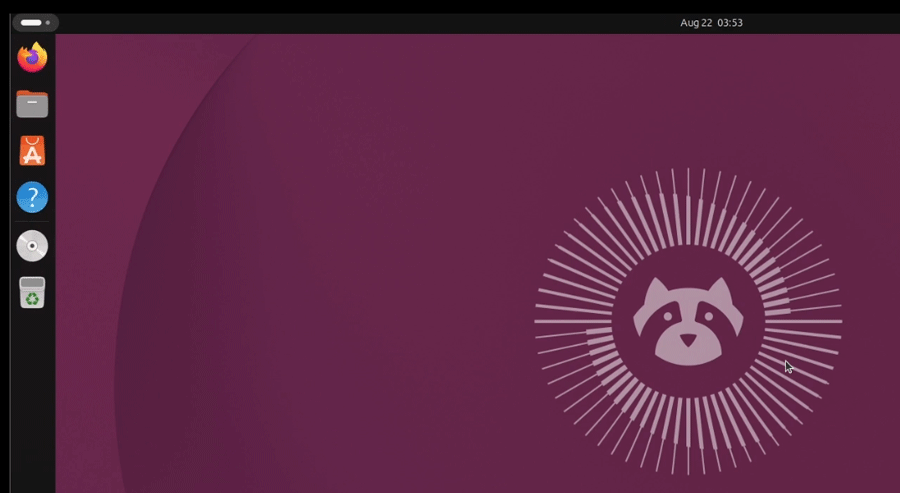
If the boot process ends with the Desktop screen, it verifies that the automatic login feature is enabled.
Steps to disable automatic login
Start the system
Open Settings.
Click System in the left pane, then Users in the right pane.
Click Unlock in the top bar.
Enter your password to complete the authentication.
Toggle the button next to the Automatic login option.
Reboot the system to verify that automatic login is disabled.
If the boot process ends with the login screen, it verifies that the automatic login feature is disabled.
Enabling or disabling automatic login on RHEL
The following tutorial explains how this process works on RHEL Linux.
How to Enable Automatic Login on Linux
Conclusion
In this tutorial, I explained how to enable or disable automatic login on Ubuntu. If you enable this feature, the system logs you in without presenting the login screen. If you ever need to disable this feature, you can revert the process by following the same steps. This is provided and managed by the Desktop environment. It will work only on the Desktop edition of Ubuntu.
Author Laxmi Goswami Updated on 2026-08-23