How to Enable Automatic Login on Linux
Automatic login allows a user to log in without typing their username and password. GNOME provides this feature. GNOME is the default desktop on RHEL. This tutorial explains how to enable automatic user login on RHEL. Since this feature is provided by GNOME, this process is not limited to RHEL. You can use it on any Linux distro that uses the GNOME desktop.
Prerequisites:-
- A Linux system
- GNOME desktop environment
- A local user account
Security risks
If you enable automatic login on a system, it will not prompt you to enter your username and password at startup. It will not even display the login screen. It will drop you directly on the Desktop screen, from where you can access all your files. It applies to all who have physical access to your computer. Anyone with physical access to your computer can access all your sensitive data. Due to this security risk, you should enable this feature only on a personal computer that is not shared with others.
Enabling automatic user login
Log in with the user account you want to enable this feature for.
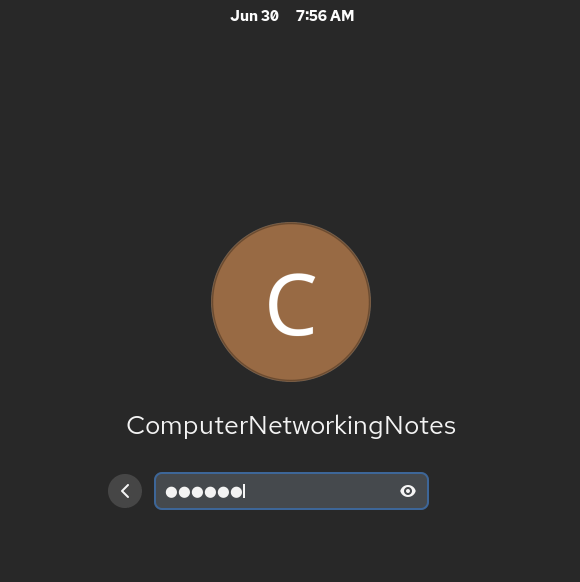
Click the Dash (Start button), search for Settings, and click the Settings icon.
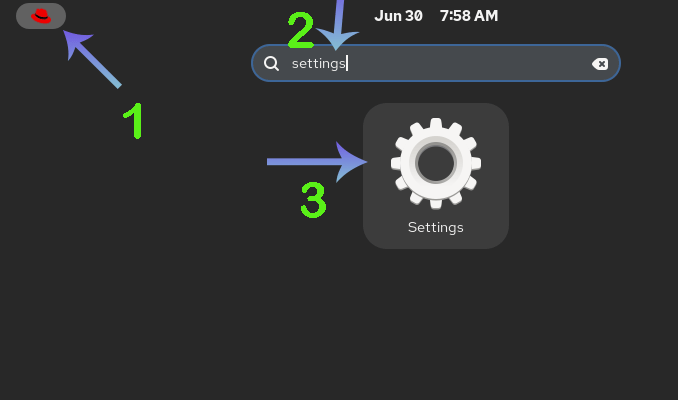
On the Settings screen, open the Users setting. The Users setting is available in the System settings. You can access it directly from the System settings or search for it in the Search box at the top-left corner of the Settings screen.
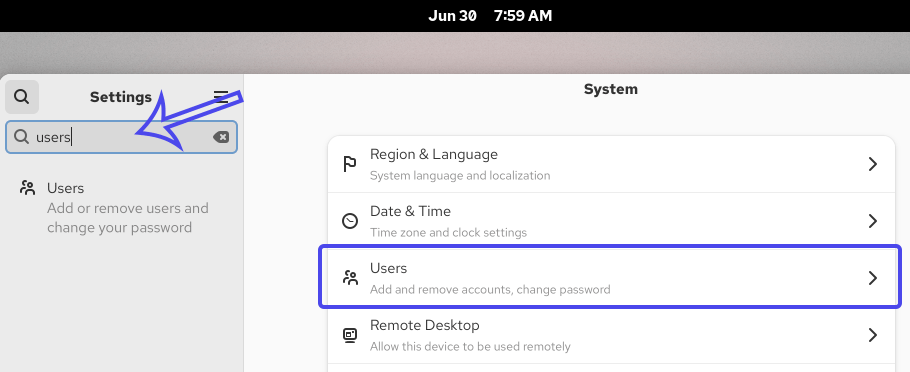
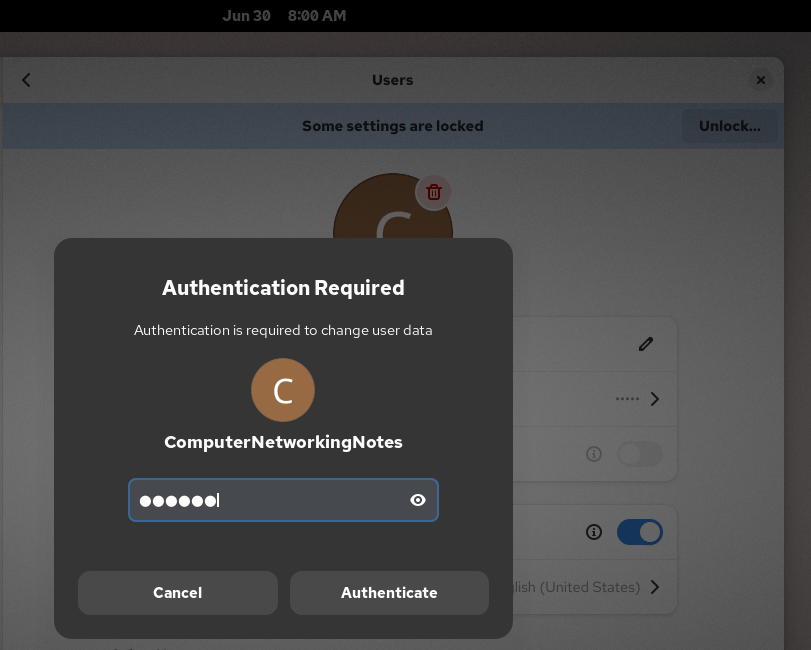
By default, Settings are locked for regular user accounts. To unlock these settings, click the Unlock button available in the top-right corner.
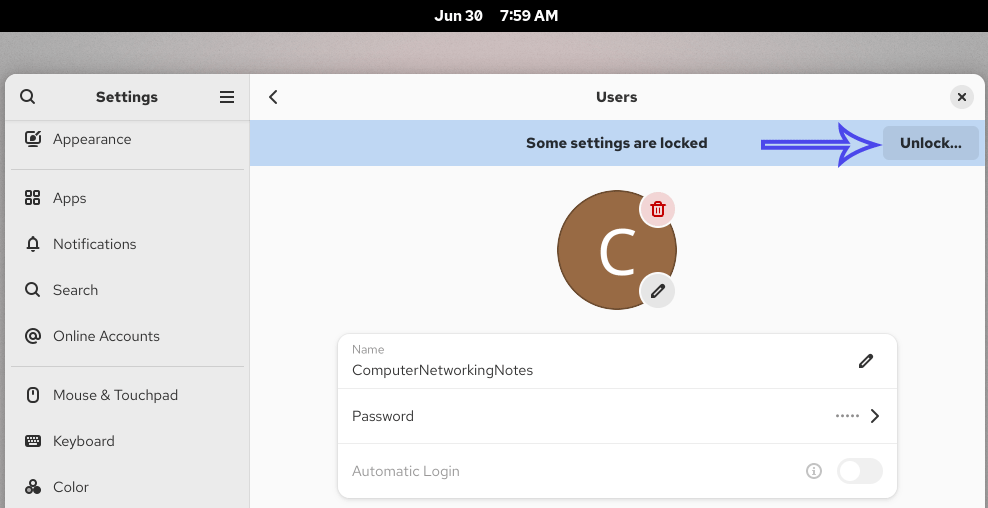
To authenticate the unlock action, type the password of the user account you used to log in.
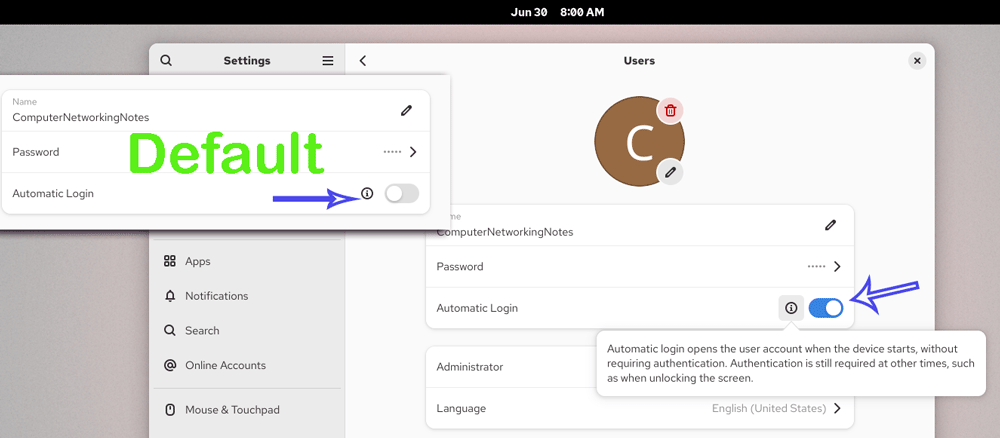
By default, automatic login is disabled. To enable it, toggle the button available next to the Automatic login option.
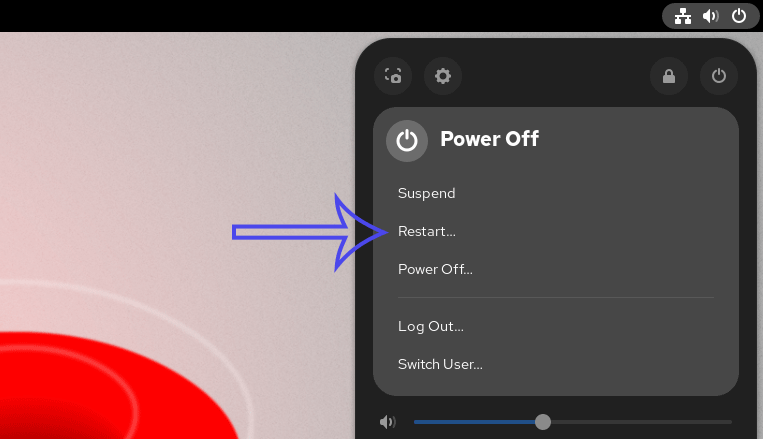
Change applies at the next reboot. Restart the system.
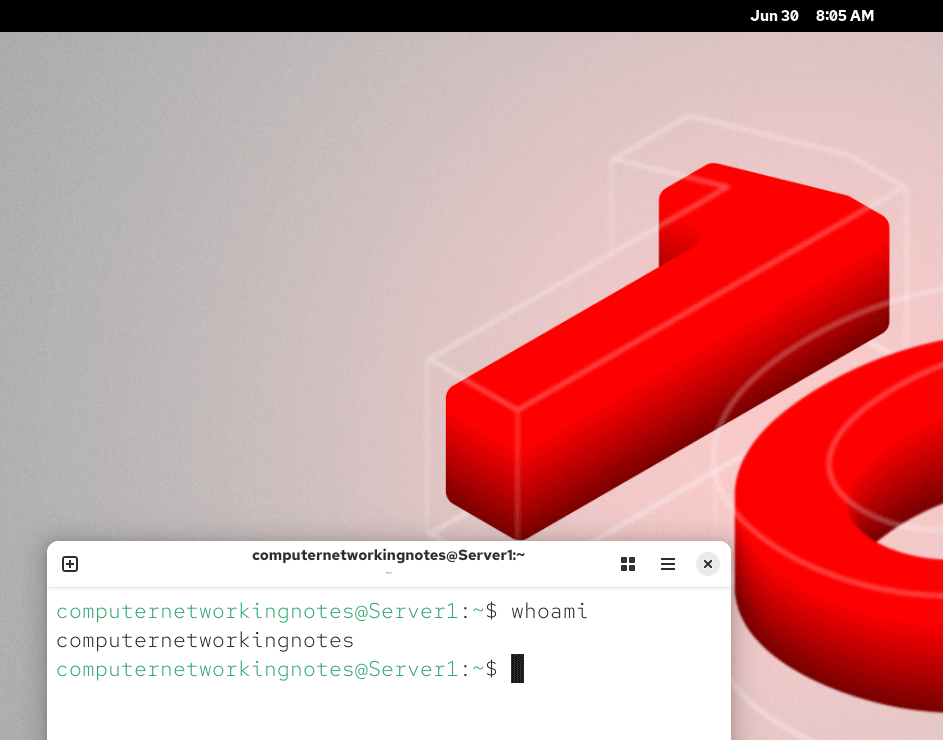
At the next reboot, the system will automatically log you in with the user account for which you have enabled automatic login. To verify the user account, you can use the whoami command.
Disabling the automatic login feature
To disable the automatic login feature, log in with the user account for which this feature is enabled. Open the Users settings from the Settings. Select the user account for which this feature is enabled, and disable it.
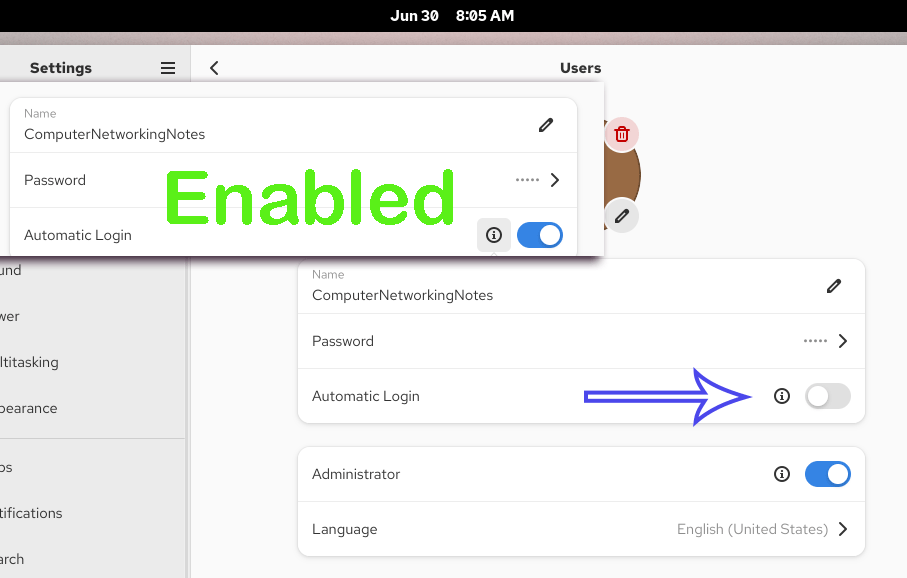
Settings apply at the next reboot. Restart the system.
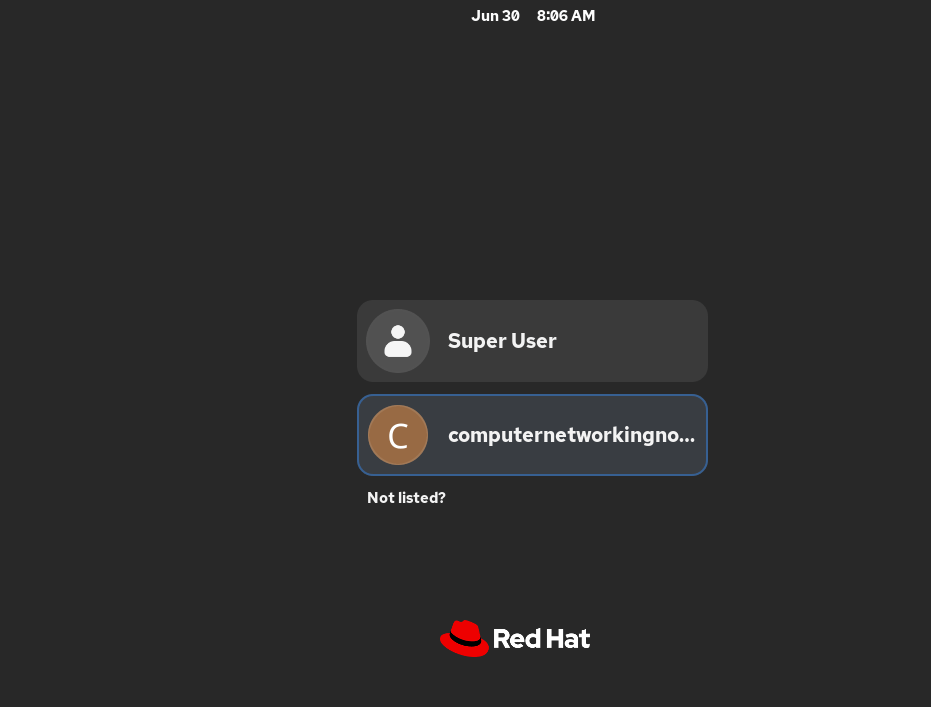
If the login screen appears at the next boot, it verifies that the automatic login feature is disabled.
Conclusion
The automatic login feature allows you to access your system without entering your username and password. You can enable this feature on your personal computer. In this tutorial, I explained how to enable this feature on RHEL.
Author Laxmi Goswami Updated on 2026-06-30