Customizing GNOME power button settings
GNOME is the default desktop on RHEL Linux. When you press the power button, it suspends the system. You can modify this setting to customize the action it should take when the power button is pressed. This tutorial explains how to override the default power button behavior.
Prerequisites
- A RHEL system with GNOME desktop
- The root or superuser access
Creating the configuration file
Log in as the root or superuser account and open a terminal. The /etc/dconf/db/local.d/01-power file allows you to customize the action GNOME takes when you press the power button. By default, this file is not present. Create this file and add the following lines.
#vim  /etc/dconf/db/local.d/01-power
[org/gnome/settings-daemon/plugins/power]
power-button-action=’[option]’

:wq
#
The following table describes the available options.
| nothing | If you select this option, nothing will happen when you press the power button. Use this option to prevent users from accidentally pressing the power button. |
| suspend | This is the default behavior. If you do not create this file, the system suspends when you press the power button. |
| hibernate | If you select this option, the system hibernates when you press the power button. |
| interactive | This option displays a pop-up window prompting the user to select an action. |
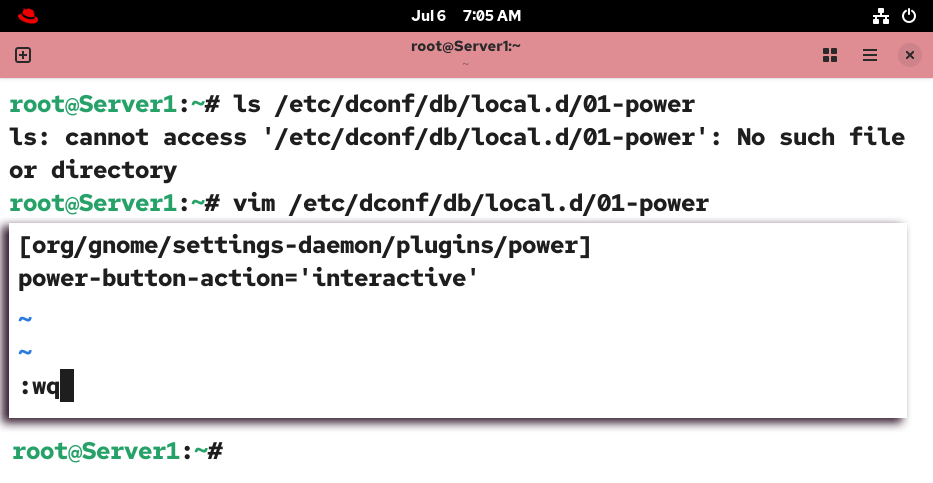
The above configuration file customizes the power button options for all users. However, it does not force them to use the defined option. To forcefully apply the selected option to all users, create the /etc/dconf/db/local.d/locks/01-power file and add the following line.
#vim /etc/dconf/db/local.d/locks/01-power
/org/gnome/settings-daemon/plugins/power/power-button-action
:wq

#
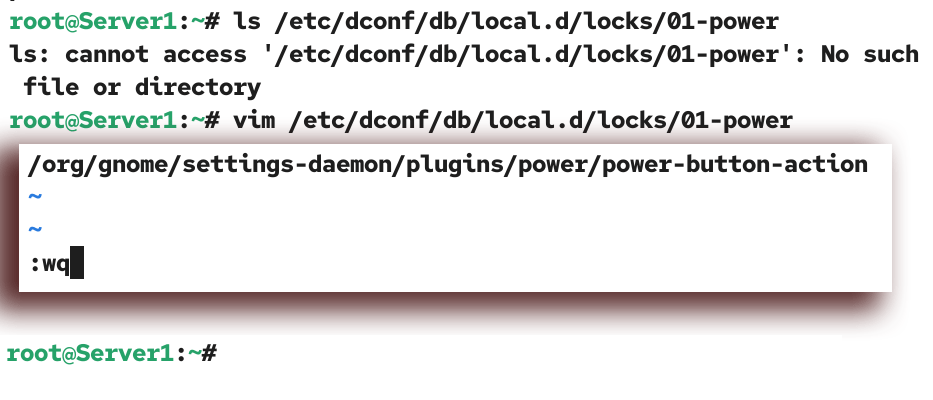
Update the configuration database.
#dconf update

Verifying the configuration
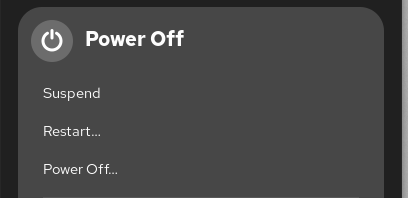
Log out as the root user and log in as a regular user account. Press the power button. The system should take the configured action. For example, if you specified the interactive option, it should display a window to select the option.
Troubleshooting
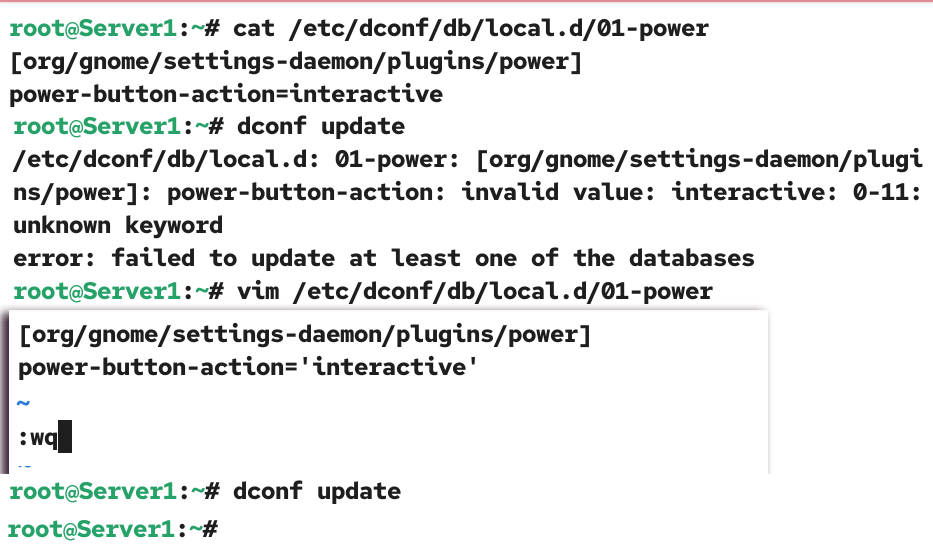
The option you define in the configuration file must be enclosed in quotes. If you specify it without quotes, you will get the following error when updating the configuration database.
/etc/dconf/db/local.d: 01-power [/org/gnome/settings-daemon/plugins/power]:
power-button-action: invalid value: interactive: 0-11 unknown keyword
To fix this issue, enclose the specified option in quotes.
Removing the custom power options
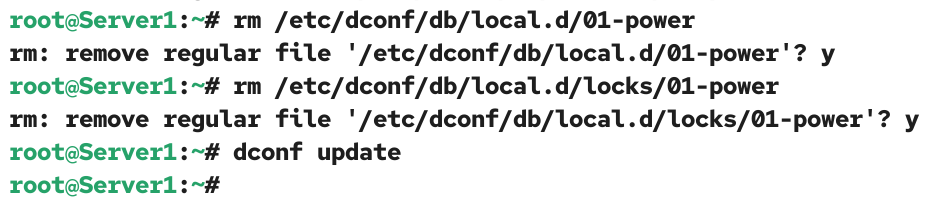
To remove the custom power option settings, delete the /etc/dconf/db/local.d/01-power and /etc/dconf/db/local.d/locks/01-power files.
#rm  /etc/dconf/db/local.d/01-power
#rm /etc/dconf/db/local.d/locks/01-power
Update the configuration database.
#dconf update
To verify the custom configuration has been removed, log out and log back in, and press the power button. The system should suspend.
Conclusion
Customizing power button options lets you manage power settings for your laptop running RHEL. In this tutorial, I explained how to configure, lock, and manage these options.
Author Laxmi Goswami Updated on 2026-07-13