Automatically starting an application at startup
Starting an application automatically at startup is straightforward on RHEL Linux. It requires only a few essential steps. This tutorial explains these steps in detail.
Prerequisites:-
- A RHEL system with the GNOME desktop environment
- The application that you want to start automatically at startup
This process is user-specific. It applies only to its related user account. For example, you have two accounts: User1 and User2. If you configure it for User1, it will apply only to User1. It will not apply to User2.
Starting an application automatically
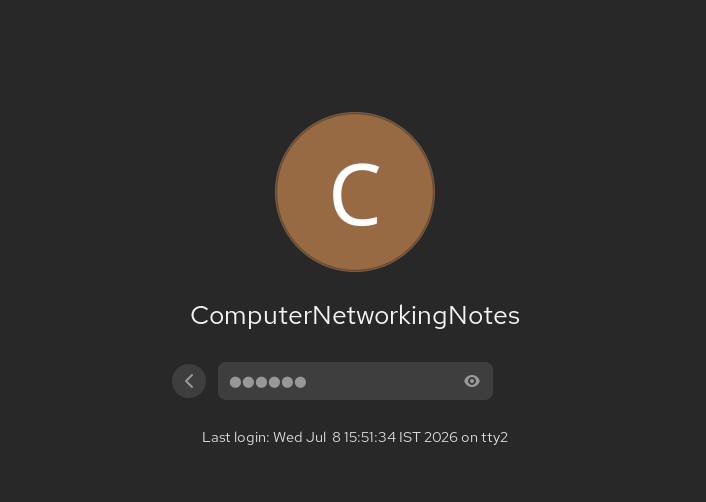
Log in with the user account for which you want the application to start automatically.
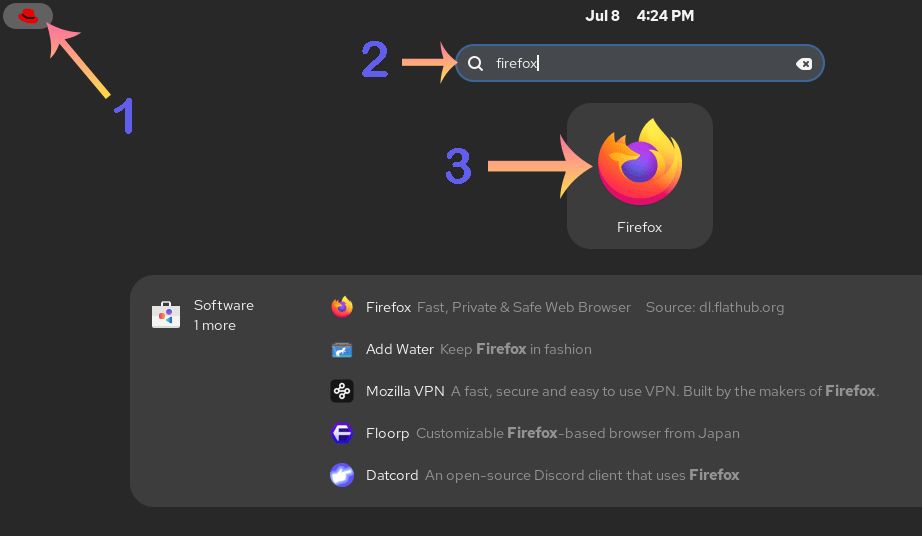
Verify that the application you want to start automatically is installed. Click the Red Hat logo (Dash/ Start button) in the top-left corner. It opens the Activities overview screen. The Activities overview screen contains a search box at the top. Type the name of the application you want to start in this box and press Enter. The screen will display all applications that start with the specified name. Select and click the application’s icon that you want to start.
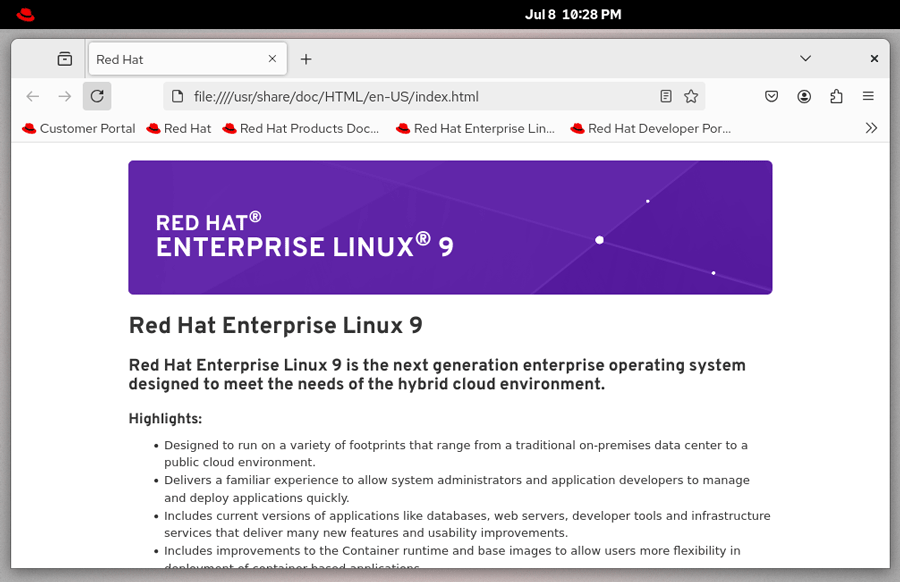
If the application starts, it verifies that the application is installed.
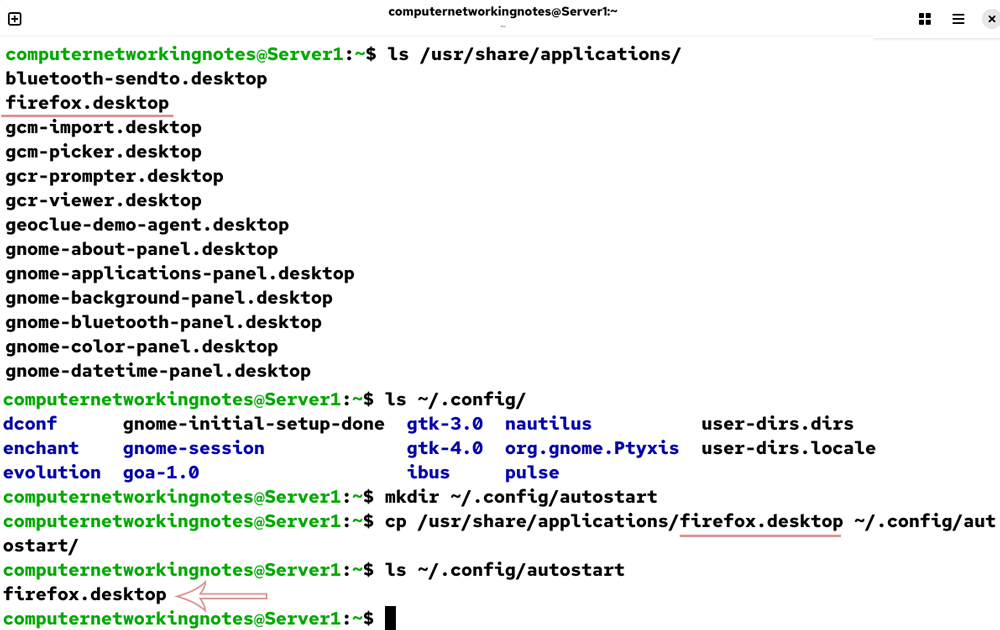
Close the application and open a terminal. You need the .desktop file of an application to start it automatically at startup. When you install an application or software package, the installer puts its .desktop file in the /usr/share/applications/ directory. You need to place this file in the ~/.config/autostart directory. By default, this directory is not available. You need to create this directory before you copy the .desktop file into it.
Check and verify the .desktop file of the application you want to start automatically.
$ls /usr/share/applications/
Create the autostart directory in the .config directory. The .config directory is available in the user’s home directory.
$mkdir ~/.config/autostart
Copy the .desktop file of the application into the ~/.config/autostart directory. For example, the following command copies the .desktop file of Firefox into this directory.
$cp /usr/share/applications/firefox.desktop ~/.config/autostart
$ls ~/.config/autostart
To verify that the application starts automatically at startup, close the terminal and log out of the current session.
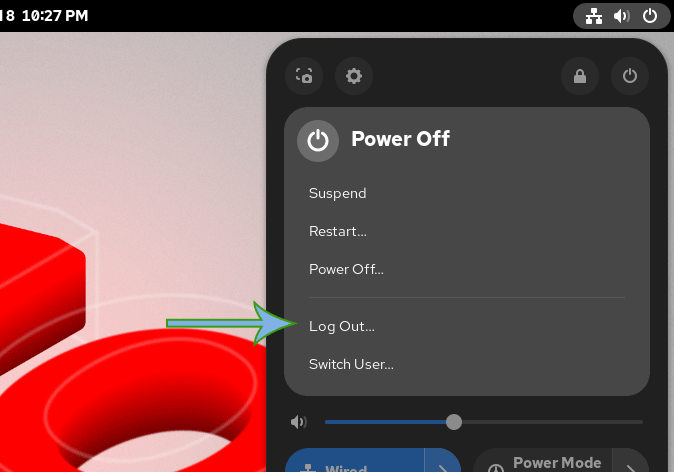
Log back in as the same user account. The application whose .desktop file you have added to the ~/.config/autostart should start automatically.
Stopping an application from starting automatically
To stop an application from starting automatically at startup, remove its .desktop file from the ~/.config/autostart directory.
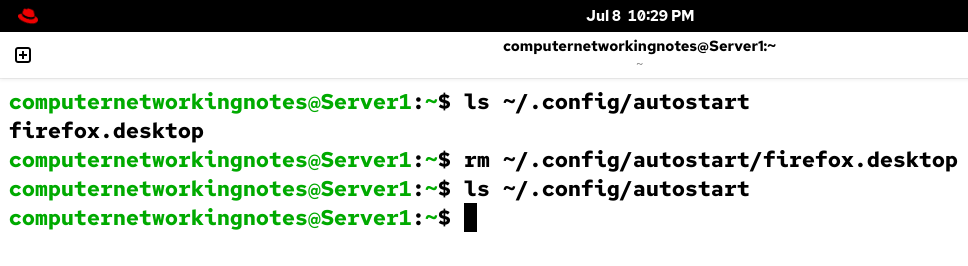
To verify, log out and log back in. The removed application will not start automatically.
Conclusion
Starting applications automatically at startup enhances productivity. It allows you to automatically open most frequently used applications at startup. In this tutorial, I explained the steps you need to start an application automatically at startup.
Author Laxmi Goswami Updated on 2026-07-09