Listing files and directories in Linux
Listing files and directories is an essential task every Linux user performs every day. The ls command displays files and directories. It supports numerous options. With the right options, it reveals details such as ownership, permissions, type, size, and timestamp for any file or directory. Learning these options lets you get comprehensive information at a glance. This tutorial explains the most widely used options and how to use them to display specific results.
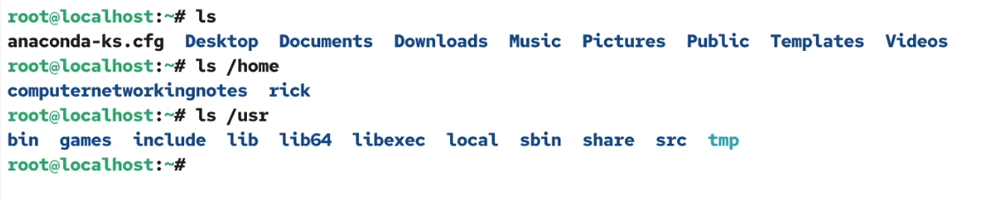
Without any options, the ls command shows the names of files and directories in columns, where each column displays the name of a separate item. It shows file and directory names in different colors.
#ls

The ls command accepts a directory pathname as an argument. Without arguments, it displays the contents of the current directory. For example, if a user runs this command from his home directory, it will display the contents of his home directory. To display the contents of a specific directory, specify its pathname as an argument. For example, to display the contents of the home directory, specify its pathname as an argument.
Video version
This tutorial is also available in video format. You can watch it to understand the concepts and configuration steps explained in this tutorial in more detail.
Listing files and directories in Linux
The ls command options
Without any options, it shows only the content names. It does not provide any other information about the contents. To view the content-specific information, use the related options. To view all supported options and their meanings, use any of the following commands.
#ls --help
#man ls
The following table lists the most commonly used options and their meanings.
| Option | Description |
| -a | Includes hidden files and directories in the output. |
| -l | Displays detailed information about the content, such as the file type, permissions, link count, owner, group, size, date and time of last modification, and name of the file or directory. |
| -h | Displays file sizes in human-friendly format. |
| -lt | Lists all files sorted by date and time (the newest file first). |
| -ltr | Lists all files sorted by date and time (the oldest file first). |
| -R | Lists the contents of the specified directory and all its subdirectories. |
| -c | Used with the -l option. Sort by changed (last modified) time, newest first. |
| -d | List directories themselves, not their contents. |
| -g | Same as the -l option, but do not list the owner. |
| -G | Same as the -l option, but do not list the group owner. |
| -i | Display index (inode) number. |
| -s | Show the file size of each content. |
| -r | Reverse order while sorting. |
Understanding the output of the ls -l command
The most common and widely used option is l (list). This option provides detailed information about the content, including its type, name, owner, permissions, last modified date, size, and location. It formats output in rows and columns. Each row represents a separate content, and each column in every row denotes a particular property of the content.
#ls -l /etc

The first column displays the file type and permissions. The first letter shows the file type. The next nine characters show the file permissions. The following table lists the most common file types.
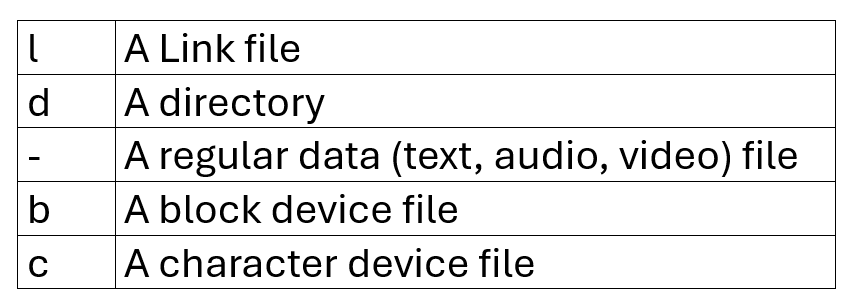
The next nine characters represent file permissions. These permissions define how a user can access resources. A user is anyone who accesses the resource, such as a user account, system process, or application. A resource is an object that the user accesses, such as a file, directory, or device.
There are three user types: owner, group, and others.
- An owner is the user who creates the object.
- A group is a collection of user accounts. A user can belong to single or multiple groups.
- The others define users who are neither the object owner nor a member of the object group.
For these user types, there are three permission types: read, write, and execute. Each user type gets a dedicated field for each permission type in this column. For three user types and three permission types for each user, nine fields are required. The first column provides these nine fields for every listed item. It reserves three fields for each user type. The first three fields belong to the owner. The next three fields are for the group owner. The last three fields are for other users.
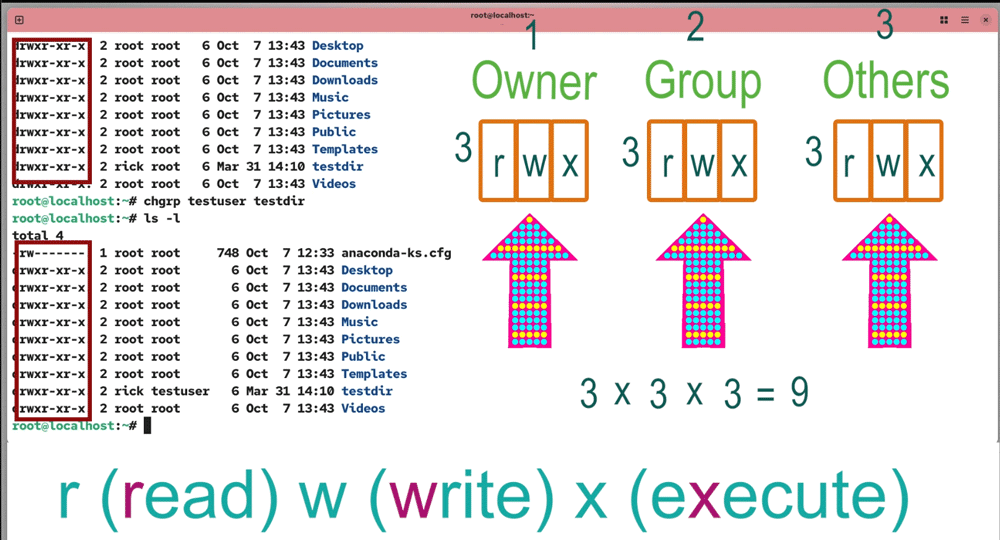
Each field stores only one permission type in a single character. It uses letter r for read, w for write, and x for execute permission. It saves the read permission in the first field, the write permission in the second field, and the execute permission in the third field. If related permission is not enabled, it uses a hyphen (-) sign in that field. With this information, you can easily identify the configured file permissions of a listed item.
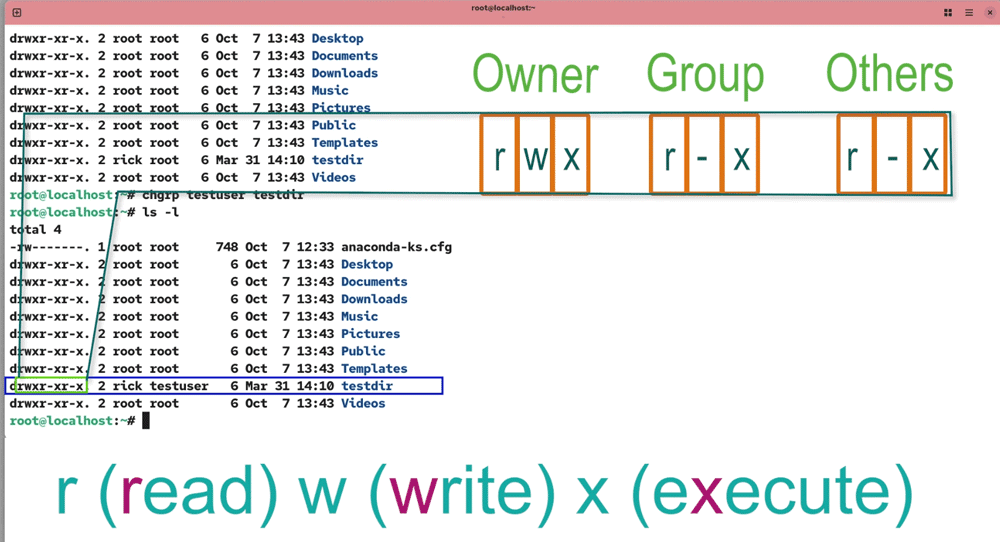
For example, the following image highlights the file permissions of the testdir directory. For this directory, the permissions in the owner fields are set to read, write, and execute. It means the owner has all three permissions on this directory. In the group owner fields, permissions are set to read, no permission, and execute. It means group owners have read and execute permissions. However, they do not have write permission. Other users also have similar permissions. They get read and execute permissions. However, they lack the write permission.
The second column displays the number of hard links it has.

The third and fourth columns show the owner and group owner names.

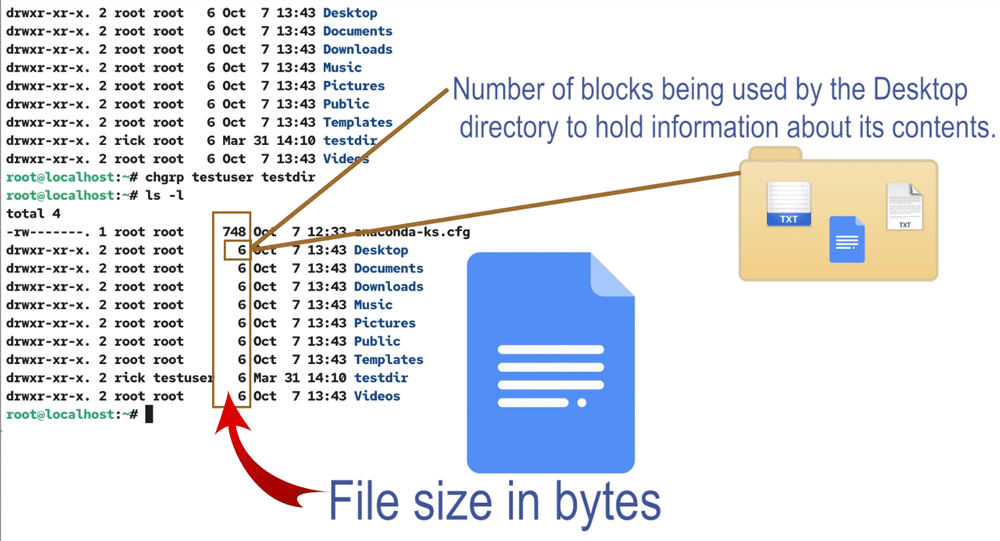
The fifth column shows the file size in bytes. For directories, it displays the number of blocks used to store information about the directory's contents, not the size of the files contained in the directory. It reflects the size of the file containing information about the directory.
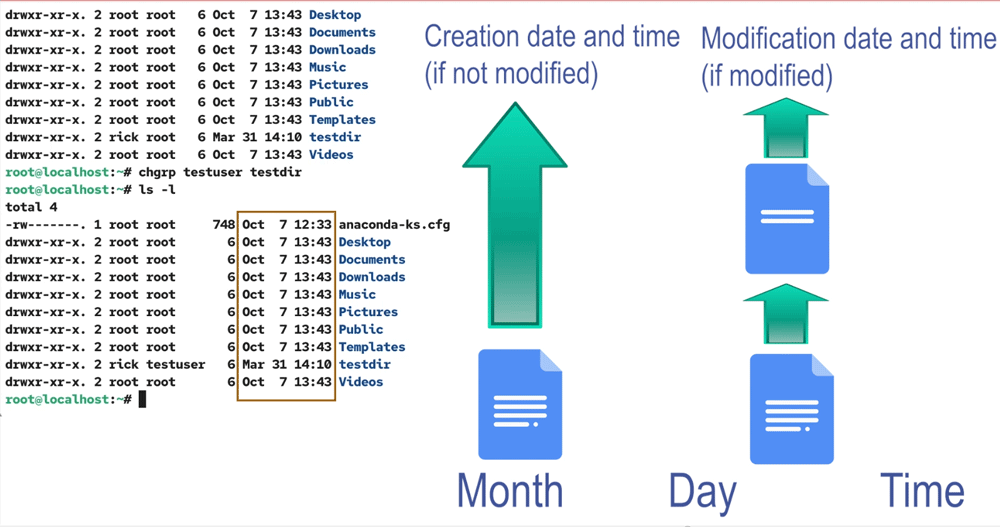
Columns six, seven, and eight display the month, day, and time of the creation or last modification. If the file or directory is modified, these columns show the date and time of the last modification. If not, these columns show the creation date and time.
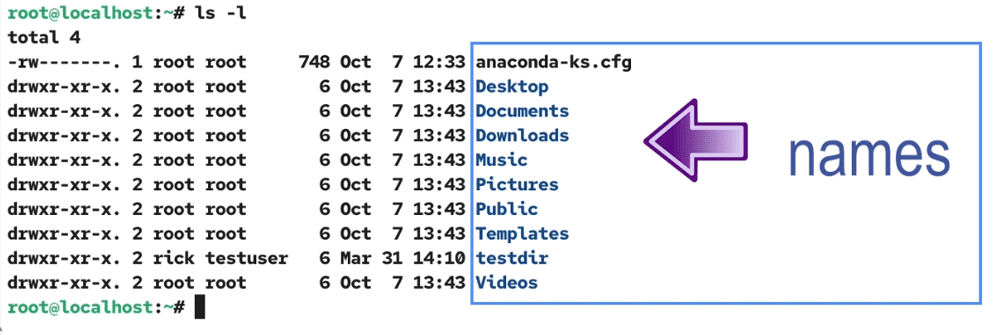
The last column indicates the name of the file or directory.
Viewing the file size of all listed items in a human-friendly format
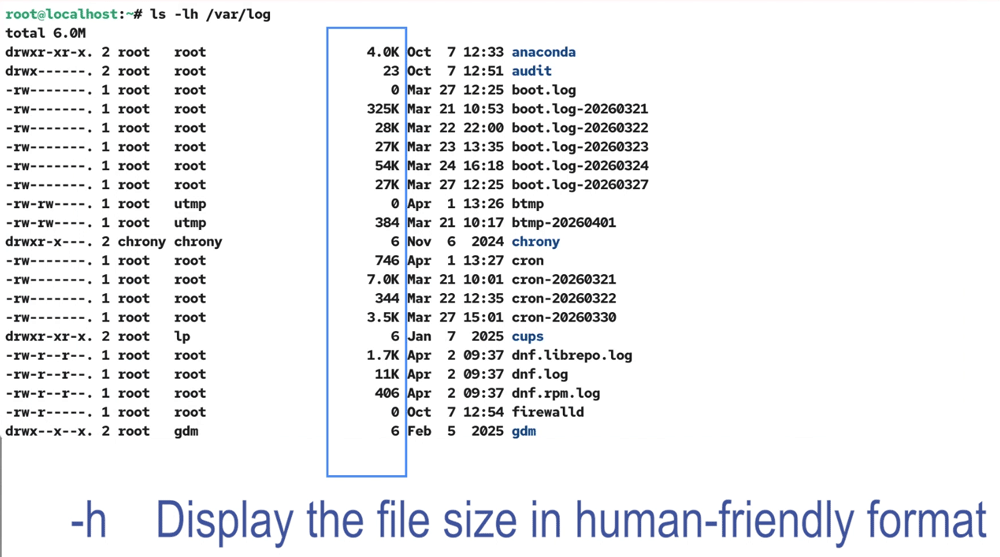
To view the file size in a human-friendly format, use the h option. With this option, the file size is displayed in units.
#ls -lh /var/log
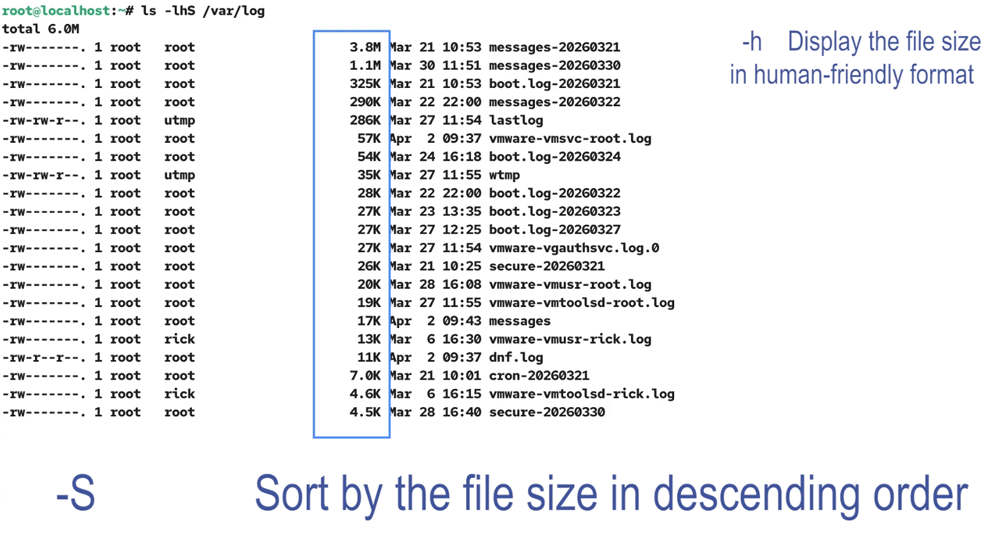
Sorting the output by the file size
You can sort the output to see which files are using the most disk space. Use the S option to sort the output by file size.
#ls -lhS /var/log
Identifying the recently created or modified files
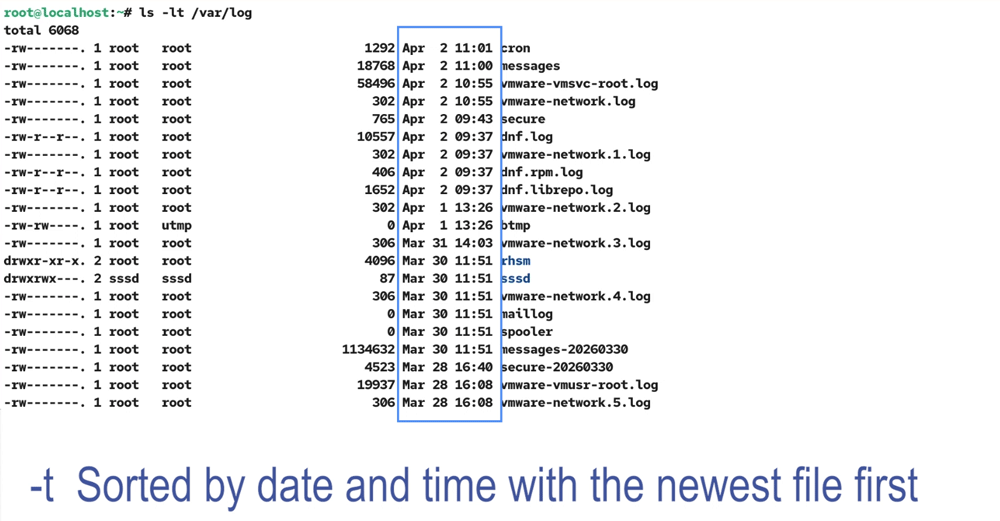
Similar to file size, you can also sort by date and time to identify recently created or modified files. Use the t option to sort the output by date and time. With this option, files are displayed in the order of their most recent modification time.
#ls -lt /var/log
Viewing the long listing of a directory
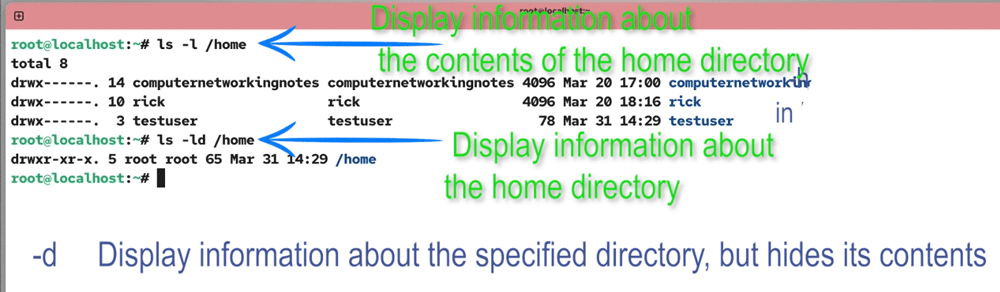
By default, the ls command lists the contents of the specified directory. For example, if you specify the home directory, it displays its contents. Instead of its contents, use the d option to view the properties of the home directory itself.
#ls -d /home
Viewing hidden files
A file or directory beginning with a dot is considered hidden. By default, the ls command does not display hidden files or directories. These hidden files are typically configuration files or directories that should be in your home directory, but don’t need to be visible in your daily work. The a option lets you see those files.
#ls -a

Using wildcards and patterns for custom listing
By default, the ls command includes all non-hidden files and directories in the output. To narrow down the output or view only specific contents, you can use patterns and wildcard characters. A wildcard character has a special meaning for the shell. While executing the command, the shell uses the special meaning of it instead of its actual meaning.
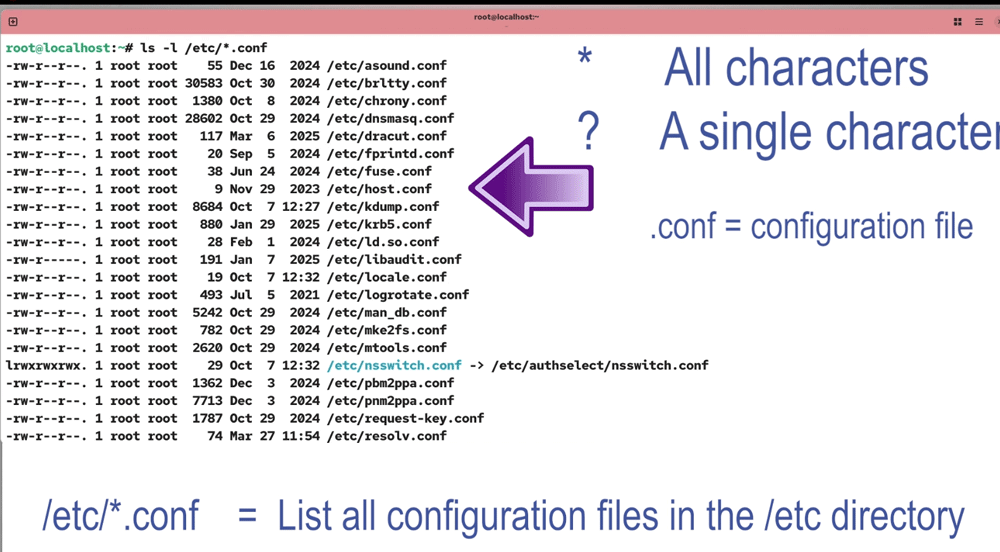
The two most widely used wildcards are the star (*) and question mark (?). A star represents all characters, while a question mark denotes a single character. With these wildcards, you can list only the contents you want to see. For example, suppose you want to list all configuration files in the /etc directory. A configuration file ends with a .conf extension. You can use a wildcard before the extension to list all configuration files.
The following pattern matches all files that end in .conf, regardless of their names.
#ls -l /etc/*.conf
To list all configuration files whose name starts with the letter r, use the following pattern.
#ls -l /etc/r*.conf

To include multiple letters, place letters in a square bracket. For example, to list configuration files whose names start with a, b, c, or d, use the following pattern.
#ls -l /etc/[a-d]*.conf
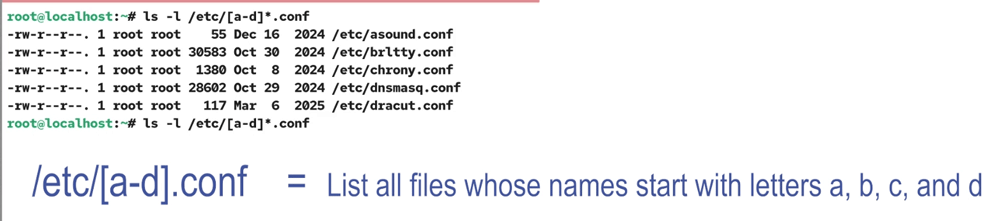
You can combine wildcards to perform a more custom listing. For example, to list all configuration files whose names have the letter b in the second place, you can use the following pattern.
#ls -l /etc/?b*.conf

Conclusion
Mastering the ls command and its commonly used options empowers you to efficiently manage and explore files and directories in Linux. By understanding how to use its various parameters, you can quickly access the precise information you need, whether it's file sizes, permissions, or modification dates. By practicing these options, you can streamline your workflow and make everyday tasks in the Linux environment more productive and informative.
Author Laxmi Goswami Updated on 2026-04-08