Customizing Screen Saver on RHEL Linux
A screen saver is the screen that appears when you lock your system or leave it idle for a few minutes. This tutorial explains how to use a custom screen saver on RHEL Linux.
Prerequisites:-
- A RHEL system with GNOME desktop
- The root or superuser access
- An image for replacing the default screen saver
Updating the default screen saver
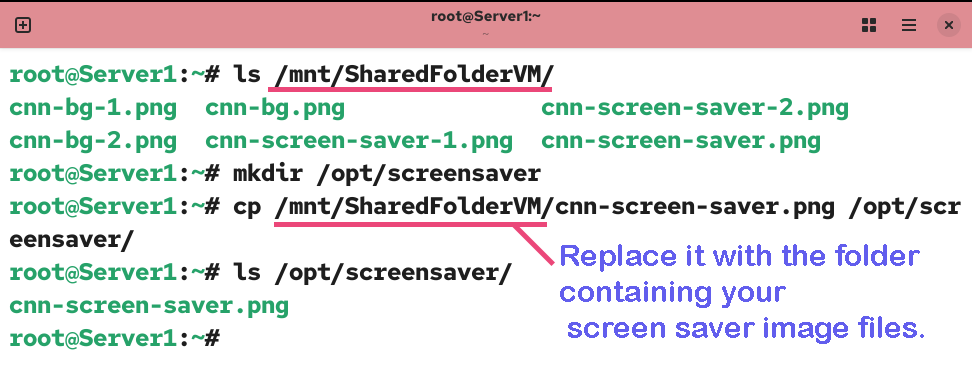
Log in with the root or a superuser account and create a directory in the /opt/ directory. Copy your screen saver image to this directory. The default file permission grants global read access to the contents of the /opt directory.
#mkdir /opt/screensaver
#cp [pathname of your screen saver image] /opt/screensaver
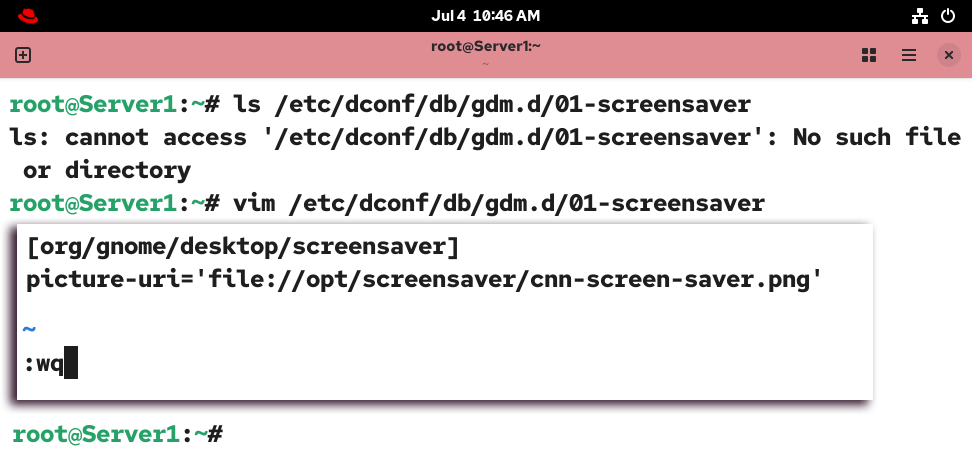
The /etc/dconf/db/gdm.d/01-screensaver file sets a custom screen saver. By default, this file is not present. Create this file and add the following lines.
#vim /etc/dconf/db/gdm.d/01-screensaver
[org/gnome/desktop/screensaver]
picture-uri='file:///opt/screensaver/[name_of_your_screen_saver_image]'

:wq
Update the configuration database.
#dconf update

Restart the GNOME desktop service.
#systemctl restart gdm.service

The above command will terminate all active login sessions. If you have unsaved data, it will be lost. Save and close all your open files and background processes before running this command.
Verifying the custom screen saver
Log in with a regular user account.
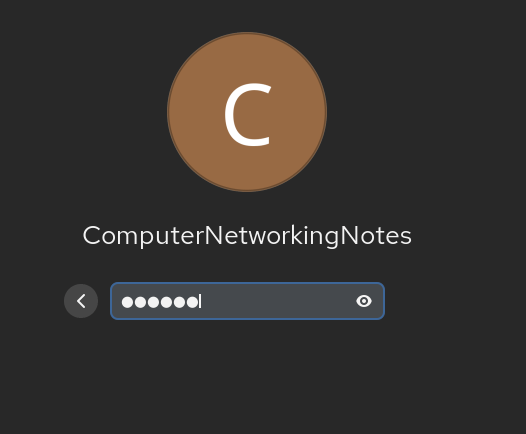
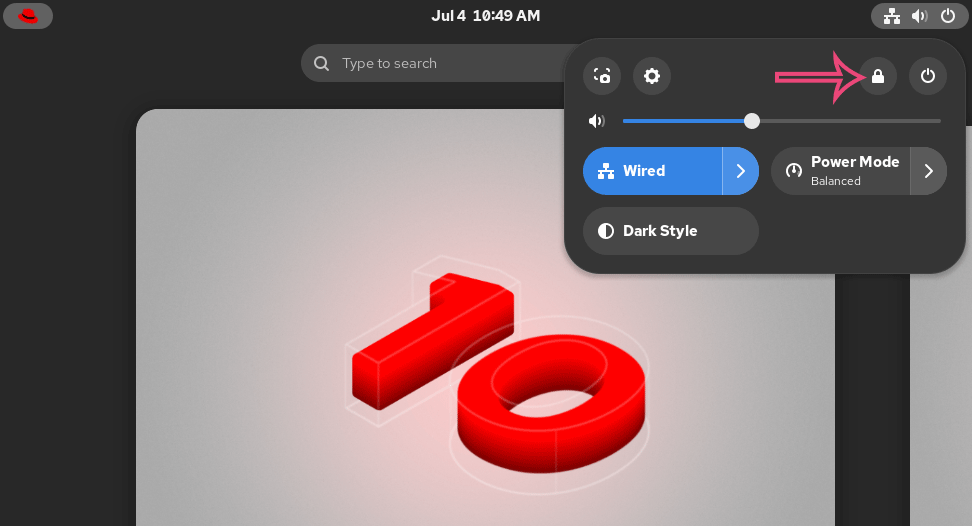
Leave the system idle for a few minutes or click the Lock option to lock the screen.
The lock screen will display your custom saver image.

Restoring the default screen saver
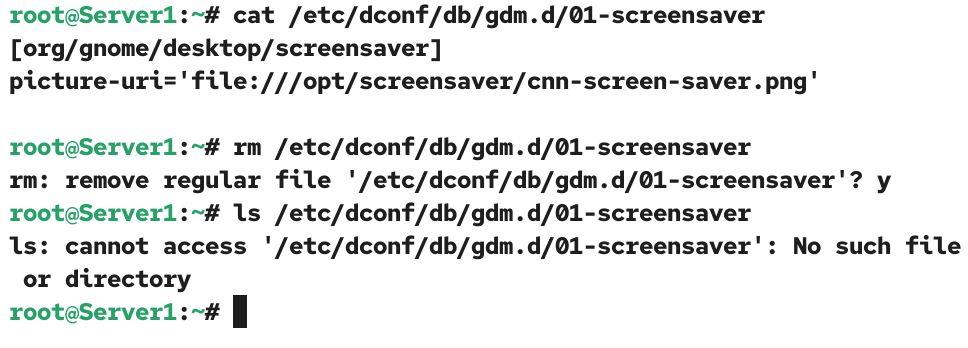
To restore the default screen saver or remove the custom screen saver, log out of the regular account, log in again as the root account, and remove the /etc/dconf/db/gdm.d/01-screensaver file.
#rm /etc/dconf/db/gdm.d/01-screensaver
Update the configuration database.
#dconf update
Restart the GNOME desktop service.
#systemctl restart gdm.service
Troubleshooting
If the screen saver image does not appear, follow these troubleshooting steps.
Check the image file type. The supported file types are PNG, JPG, JPEG, and TGA. Your screen saver must be in one of these formats.
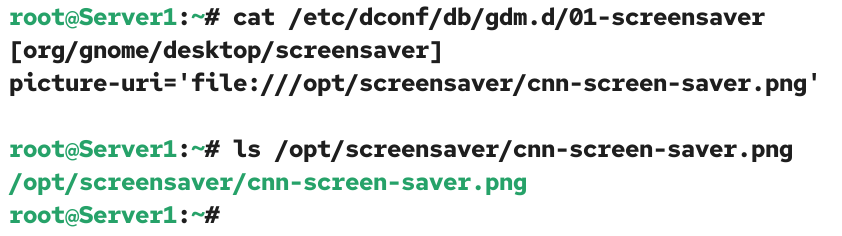
Check that the screen saver file exists at the same location you used in the configuration file and has read permission for all.
#cat /etc/dconf/db/gdm.d/01-screensaver
#ls -l /opt/screensaver/[screen saver image file name]
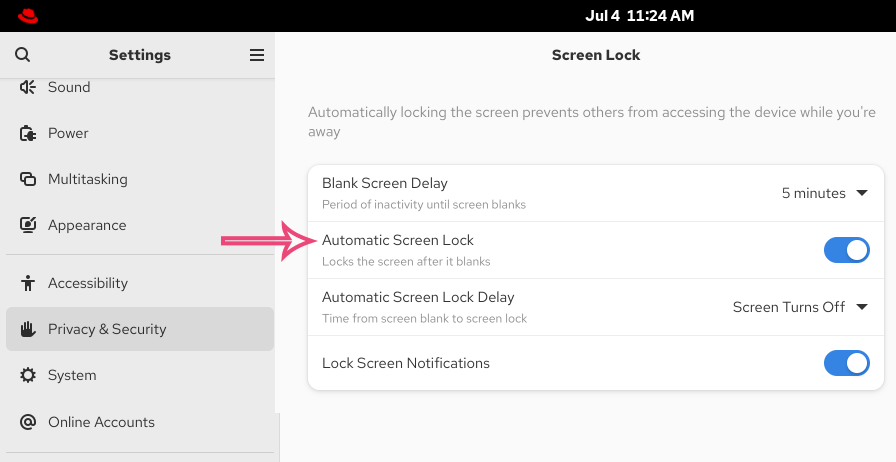
Check screen saver settings. It must be turned on. To verify it, open Settings and access the Privacy & Security option. The Automatic Screen Lock option must be turned on. If this option is disabled, the screen saver screen will never appear.
Conclusion
A screen saver provides a flexible, easier way to display your brand image or to localize the system environment. In this tutorial, I explained how to customize and manage the screen saver on RHEL Linux.
Author Laxmi Goswami Updated on 2026-07-04