How to Configure and Manage TuneD in Linux
On a Linux system, you run many services for your environment. Configuring these services is not as tough as optimizing them for the best performance. This is where TuneD fits. It is your technical assistant. It optimizes service execution and dynamically adjusts their settings to fine-tune performance. This tutorial explains what TuneD is, how it works, its profiles, and how to install, configure, and manage it on RHEL Linux.
What is TuneD?
TuneD is a system performance tool. It monitors running services, manages kernel parameters, adjusts CPU, RAM, and disk settings, and tunes network configuration to optimize performance. The main features and functions of TuneD are the following.
- It uses the udev service to monitor all connected devices.
- It maintains and uses profiles for optimizing services. A profile is a list of predefined settings. It includes many predefined profiles. You can use any of them or create a new profile.
- To use a profile, you need to activate it. It optimizes system settings based on the activated profile.
- It supports hot plugging of devices. You can integrate it into your administration solution such as Cockpit.
- You can run it in no-daemon mode. In this mode, it does not support D-Bus and udev and provides limited functionality.
- It stores its configuration in the TundeD profiles.
Installing TuneD
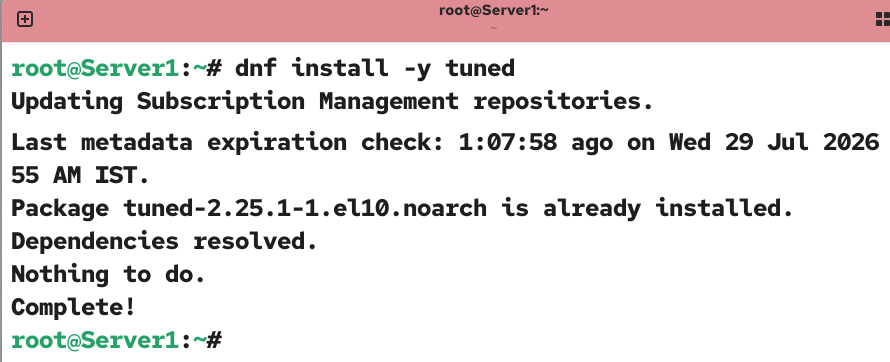
TuneD is part of the default installation packages on RHEL. It automatically installs when you install RHEL. If it is not installed or you have removed it, use the following command to install it.
#dnf install -y tuned
TuneD components
The TuneD package includes and installs the following components.
The tuned daemon
It is the main daemon process of the TuneD service. It runs in the background and provides all features and functions of the TuneD service.
The tuned command
It allows you to run the TuneD service manually. You can use the --daemon option with it to run the TuneD service in the background.
The tuned-adm command
It allows you to manage the profiles and features of the TuneD service.
Profiles
They are collections of settings and configurations that TuneD applies. Each profile contains settings for a particular output. The default profiles are installed in the /usr/lib/tuned/ directory. You can create custom profile files and place them in the /etc/tuned/ directory. If both directories contain the same profile, the settings specified in the custom profile apply. In other words, to override a default profile, you can create a custom profile with the same name in the /etc/tuned/ directory.
Managing the TuneD service
To manage the TuneD service, use the following commands. The following command enables it at boot time and starts it in the running session.
#systemctl enable --now tuned
The following command starts it in the current session.
#systemctl start tuned
The following command stops it in the current session.
#systemctl stop tuned
The following command restarts it in the current session.
#systemctl restart tuned
The following command displays its current status.
#systemctl status tuned
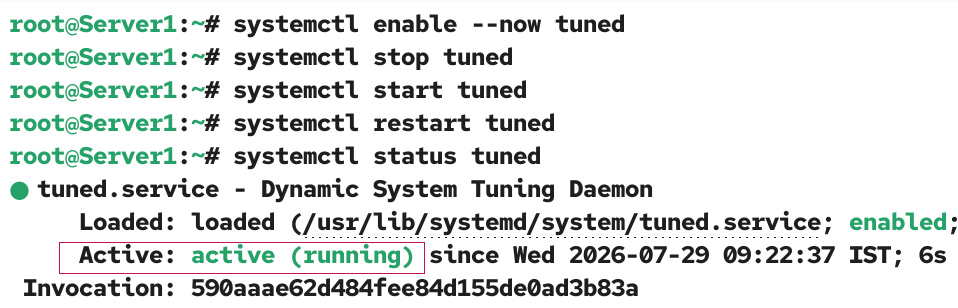
The TuneD service must be activated and running before you use it to optimize the system services.
Managing TuneD profiles
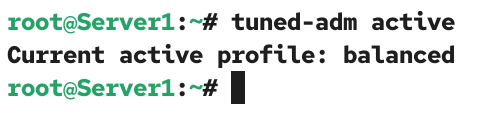
The tuned-adm command lets you manage the TuneD profiles. The following command displays the current active profile.
#tuned-adm active
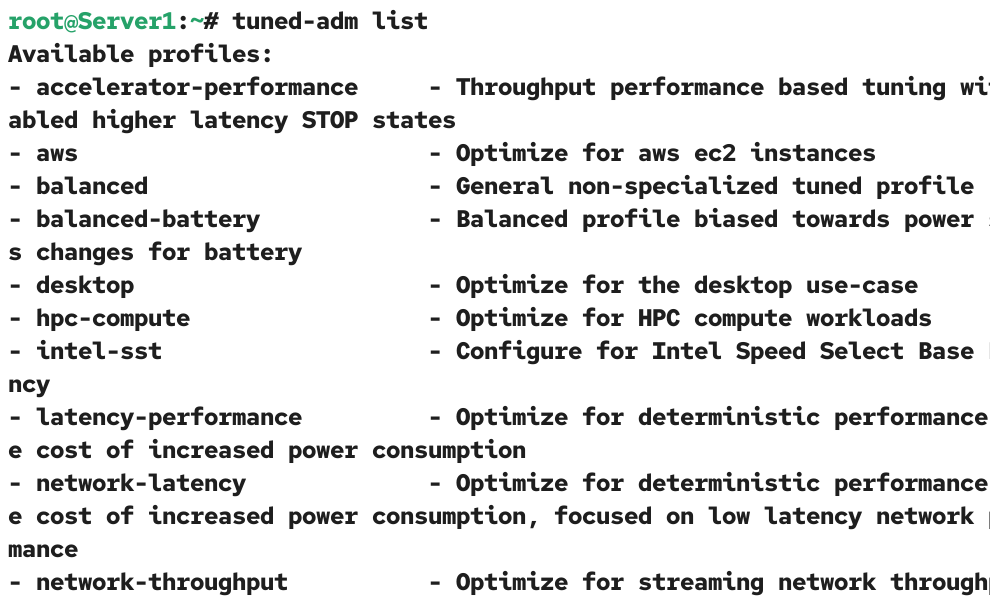
The following command lists all available profiles.
#tuned-adm list
To determine which profile best suits your system hardware, use the following command. This command checks the system hardware and recommends the best profile for it.
#tuned-adm recommend

Tuned profiles
The following table lists all available profiles and their meanings.
| accelerator-performance | It provides performance-based tuning. It uses disabled higher-latency STOP states. |
| aws | It optimizes the system for an AWS (Amazon Web Services) instance. |
| balanced | It optimizes the system for common tasks. It provides a balance between power consumption and performance. |
| balanced-battery | It also optimizes the system for common tasks. However, it optimizes them in such a way that they consume less power. |
| desktop | It optimizes the system for desktop users and PCs. |
| hpc-compute | It is an optimized profile for HPC compute workloads. |
| intel-sst | It configures the system to use the Intel Speed Select Base Frequency. |
| latency-performance | It optimizes the system for deterministic performance at the cost of increased power consumption. |
| network-latency | It optimizes the system for deterministic performance at the cost of increased power consumption, with a focus on low-latency network performance. |
| network-throughput | It optimizes the system for streaming network throughput on older CPUs or 40G+ networks. |
| optimize-serial-console | It optimizes the system for serial console use. |
| powersave | It optimizes the system for low power consumption. |
| throughput-performance | It optimizes the system for services that require high data throughput, such as web or file servers. |
| virtual-guest | It optimizes the system for running inside a virtual guest. |
| virtual-host | It optimizes the system for running KVM guests. |
To set a new profile, use the following command.
#tuned-adm profile [new profile name]
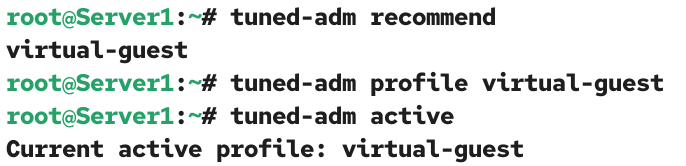
The following command compares the settings specified in the currently active profile with the actual settings configured on the running system. If it finds any differences, it lists them. You can use it to verify that the current profile is applied correctly.
#tuned-adm verify

To temporarily disable the TuneD service, use the following command. This command reverts all settings applied by the active profile. You can use it to determine whether an issue is caused by the TuneD service.
#tuned-adm off
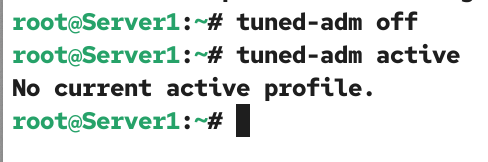
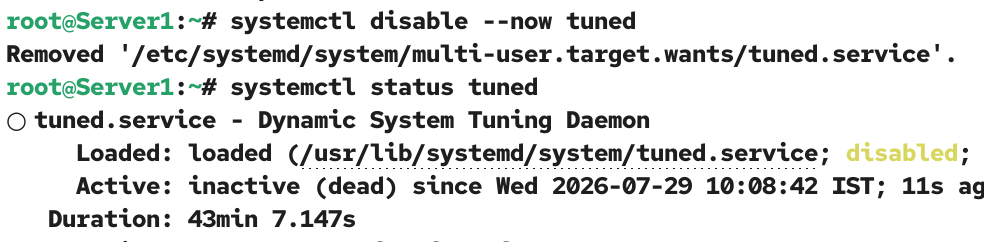
To permanently disable it, use the following command.
#systemctl enable --disable tuned
Conclusion
TuneD is the default performance monitoring and optimizing tool on RHEL. It allows you to fine-tune system performance without manually editing kernel parameters and changing configuration files. It handles everything necessary for best performance automatically. It also supports the override feature, which lets you see and control the settings it changes and applies.
Author Laxmi Goswami Updated on 2026-07-29