Locking the Desktop Background on RHEL Linux
Changing the default desktop background is the first task you may prefer to perform just after installing RHEL Linux. On a personal computer, you can use this feature to localize your desktop environment. In an office or company environment, you can use it for branding. If you are an administrator or use this feature for branding, you can also prevent users from changing the background you set on their desktops. This tutorial explains how to customize and prevent users from changing their desktop background on RHEL Linux.
prerequisites:-
- A RHEL system with GNOME Desktop
- The root or superuser access
- Background images
Preparing images for backgrounds
Create background images for your brand and place them in the /opt/ or /usr/local/share directory. The default file permissions of both directories allow services running on the local system to read their contents. GNOME needs this permission to use your background images. If you save background images in any other directory, change the default permissions to grant read access to all.
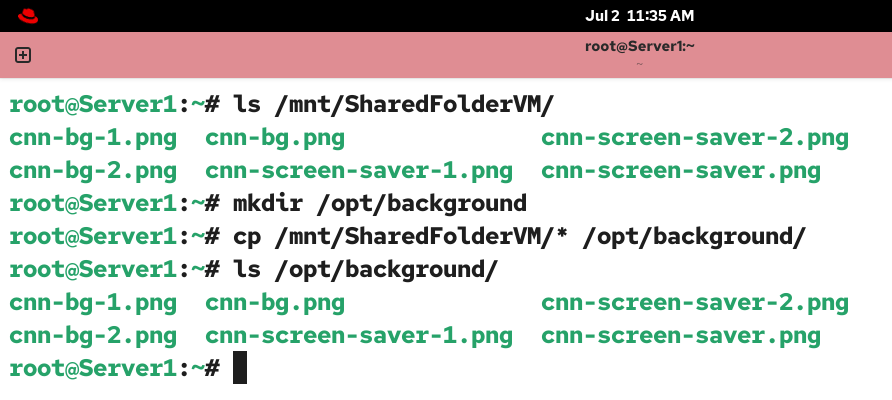
Log in as the root or superuser, create a directory in the /opt/ directory, and copy your background images into it.
#mkdir /opt/background/
#cp [path to your background images] /opt/background/
#ls /opt/background/
Changing the desktop background for all users
GNOME reads the /etc/dconf/db/local.d/00-background file to set a custom desktop background. If this file is not present, it uses the default desktop background. By default, this file does not exist. Create this file, add the following lines, and save the file.
#vim /etc/dconf/db/local.d/00-background

[org/gnome/desktop/background]
picture-uri='file:///opt/background/cnn-bg.png'
picture-options='scaled'
primary-color='000000'
secondary-color='FFFFFF'

:wq
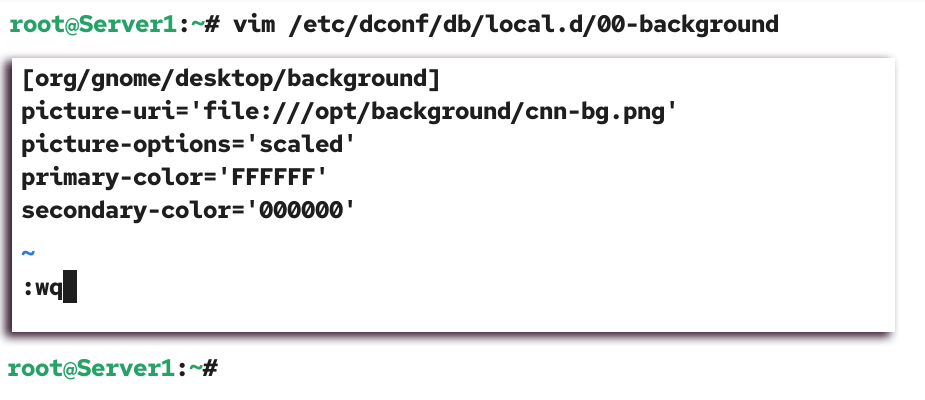
- The picture-uri option defines the path to the background image file. The file path must be enclosed in quotes. Replace the /opt/background/cnn-bg.png with the path of your image file.
- The picture-options option specifies the rendering option for the background image. It lets you control how the background image is displayed on the desktop. The values you can use in this option are none, zoom, centered, scaled, stretched, and spanned.
- The primary-color option defines the color that appears on the top and left sides of the background image.
- The secondary-color option defines the color that appears on the right and bottom sides of the background image.
Linux reads configuration files and loads their settings into memory during system boot. Once the system is up, it uses settings from memory. You can restart the system or use the following command to force it to reread the configuration files and update the settings in memory.
#dconf update

Verifying the desktop background change for all users
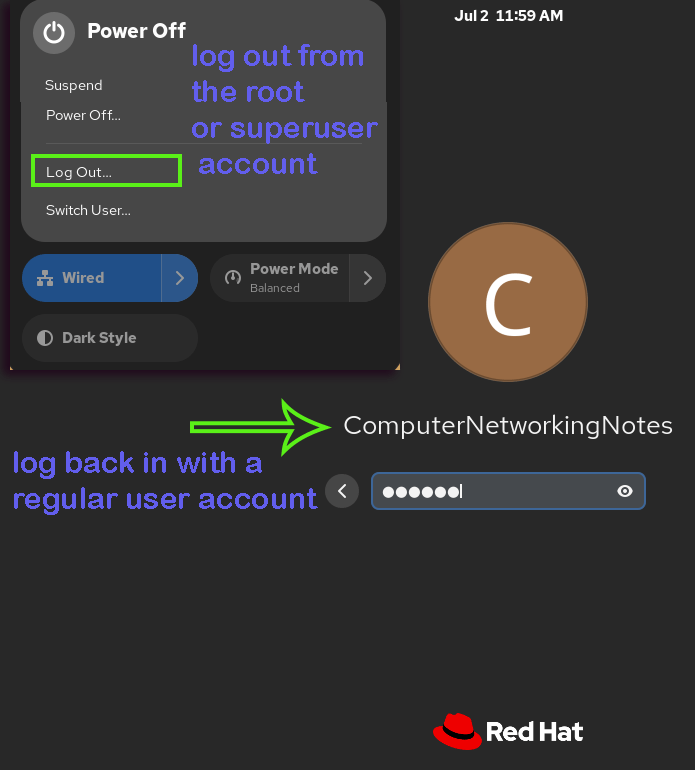
To verify that the desktop background has been changed for all users, log out from the root or superuser account and log back in with a regular user account.
The user will get the customized desktop background.
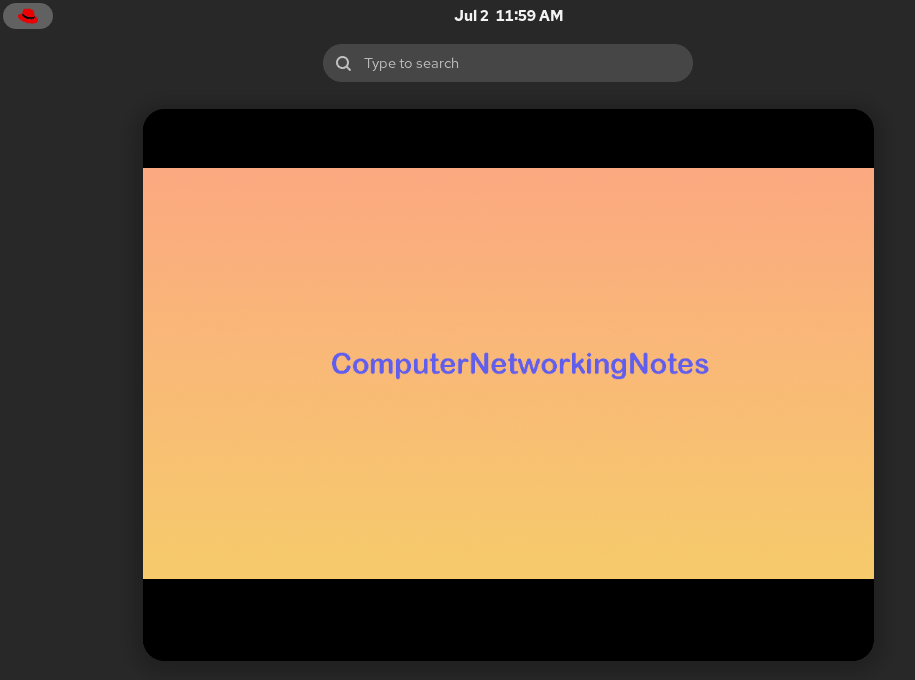
The /etc/dconf/db/local.d/00-background file only sets a default background for all users. But it does not prevent users from changing their desktop backgrounds. A user can change their desktop background. To verify this, right-click on the desktop and click the Change background option.
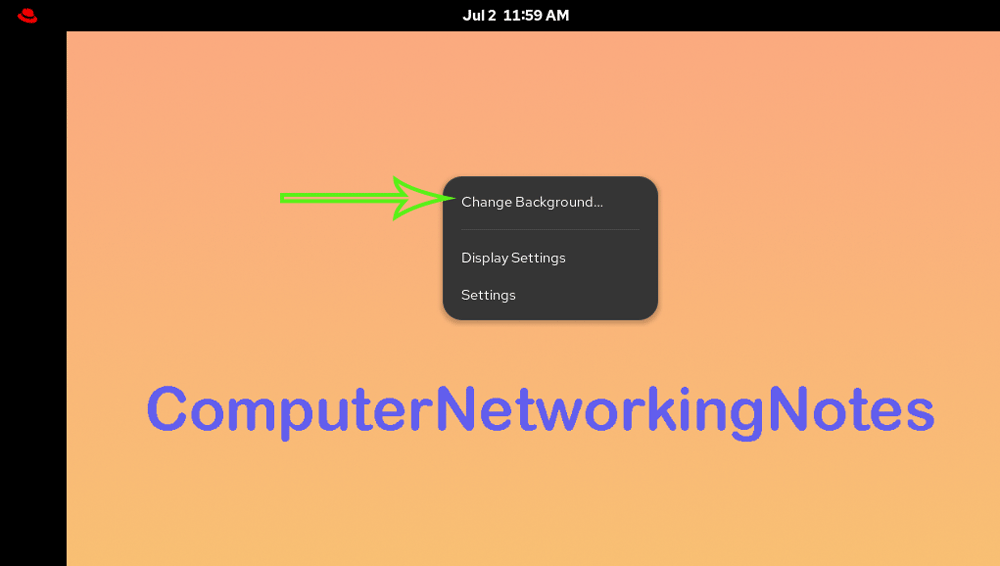
Click the image you want to set as the background from the listed images. The change applies immediately.
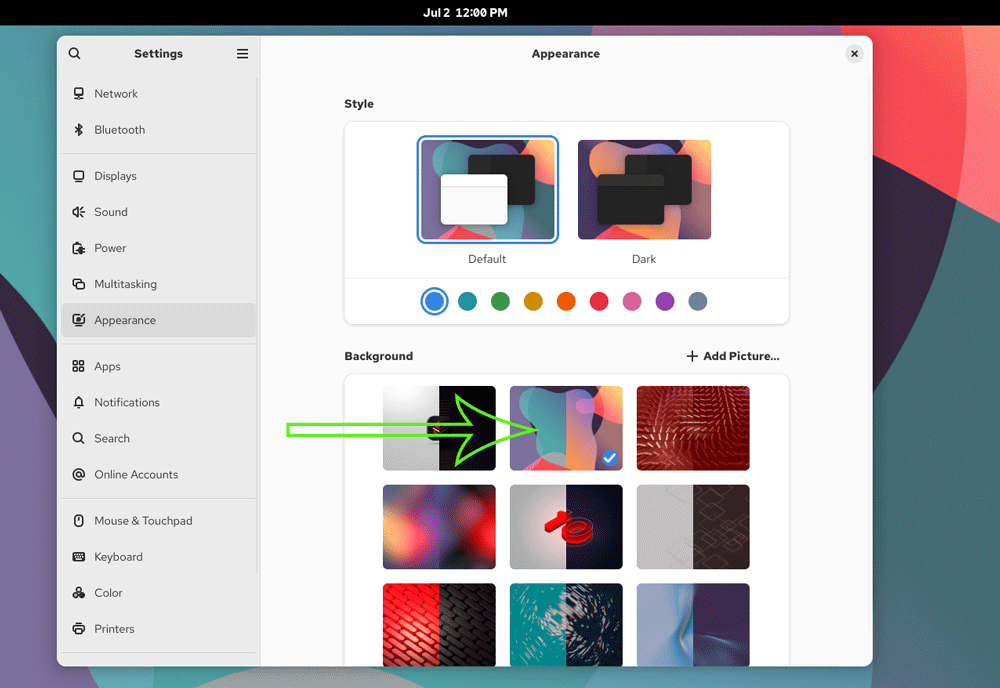
This setup is ideal when you want to set an initial desktop background for all users while allowing them to change it as needed. This setup only sets a universal desktop background. It does not prevent users from changing it.
Preventing users from changing their desktop background
The /etc/dconf/db/local.d/locks/background file prevents users from changing their desktop background. By default, this file is not present. Log out as the regular user and log back in as the root user. Create this file, add the options you want to disable for editing, and save the file.
#vim /etc/dconf/db/local.d/locks/background

/org/gnome/desktop/background/picture-uri
/org/gnome/desktop/background/picture-options
/org/gnome/desktop/background/primary-color
/org/gnome/desktop/background/secondary-color

:wq
Update the configuration database.
#dconf update
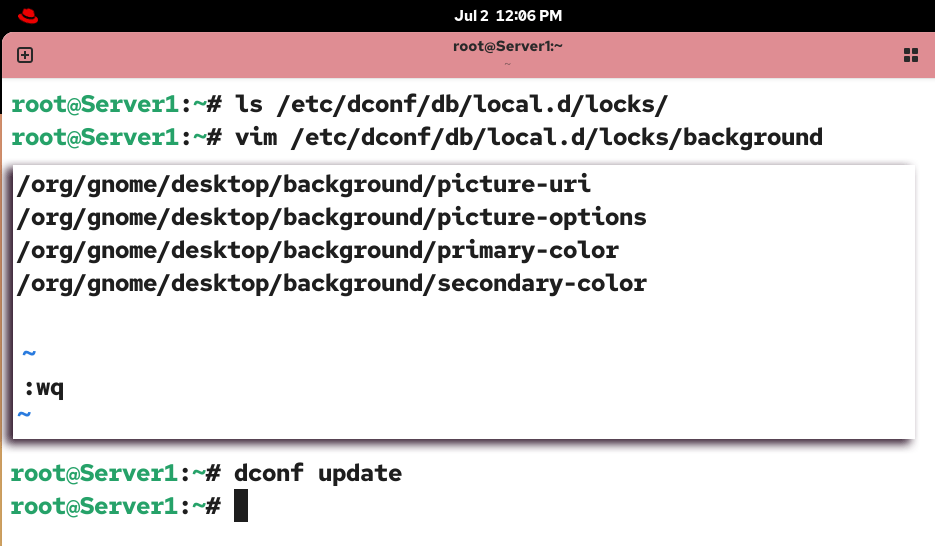
The above configuration file disables all four options you set in the /etc/dconf/db/local.d/00-background. Exclude the option you want to allow. For example, if you want users to be unable to change their desktop background image, but can change rendering options. For this, you can exclude the 'picture-options' option from the list.
Verifying that users cannot change their desktop backgrounds
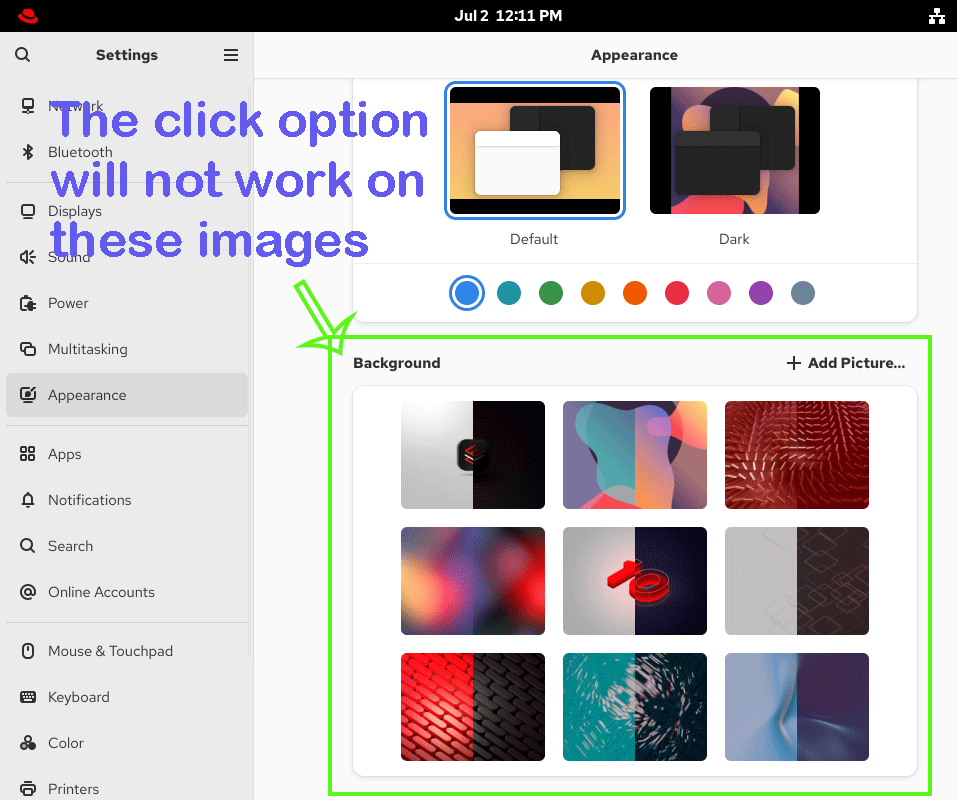
To verify that users cannot chage their desktop background, log out as the root user and log back in as the regular user account. You will get a pre-applied background image. Right-click the desktop, then click Change background.
The screen will display all options and background images as shown earlier. However, you cannot select and apply them. To verify this, click any listed images. You will not be able to click and select any image.
Removing the custom desktop background options
To reset the default desktop background image and options, log back in as the root user and remove both files you created.
#rm  /etc/dconf/db/local.d/locks/background
#rm /etc/dconf/db/local.d/00-background
Update the configuration database.
#dconf update
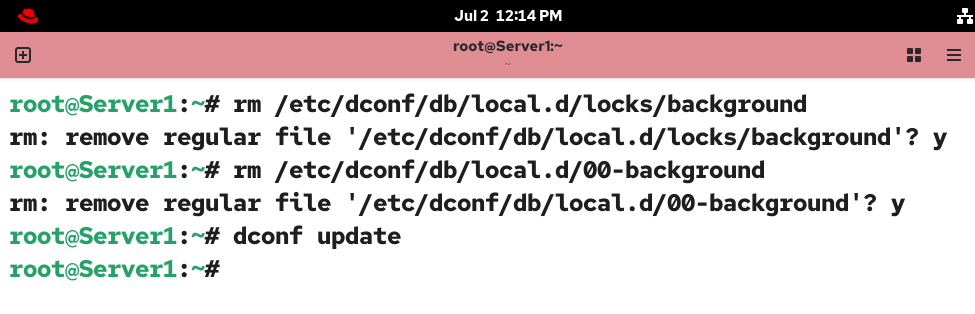
To verify that the custom desktop background image configuration has been removed, log out of the current session and log back in as the regular user account. The user will get the default desktop background image back.

Conclusion
In this tutorial, I explained how you can configure a universal desktop background for all users on the system. Later, I described the steps you can take to prevent users from changing their desktop background images. If you wish to restore the default settings, you can simply remove the configuration files you created to customize and lock the desktop background.
Author Laxmi Goswami Updated on 2026-07-02