Customizing the login screen logo on RHEL Linux
The default GNOME login screen on RHEL Linux displays a Red Hat logo. This tutorial explains how to change or customize this logo with your brand or company logo.
Prerequisites:-
- A RHEL system with the GNOME desktop environment
- A root or superuser account
- A logo file
Creating a logo file
Create a logo file for your brand on your favorite photo editor software. The default Red Hat logo is 48 pixels. You can use this size for your logo or choose a custom height and width. The following image shows the logo you will replace.
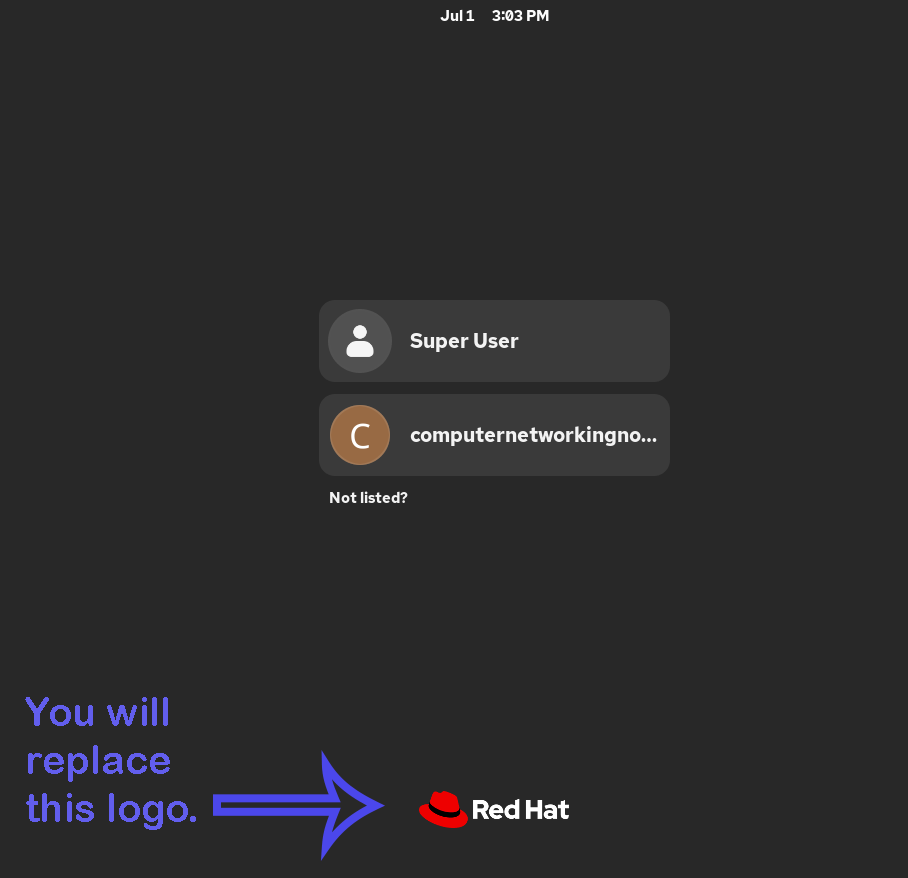
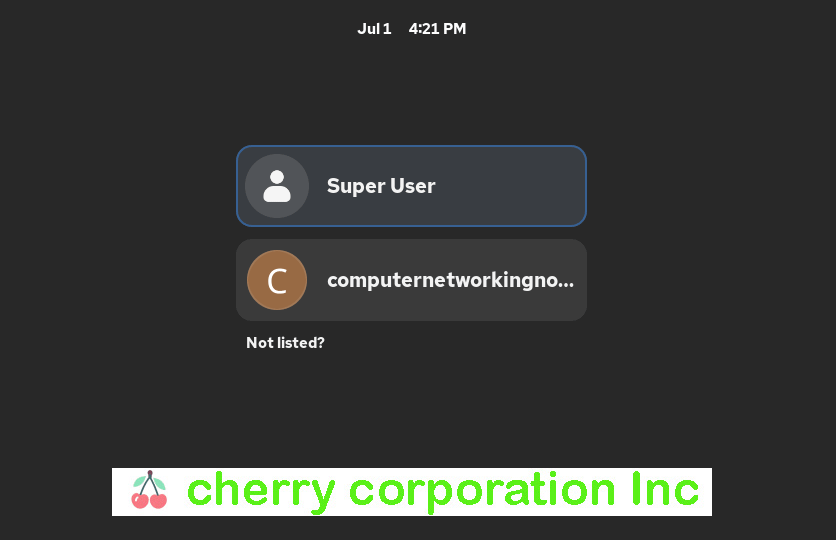
For example, to demonstrate this process, I used a logo with a height of 48 pixels and a width of 600 pixels.

GNOME supports the following file formats:
ANI, BPM, GIF, GTIFF, ICNS, ICO, PNG, JPEG, JPEG 2000, PCX, PNM, PBM, PGM, PPM, RAS, SVG, TGA, TIFF, WBMP, XBM, or XPM.
You can save your logo file in any of the formats listed above.
Fixing the file permission
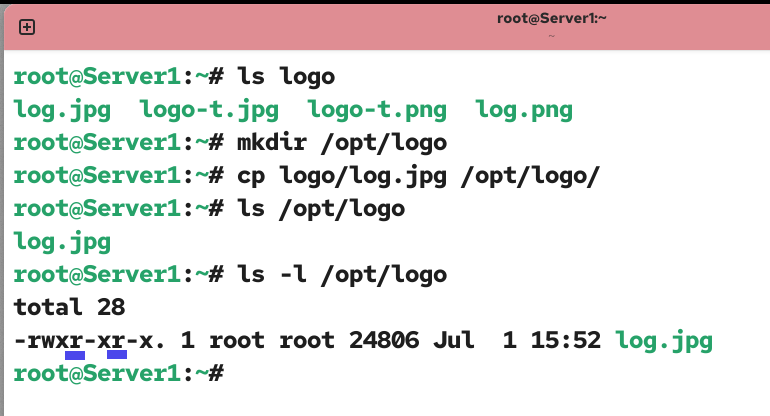
You can save your logo file in any directory. There is no default path or location for it. GNOME needs the read permission on your logo file. The location you choose to save your logo file must be accessible to GNOME. To keep this process straightforward, you can save your logo file in the /opt/ or /usr/local/ directory. Both directories are universally system-readable directories. If you place your logo file in any of these directories, you do not need to adjust the default file permissions of the logo file.
Log in with the root or sueruser account, create a new directory in the /opt/ directory, and copy your logo file into it.
#mkdir /opt/logo
#cp [pathname of your log file] /opt/logo/
If you choose another location, make the logo file readable for all. If the logo file is saved in another location, use the following to make it readable for all.
#chmod 644 [logo file pathname]
Creating a configuration file to override the default logo
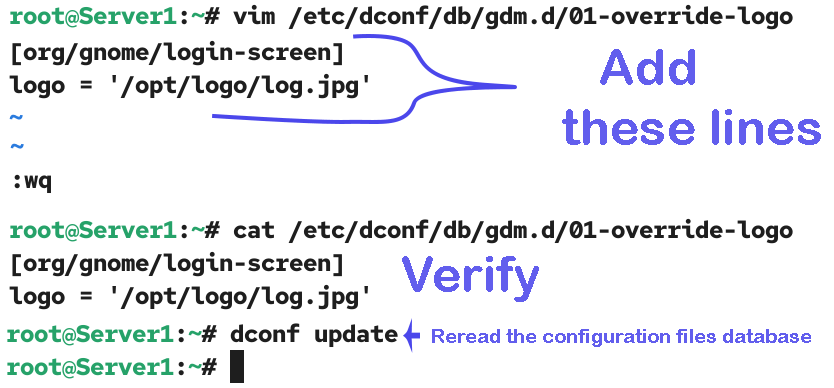
The /etc/dconf/db/gdm.d/01-override-logo file allows you to override the default logo. By default, this file is not present. To replace the default logo with your custom logo, create this file, add the following directives, and save the file.
#vim /etc/dconf/db/gdm.d/01-override-logo

[org/gnome/login-screen]
logo = '/opt/logo/log.jpg'

:wq
Replace '/opt/logo/log.jpg' with the path of your logo file. Linux reads configuration files and loads their settings into memory during system boot. Once the system is up, it uses settings from memory. You can restart the system or use the following command to force it to reread the configuration files and update the settings in memory.
#dconf update
Troubleshooting
The logo file path must be enclosed in quotes. If you specify it without quotes, you will get a 0:expected value error when you update the configuration database.
#vim /etc/dconf/db/gdm.d/01-override-logo

[org/gnome/login-screen]
logo =/opt/logo/log.jpg


:wq

#dconf update
/etc/dconf/db/gdm.d: 01-override-logo: [org/gnome/login-screen] value: /opt/logo/log.jpg: 0:expected value
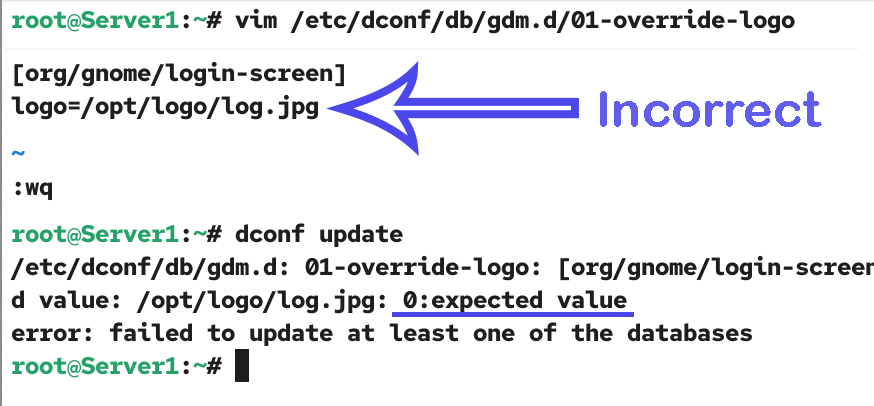
To fix this issue, enclose the logo file path with quotes and add a space before and after the equal sign.
Verifying the custom logo
The new custom logo will appear on the login screen the next time you start the system. You can restart the system or use the following command.
#systemctl restart gdm.service
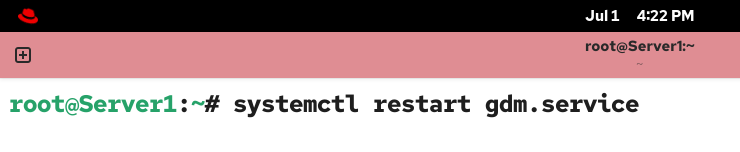
The above command terminates the active desktop session and restarts it. If you have any open files or running jobs in the background, do not use this command. You will lose all unsaved data. If you want to use this command, close all your open apps and files first.
The new logo will replace the default Red Hat logo on the login screen.
Removing the custom logo / resetting the default logo
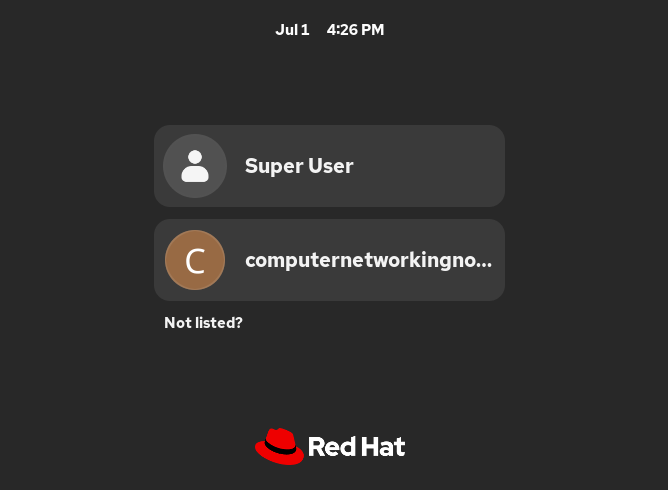
To remove the custom logo or reset the default Red Hat logo, remove the override configuration file. If the logo override file is not present, GNOME uses the default logo.
#rm /etc/dconf/db/gdm.d/01-override-logo
Update the configuration database.
#dconf update
Restart the system or the desktop service to verify the change.
#systemctl restart gdm.service

The default Red Hat logo on the login screen verifies that the custom logo has been removed.
Conclusion
The GNOME login screen contains a default Red Hat logo. In this tutorial, I explained the steps you need to customize or replace it with your bard’s logo. I also described the common errors and their solutions that you may face during this process.
Author Laxmi Goswami Updated on 2026-07-02