Running Applications in a Flatpak Sandbox on RHEL
Flatpak is an open-source project. It provides an isolated environment for running applications and testing scripts. It is the default sandbox for building and testing software on RHEL. You can use it to run third-party applications. It provides all the essential libraries and dependencies required to run applications. Any applications, scripts, or codes you run with Flatpack have minimal access to the host system. It cannot modify any system settings on the host system. This tutorial explains how to run and manage applications with Flatpak.
Prerequisites:-
- An RHEL system connected to the Internet.
- A working repository (If Flatpak is not installed).
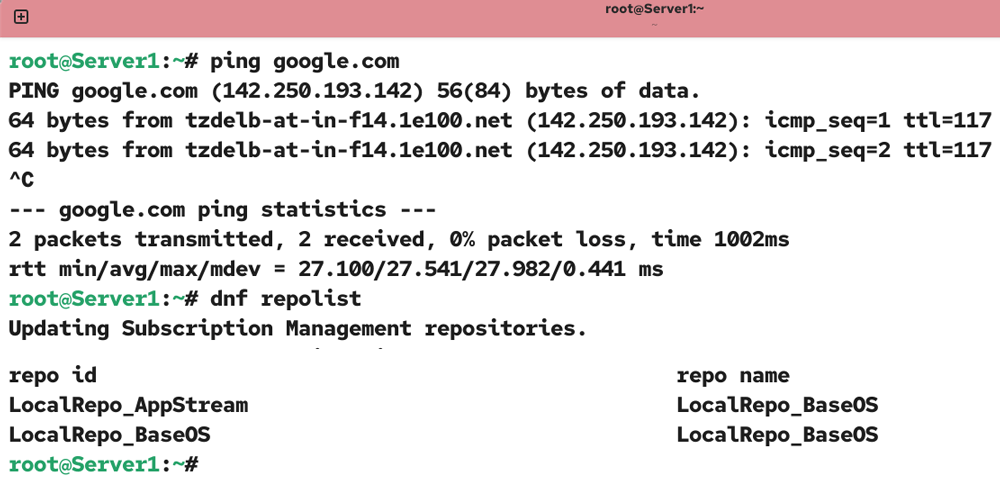
Test and verify that the system has Internet access.
#ping www.google.com
To list and verify a working repository, run the following command.
#dnf repolist
Installing Flatpak
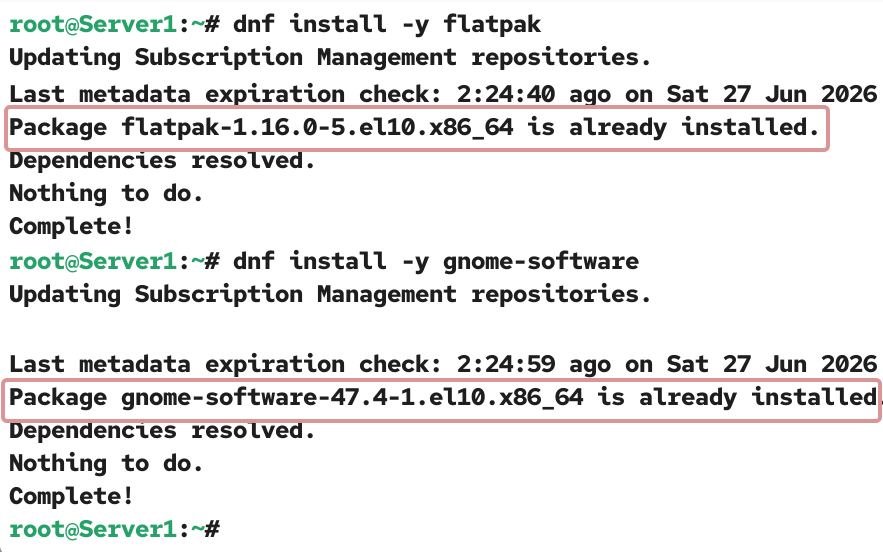
Flatpak is part of the default installation. If it is not installed, run the following command to install it. If it is already installed, this command does nothing.
#dnf install -y flatpak
To run graphical applications with Flatpak, install the gnome-software package.
#dnf install -y gnome-software
Flatpak applications are customized to run in an isolated environment. Flatpak applications are available in Flatpak repositories. Flatpak repositories are called remotes. Red Hat provides a remote to distribute Red Hat applications customized to run in a sandbox. You need an active RHEL subscription to use it. In case you do not have an active RHEL subscription, you can use the Flathub remote. The Flathub remote is part of the Flatpak project. It provides third-party applications you can run with Flatpak.
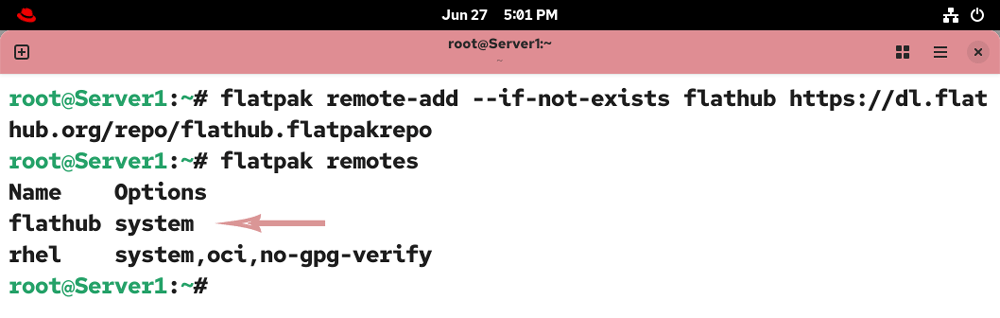
The following command adds the default Flathub remote.
#flatpak remote-add --if-not-exists flathub https://dl.flathub.org/repo/flathub.flatpakrepo
Use the following command to view and verify the added Flatpak remote.
#flatpak remotes
Searching Flatpak applications
Use the following command to search for applications in all enabled Flatpak remotes.
#flatpak search [application name]
For example, the following command searches for Firefox.
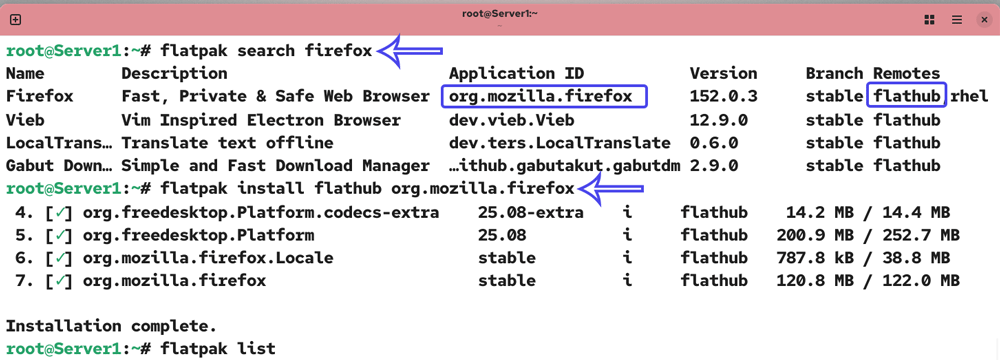
#flatpak search firefox
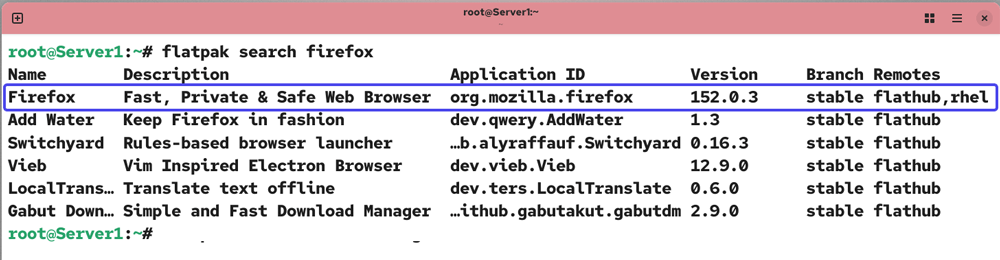
The output of this command displays results in lines. Each line represents a separate package and contains 7 fields: name, description, application ID, version, branch, and remotes.
| Name | Name of the package. |
| Description | A short description of the package. |
| Application ID | A unique ID for the package. You need this ID to download and install this package. |
| Version | Version of the package. |
| Branch | Branch in which this package is available. |
| Remote | Remote in which this package is available. If the package is available across multiple remotes, this field lists the names of all remotes that contain it. |
Installing Flatpak applications
Use the following syntax to install a Flatpak application.
#flatpak install [remote name] [application ID]
For example, the following command installs Firefox from the flathub remote. It installs the application and its runtime libraries.
#flatpak install flathub org.mozilla.firefox
Viewing installed applications
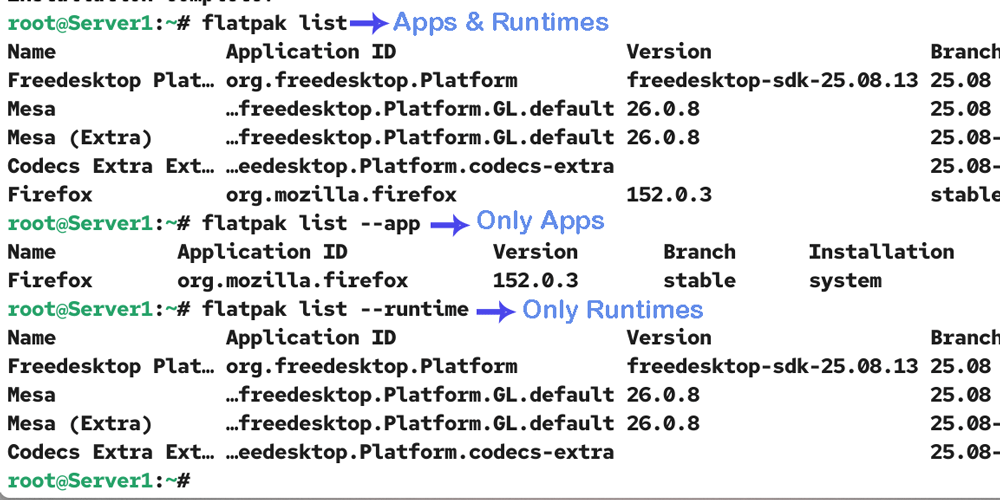
Use the following command to view the installed Flatpak applications. It displays installed Flatpak applications and their runtimes.
#flatpak list
To view only applications, use the following command.
#flatpak list --app
To view only runtimes, use the following command.
#flatpak list --runtime
Viewing detailed information about an installed application
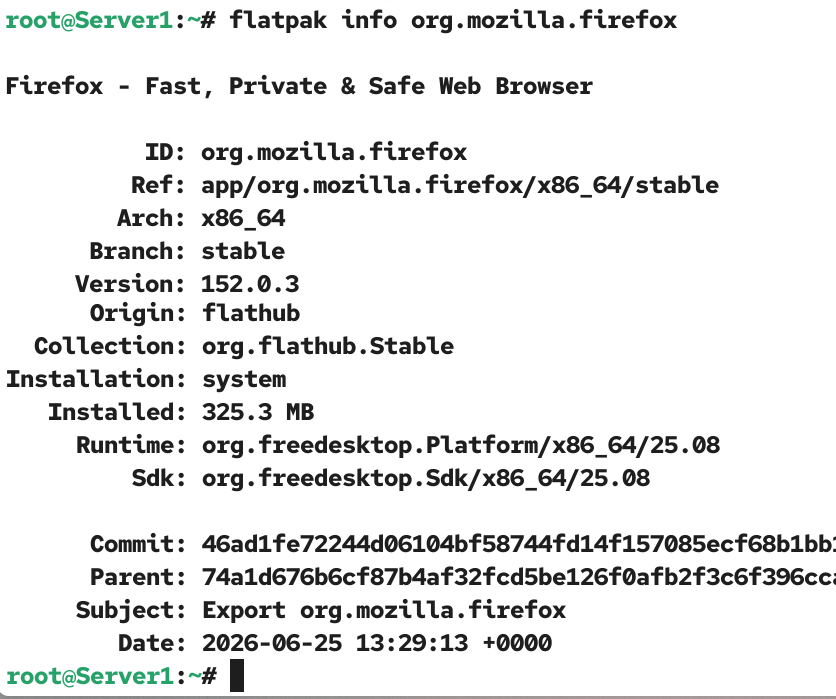
The following command displays detailed information about the installed application.
#flatpak info [application id]
For example, use the following command to view detailed information about Firefox.
#flatpak info org.mozilla.firefox
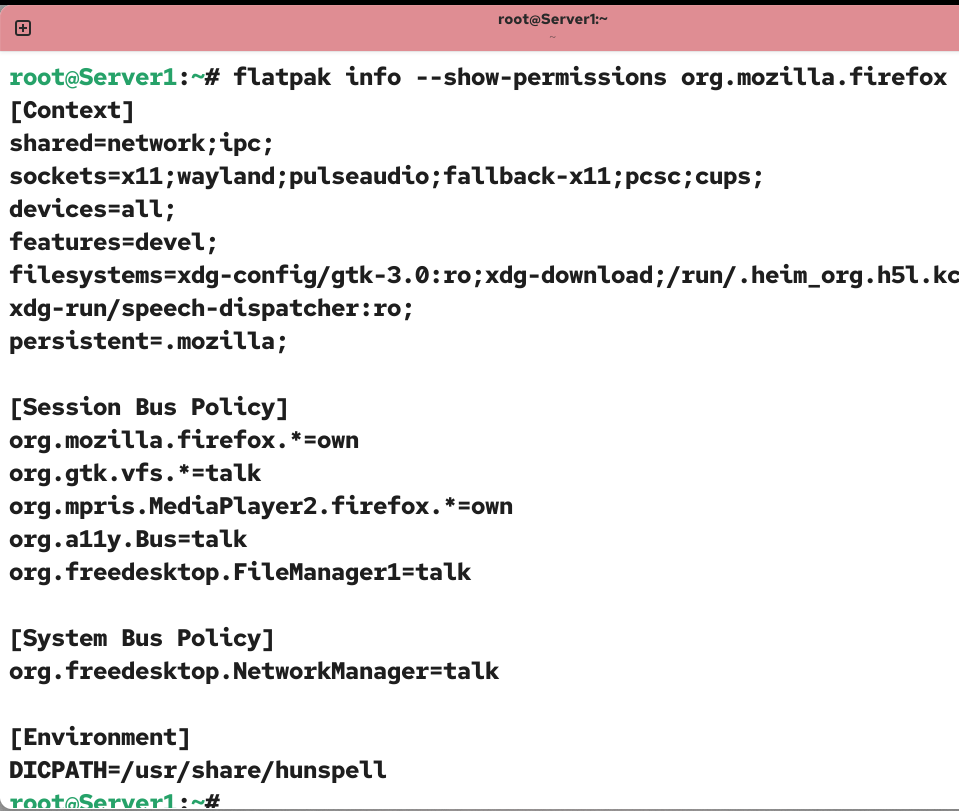
To view the permissions the application needs and uses to launch, use the following command.
#flatpak info --show-permissions org.mozilla.firefox
To view the application's metadata, run the following command.
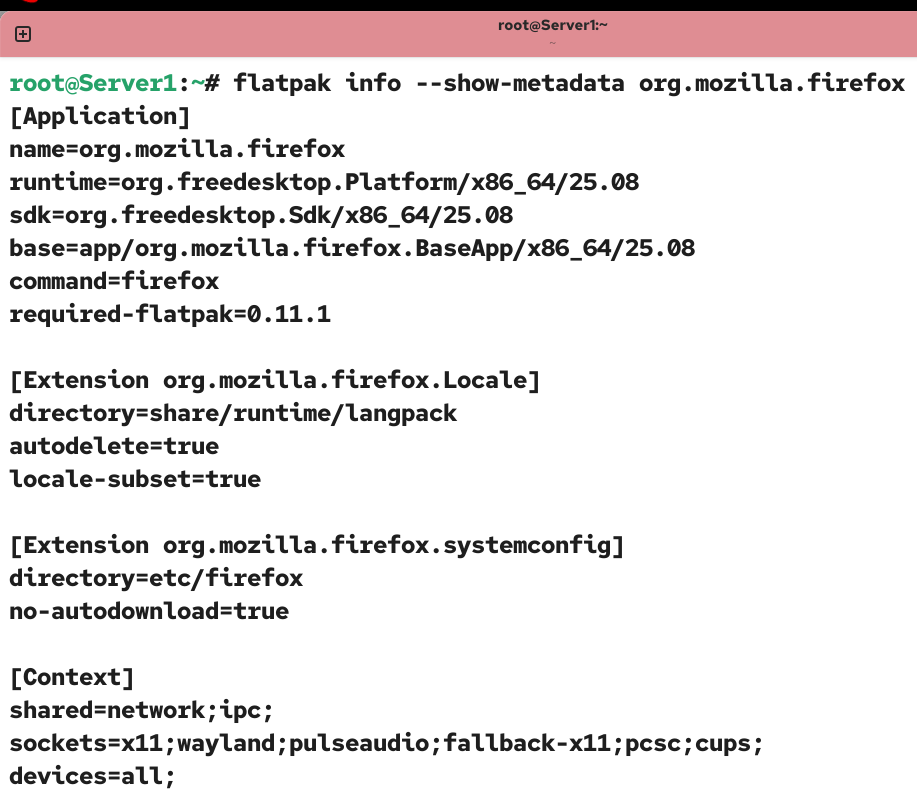
#flatpak info --show-metadata org.mozilla.firefox
Launching / starting a Flatpak application
Use the following command to launch a Flatpak application.
#flatpak info [application id]
The following command starts Firefox in a Flatpak sandbox.
#flatpak run org.mozilla.firefox
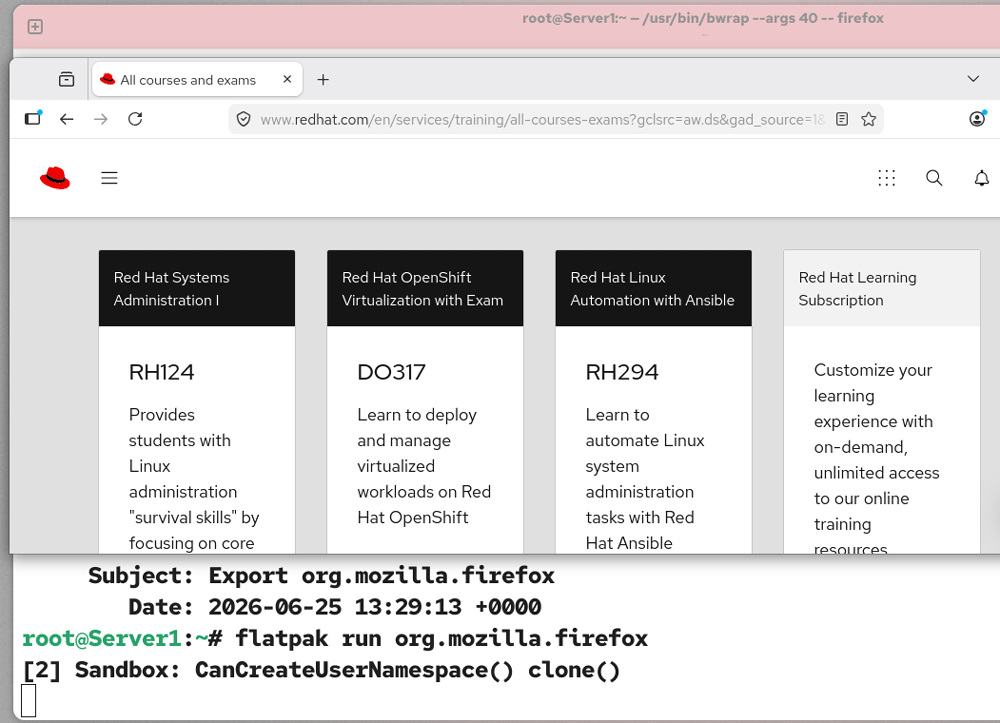
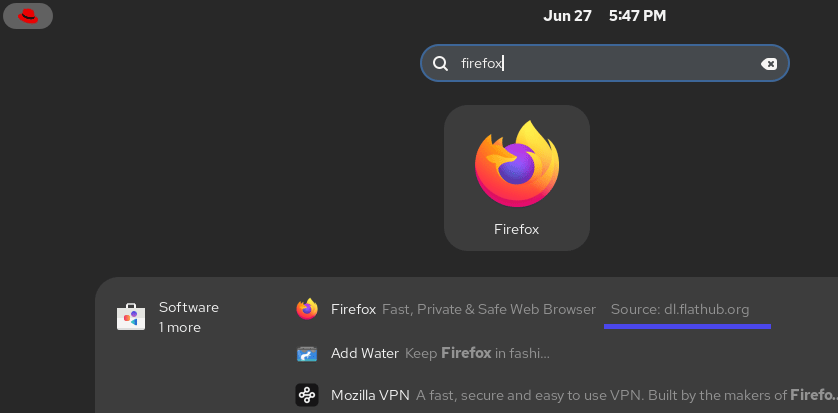
You can also launch a Flatpak application directly from the GUI. Click Dash, search for the application, and click its icon.
Uninstalling a Flatpak application
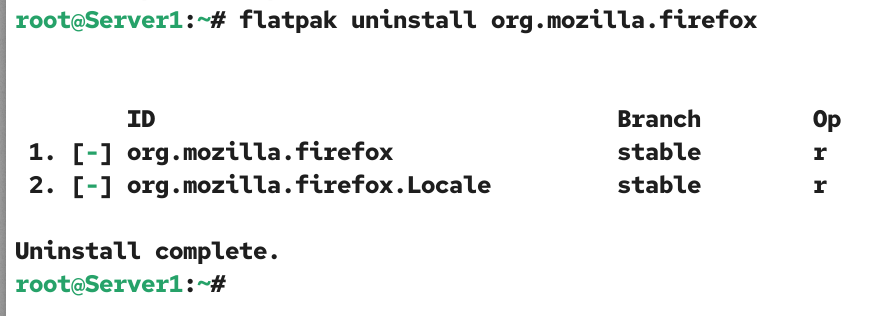
To remove / delete a Flatpak application, use the following command. This command uninstalls the Flatpak application while keeping its data for future use.
#flatpak uninstall [application id]
#flatpak uninstall org.mozilla.firefox
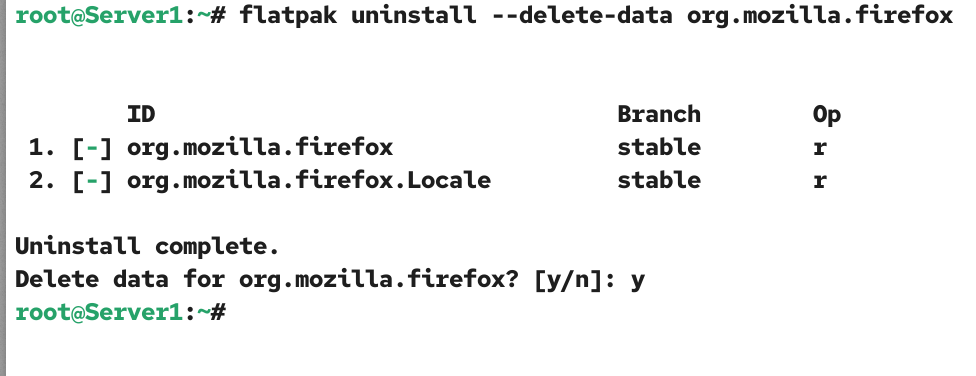
To delete an application with all of its data, use the following command.
#flatpak uninstall --delete-data [application id]
The following command removes Firefox and deletes its data files.
#flatpak --delete-data uninstall org.mozilla.firefox
Troubleshooting
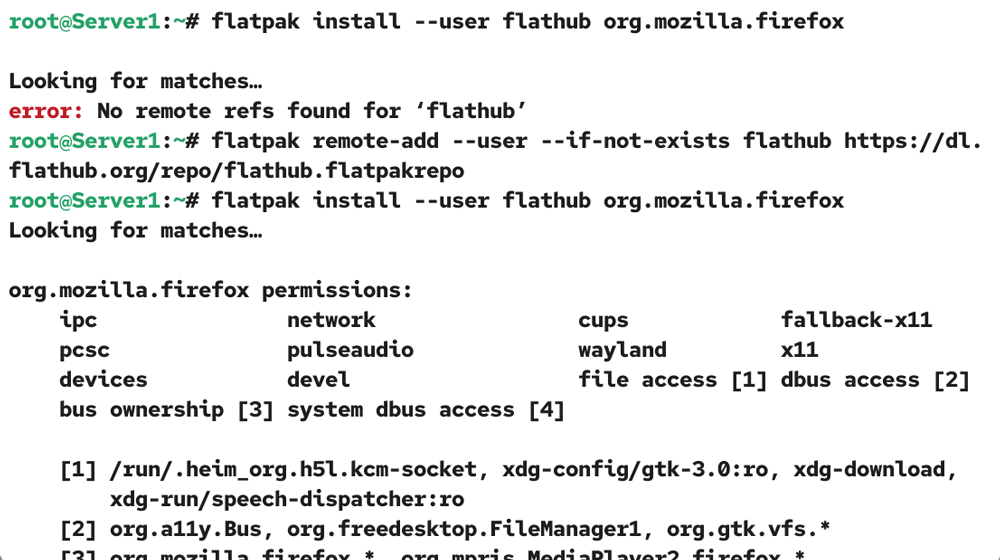
Flatpak allows you to add remotes for all users or for a specific user account. The default option adds the remote for all users. Similarly, you can install a Flatpak application for a single user or all users. To install a Flatpak application under the current user account, use the --user option.
#flatpak install --user flathub org.mozilla.firefox
If you install a Flatpak application under a specific user account, the remote must also be installed under that account. If you add a remote for a specific user and use another user account to install the application, you will get the following error.
error: No remote refs found for 'flathub'
To fix this issue, add the remote for that user account. Use the --user option to add the remote under the current user account.
#flatpak remote-add --user --if-not-exists flathub https://dl.flathub.org/repo/flathub.flatpakrepo
#flatpak install --user flathub org.mozilla.firefox
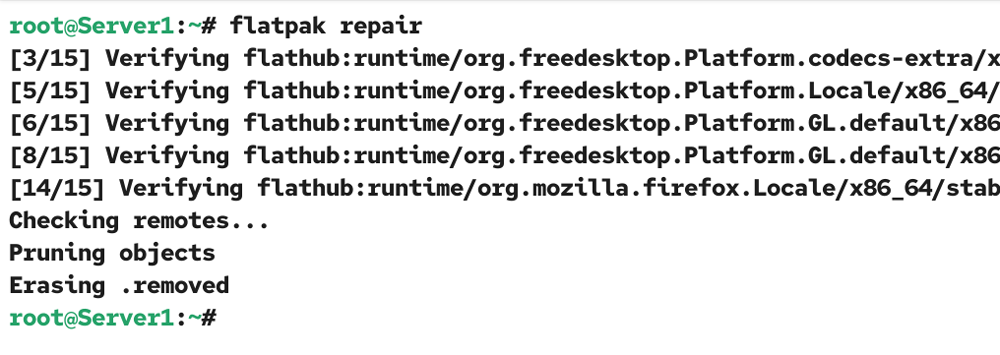
If the Flatpak package is corrupt, or if you have modified Flatpak configuration files and Flatpak is not working as expected, you can use the following command to repair the Flatpak installation.
#flatpak repair
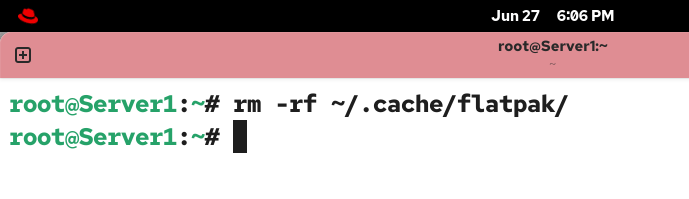
The following command removes Flatpak caches.
#rm -rf ~/.cache/flatpak/
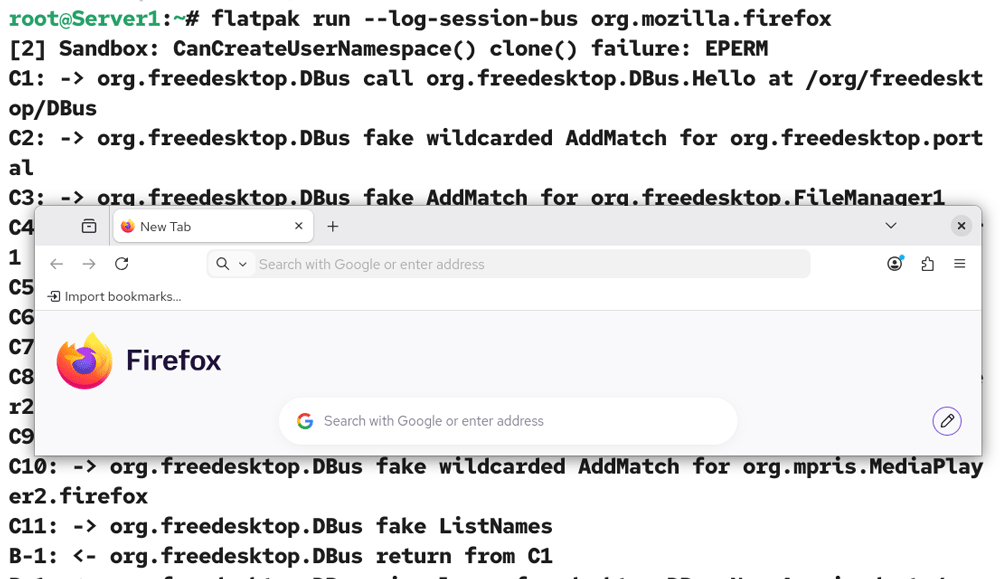
You can use the --log-session-bus option with the run option to view real-time logs as Flatpak starts.
#flatpak run --log-session-bus org.mozilla.firefox
Conclusion
Flatpak provides a secure and flexible way to install, run, and manage applications on RHEL. It supports both official and third-party software. In this tutorial, I explained how to run and manage Flatpak applications in a sandbox.
Author Laxmi Goswami Updated on 2026-06-29