How to Execute Commands on a Linux Shell
A Shell is a command interpreter. It executes commands you run on a terminal. This tutorial explains how it processes commands and the things you need to know when writing commands and passing them to it.
Command prompt
The shell displays the command prompt. It is a place where you enter a command. By default, it consists of the username, hostname, and current working directory. If required, you can customize this information. After that, it shows a dollar ($) or hash (#) sign. If you log in with a regular account, it displays a dollar sign. If you log in with the root account, it shows a hash sign.
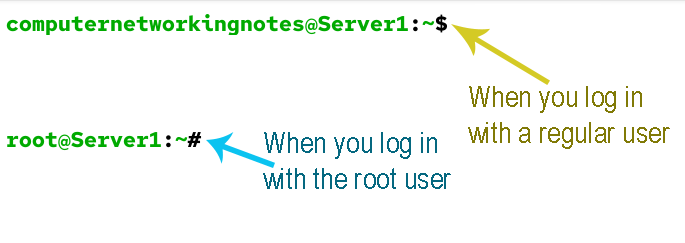
After the dollar or hash sign, it displays a blinking cursor. You enter a command where the cursor blinks. A command is a word or a string. It can be a simple word containing only a few characters or a long string spanning multiple lines. When you press Enter after typing a word or a string, it passes that string to the shell and disappears to indicate that the shell is processing the command. The shell interprets and executes it if it is a valid executable. If the executable generates output or an error, the shell displays that on the screen. Then, it displays the command prompt again to accept a new command.
Command structure
A command can have three parts: a command name, options, and arguments. A command name is compulsory. It is the first word you type on the command prompt. The shell finds an executable for this word. Options and arguments are the words you type after the command name. Depending on the command, they may be compulsory or optional. Options modify the output. Arguments provide the information options need to function. Use spaces to separate the command name, options, and arguments.

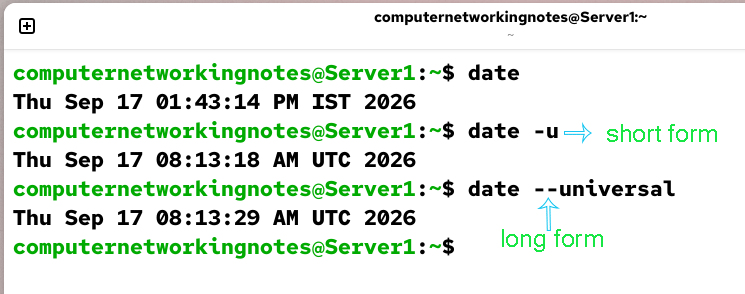
Options are followed by a single or double dash. A single-dash option is called a short-form option. An option followed by a double dash is called a long-form option.
Running multiple commands
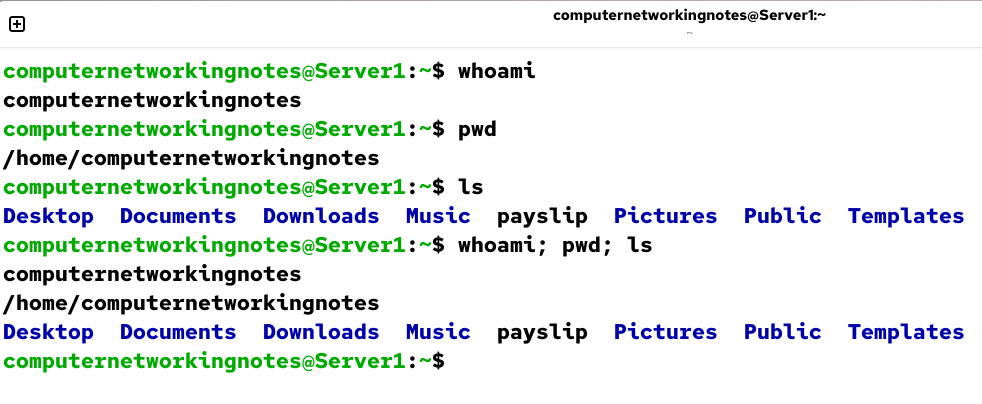
To run multiple commands at once, separate them by a semicolon (;). The shell assigns special meanings to a few symbols, called metacharacters. If you use a metacharacter in a command, the shell interprets the special meaning of that symbol while executing the command. A semicolon ends a command. When you press Enter, the command prompt sends the command to the shell. So, if you type two commands separated by a semicolon and then press Enter, the command prompt sends them to the shell as a single command. However, the shell processes them separately. It first executes the leftmost command, then the next command, and so on. The command prompt appears again only after the shell executes the last command in the sequence.
Exercise
- Run three commands independently, one-by-one.
- Run the same commands as a single command.
$whoami
$pwd
$ls
$whoami; pwd; ls
The first command displays the logged-in user's username. The second command displays the current working directory. The third command lists the contents of the current directory.
Listing contents of a directory
The ls command lists the contents of the current directory.
$ls
Viewing contents of a file
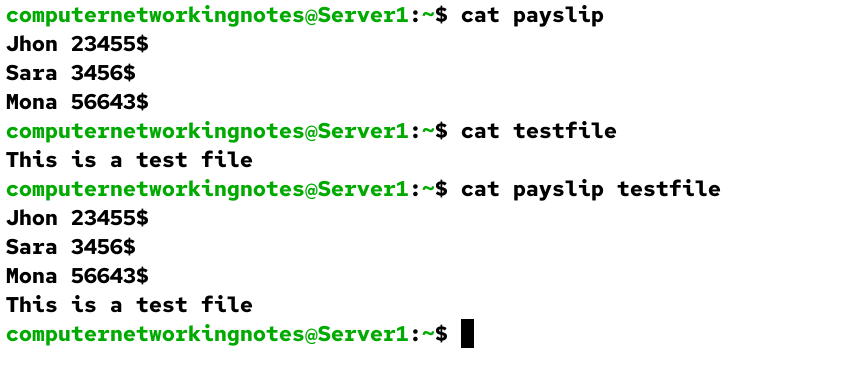
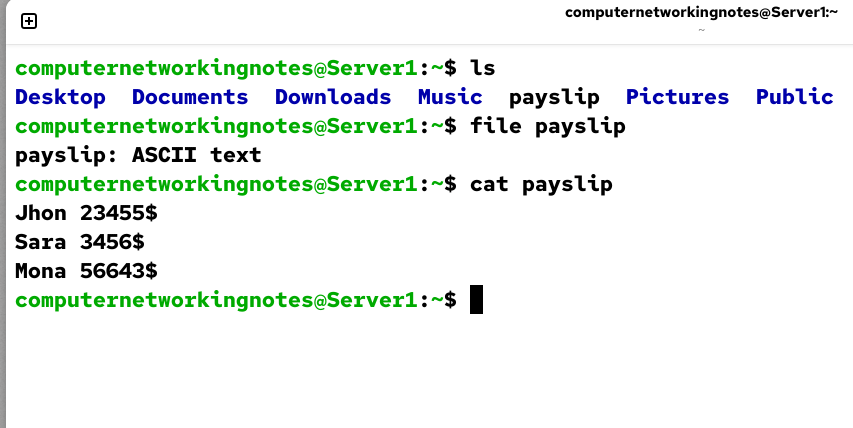
The cat command displays the content of the specified file. It requires a file path name as an argument. The following command displays the content of the file named payslip.
$cat payslip
You can also specify multiple file names. If you do, it displays their contents in their specified sequence. For example, the following command displays two files: payslip and testfile.
$cat payslip testfile
Viewing the file type
Unlike Windows, Linux does not use file extensions. To find a file's type, use the file command. It scans the file’s header and displays its type. The following command displays the file type for the file payslip.
$file payslip
Changing password
The passwd command changes the password. You can run this command with and without a username. If you run it without a username, it changes the password for the currently logged-in user.
$passwd
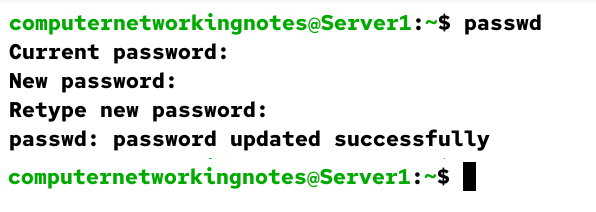
If you run it with a username, it changes that user's password. Only the root user can change passwords for other users.
$passwd [username]

Viewing a specific number of lines
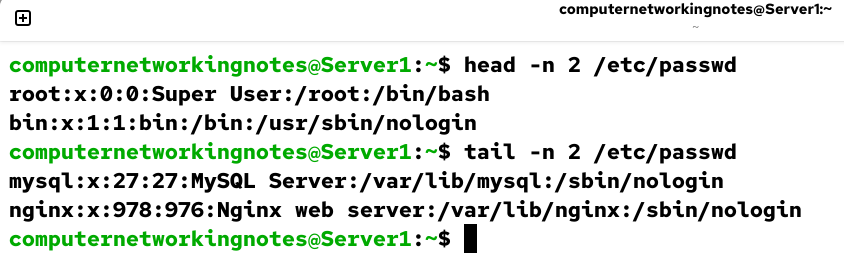
The cat command displays the entire file contents. Some files are long and may need more space to display than the terminal provides. In that case, you can use the less, head, and tail commands. The less command lets you navigate through the article using the UP and Down arrow keys. The head and tail commands let you view a specific number of lines from the top and bottom. Both accept line numbers as an argument with the -n option. For example, the following command displays the top 2 lines from the /etc/passwd file.
$head -n 2 /etc/passwd
To view the last 2 lines of the same file, use the following command.
$tail -n 2 /etc/passwd
Counting characters, words, and lines of a file
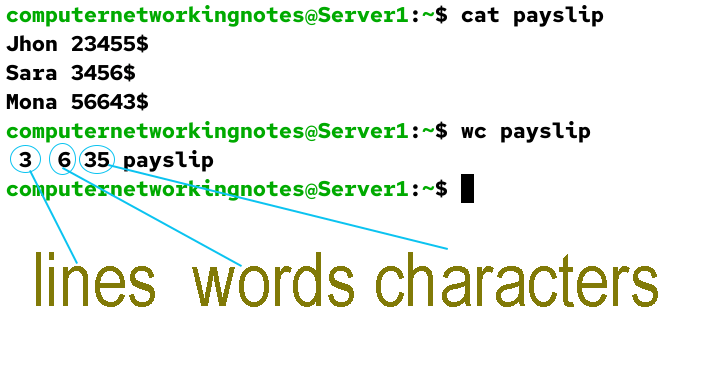
The wc command counts characters, words, and lines of the specified file. In this output, the first field shows the number of lines, the second field shows the number of words, and the third field displays the number of characters. The following command counts the lines, words, and characters in the payslip file.
$wc payslip
Tab Completion
The shell supports an auto-completion feature that lets you quickly complete commands or file names after typing enough at the prompt to make them unique. To use this feature, press the Tab key. How it behaves depends on when you press it.
| $ [Tab key] | Display all commands. |
| $c [Tab key] | Displays all commands that start with the letter c. |
| $cl [Tab key] | Displays all commands that start with the letter cl. |
| $cle [Tab key] | Displays all commands that start with the letter cle. If only one command starts with the typed letter, it completes the command. |
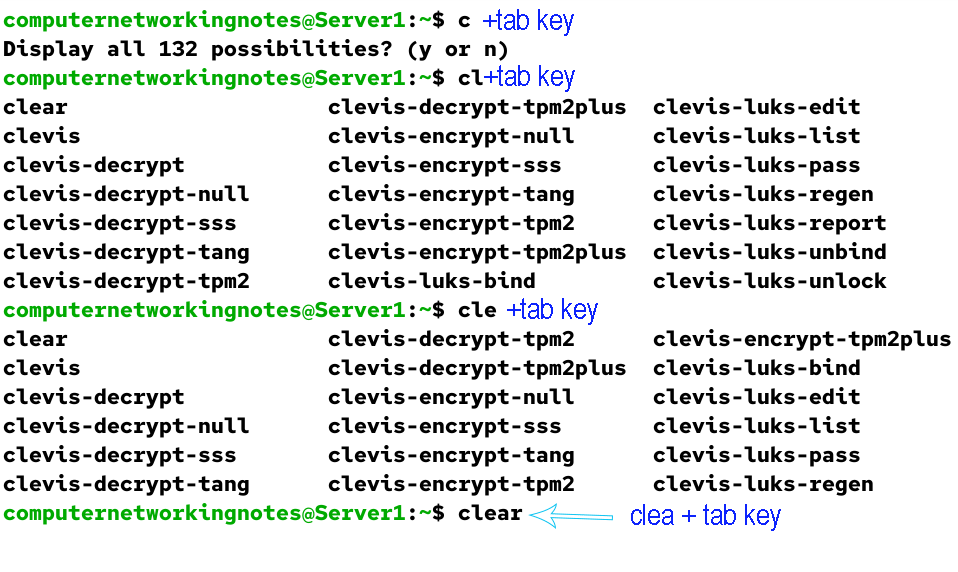
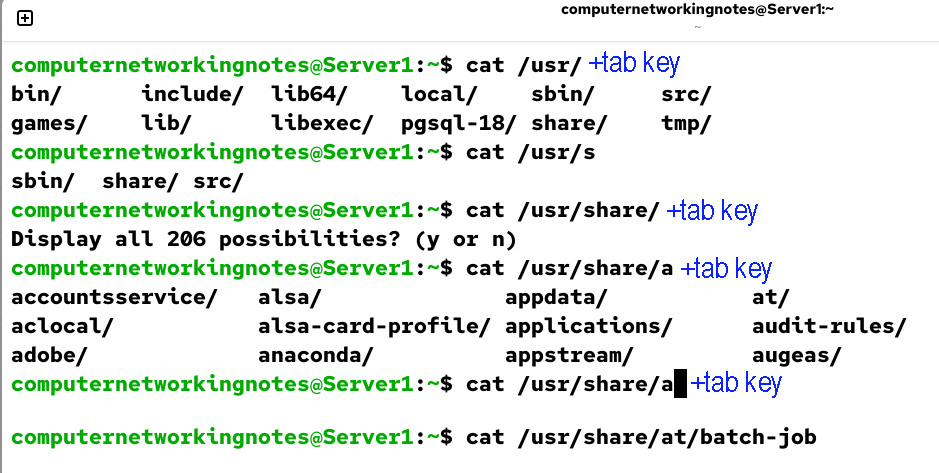
You can also use this feature to complete the file’s pathname in the argument.
| $cat /usr/ [Tab key] | Displays all files and directories in the directory /usr/. |
| $cat /usr/share/ [Tab key] | Displays all files and directories in the directory /usr/share/. |
| $cat /usr/share/a [Tab key] | Displays all files and directories in the directory /usr/share/ that start with the letter a. |
Executing a long command that spans multiple lines
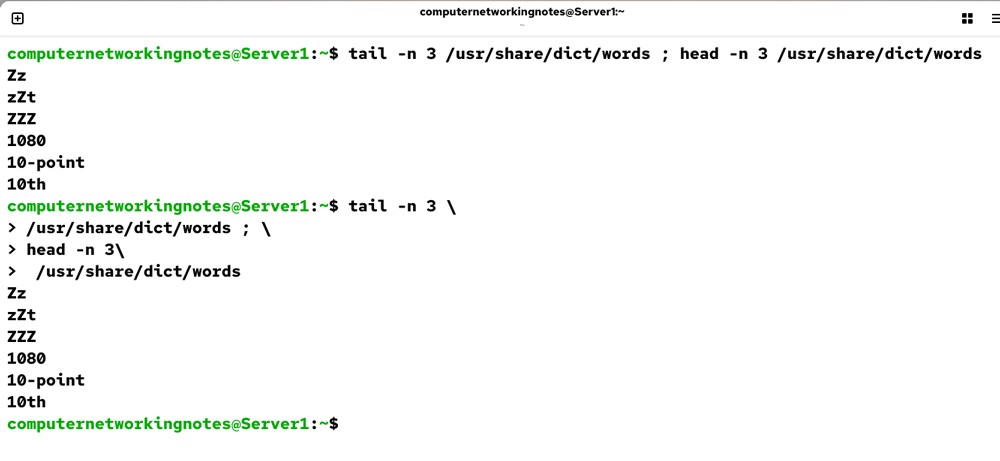
If you want to execute a long command, you can span it across multiple lines. By default, when you press Enter, the shell executes the command. This default behavior doesn't let you enter a command across multiple lines. As soon as you press Enter, the shell executes the command. To override this behavior, use the \ meta character. If you press Enter after this meta character, instead of executing the command, the shell enters a new line and changes the command prompt to >. You can type the rest of the command there. If you need more lines, you can repeat this. The next line starts exactly where you used a \ in the first line. It does not add a space between lines. If you need a space between them, put it either at the end of the first line or at the start of the next line. Let’s take an example.
Suppose you want to enter the following command in two lines.
$tail -n 3 /usr/share/dict/words
If you do it like this, it will be incorrect.
$tail -n 3\
>/usr/share/dict/words
The shell will interpret it as follows.
$tail -n 3/usr/share/dict/words
Since this is not a valid argument, it returns an error. The correct way to enter this is as follows:-
$tail -n 3 \
>/usr/share/dict/words

OR

$tail -n 3\
> /usr/share/dict/words
Command history
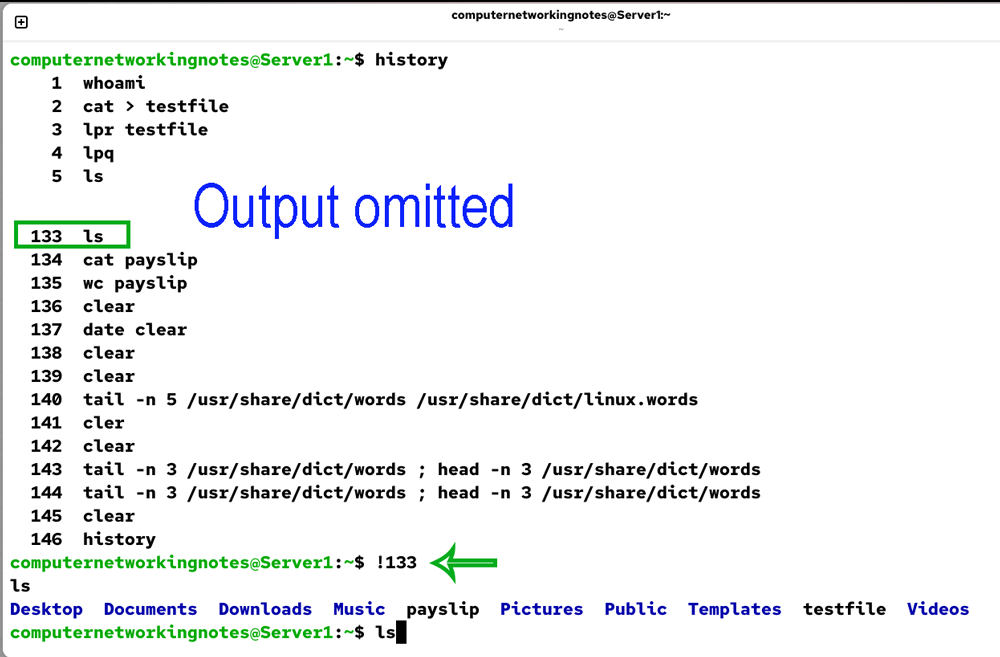
The shell saves all commands you execute in a buffer. The history command shows them with the sequence number in which the shell executed them.
$history
You can execute any command from the history with a ! sign. For example, to run command 133, use the following command.
$!133
Conclusion
Executing commands in a Linux shell may seem a bit complex for beginners. In this tutorial, I explained all the essential things you need to understand before executing commands on Linux. Understanding these basics helps you use Linux more effectively.
Author Laxmi Goswami Updated on 2026-09-23