Shell, Terminal, Command, Options, and Arguments Explained
You can access a Linux system only after logging in. Linux uses your login credentials to track your activities and grant permissions on files and system resources. Depending on how and where Linux is installed, the login process differs. This tutorial explains those scenarios and the way to log in. It also explains the key terms associated with this process.
prerequisites
An RHEL Linux system with a GUI installation
RH124 exam topic covered in this tutorial
Accessing the Command Line
Log in to a Linux system and run simple commands with the shell.
Log in to a Linux System
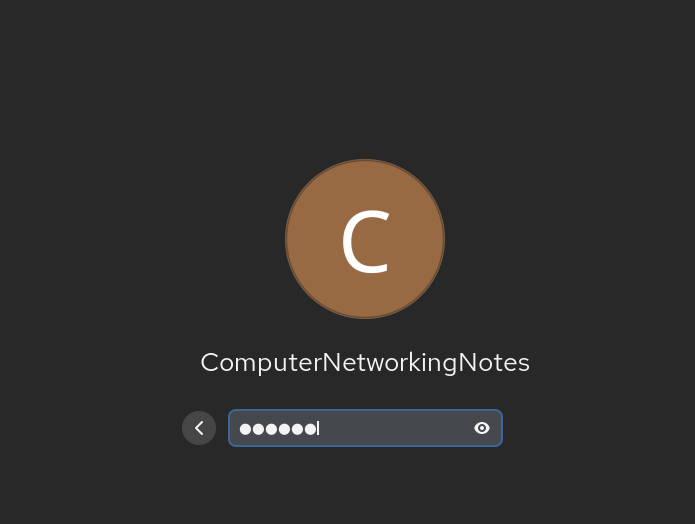
You can install Linux in two ways: with or without a GUI. If you install it with a GUI, you get a desktop environment similar to Windows. It lets you manage the system with a mouse and a Graphical Interface. This installation type is common on personal computers, workstations, or systems that need a desktop environment for routine or specific tasks. If the desktop environment is available, the boot process ends with the following login screen. Enter your username and password to log in.
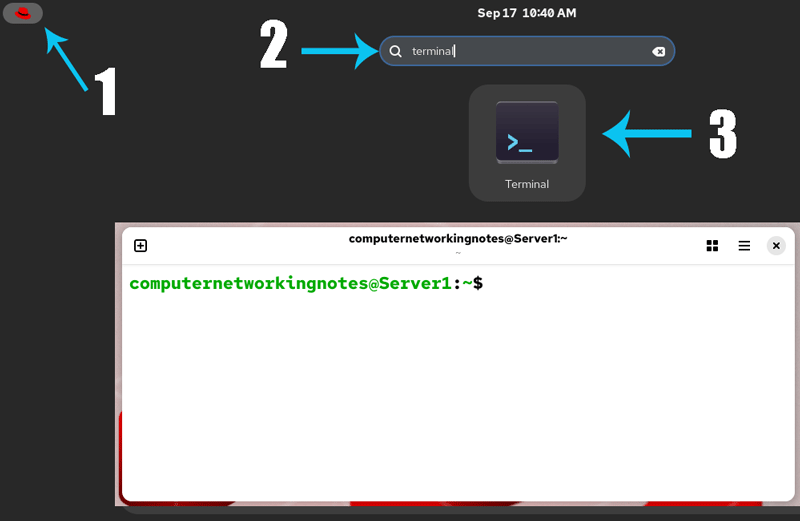
After logging in, you see the default desktop screen. To execute commands, you need to open a terminal. A terminal lets you run commands and see their output. To open a terminal, click the Dash button, search for Terminal, and click the Terminal icon.
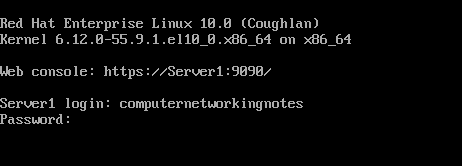
If you install Linux without a GUI, you will get only a command prompt to manage the system settings and perform all your tasks. This type of installation is mainly used on server systems that run services accessed by other computers. Since they are not used for routine tasks, they usually do not require a graphical environment. A desktop environment makes system management easier but costs a large chunk of RAM. If you don't need it, you can skip it to improve system performance by freeing up RAM for running services. This approach is commonly used on server systems. If the desktop environment isn't available, you will see the following login screen. Enter your username and password.
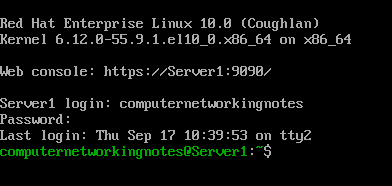
After authentication, the login process will present a command prompt on the CLI interface. You can use it to perform all your tasks.
Terminal V/s shell
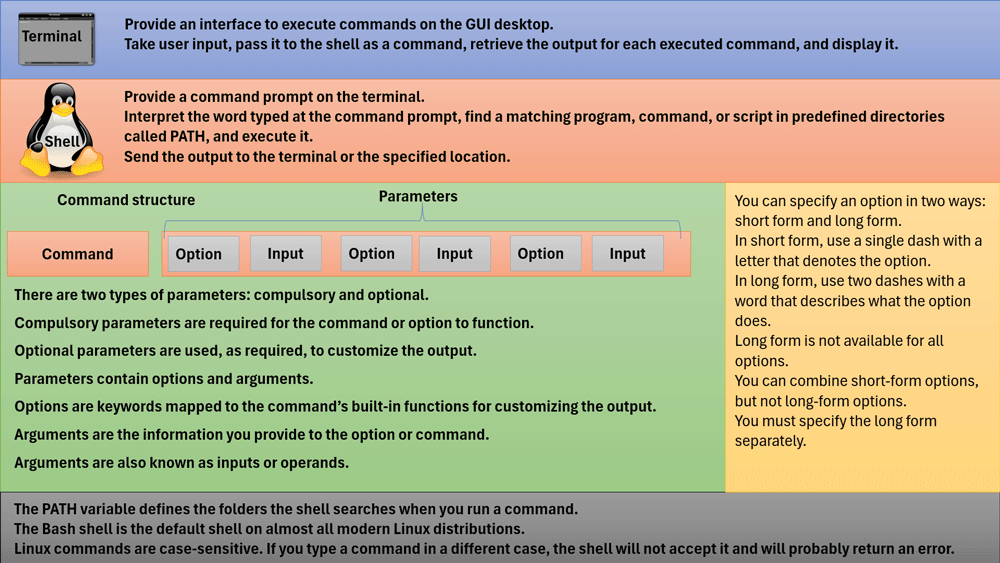
A terminal only provides an interface to run commands. It does not execute any commands itself. It is only a platform for running commands and viewing their output. A shell executes commands in a terminal or CLI interface. It is an interpreter. It processes and controls everything you do on the command line.
| Terminal | Shell |
| Provide an interface to execute commands on the GUI desktop. | Provide a command prompt on the terminal. |
| Take user input, pass it to the shell as a command, retrieve the output for each executed command, and display it. | Interpret the word typed at the command prompt, find a matching program, command, or script in predefined directories called PATH, execute it, and send the output to the terminal or the specified location. |
The Bash shell
The Bash shell is the default shell on almost all modern Linux distributions. To provide compatibility with other shells and become a universal choice among Linux users, it includes commands from all popular shells. It uses a command input structure that closely matches them. If a command runs in the Bash shell, it will most likely run in other shells as well. However, other shells may format the output slightly differently or may include more or less information.
Commands
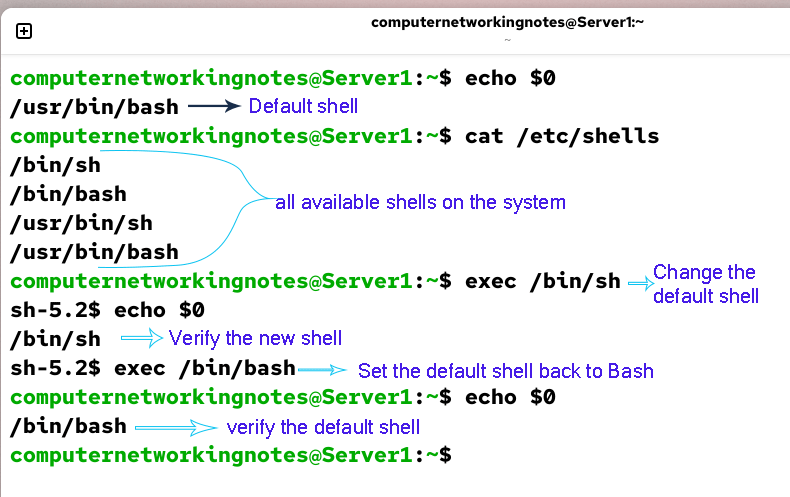
| $echo $0 | Display the current default shell. |
| $cat /etc/shells | List all available shells on the system. |
| $exec [pathname of the new shell] | Change the default shell to the given shell |
Exercise
- Identify the current default shell.
- List all available shells.
- Change the current default shell to any available shell.
- Verify the new shell.
- Set the default shell back to Bash.
The $PATH variable
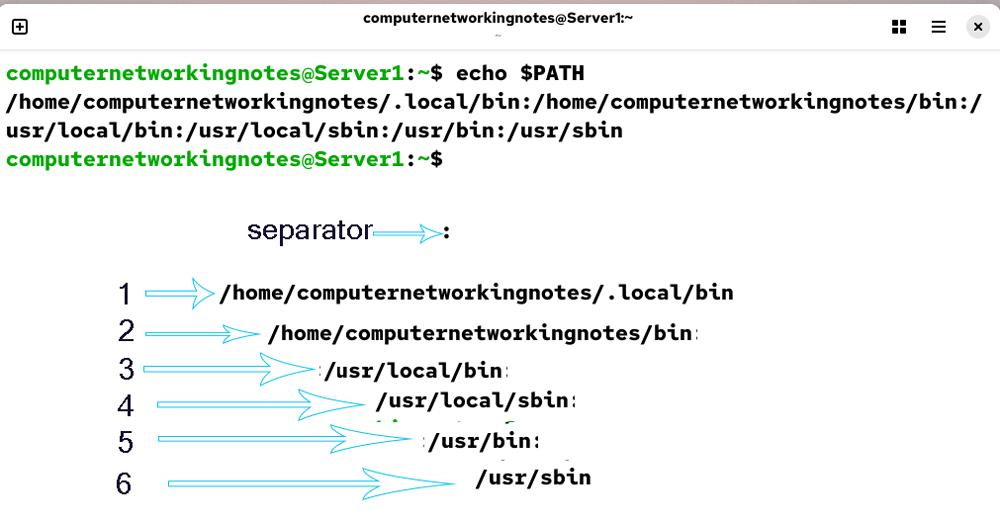
The shell searches folders defined in the $PATH variable for a matching executable for the command typed on the command prompt. The following command displays its value.
$echo $PATH
The output lists folders separated by colons. The shell always starts searching from the leftmost folder and checks the next folder only if it doesn't find an executable for the specified command in that folder. If it finds an executable, it runs that.
To know which executable it runs for a command, use the which command. For example, to know which executable the shell runs for the date command, run the following command.
$which date
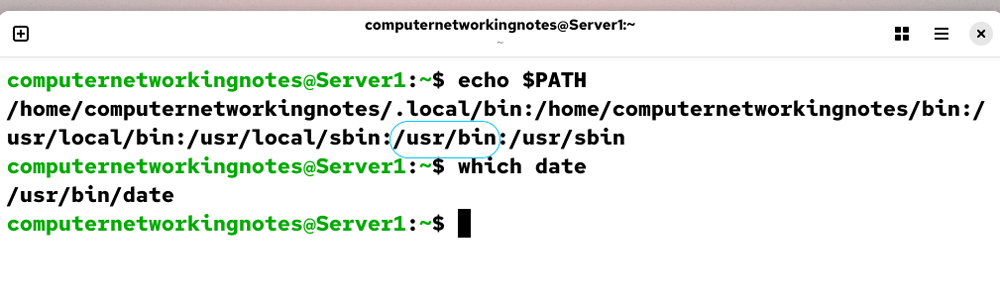
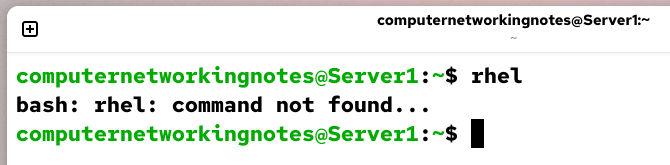
If a command is available in two or more folders, the shell executes only the command in the leftmost folder. Once it finds a match, it never checks the next folder in the path. If it does not find a matching executable for any command, it returns an error like COMMAND NOT FOUND.
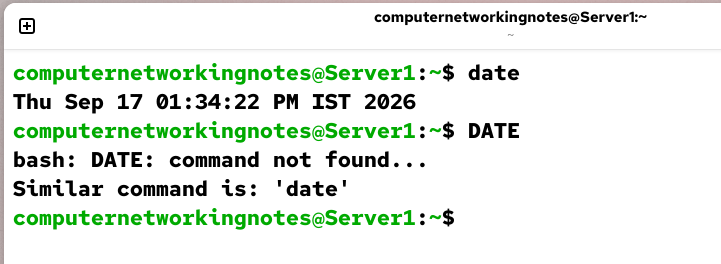
Case sensitive
Linux commands are case sensitive. If you type a command in a different case, it will not work. For example, the shell accepts the date command in lowercase. If you type it in uppercase, the shell returns the 'Command not found' error.
Command structure
There are two types of parameters: compulsory and optional. Compulsory parameters are required for the command or option to function. Optional parameters are used, as required, to customize the output. Parameters contain options and arguments. Options are keywords mapped to the command’s built-in functions for customizing the output. Arguments are the information you provide to the option or command. Arguments are also known as inputs or operands.

You can specify an option in two ways: short form and long form. The short form uses a single dash with a letter that denotes the option. The long form uses two dashes with a word that describes what the option does. Long form is not available for all options.
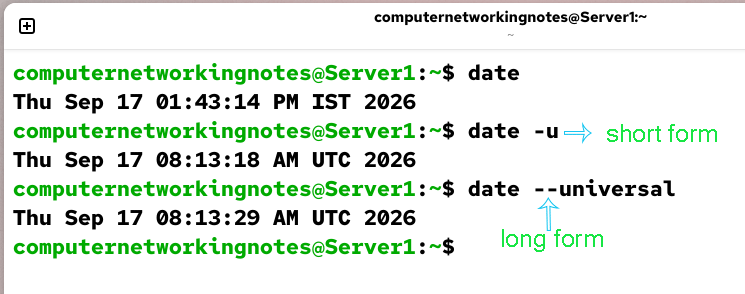
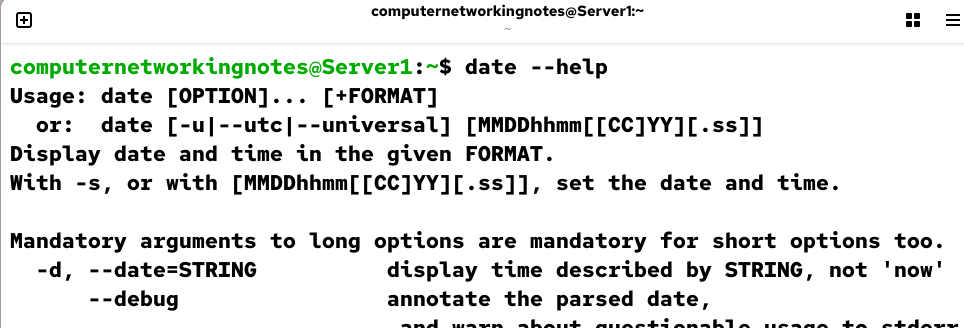
You can combine short-form options, but not long-form options. You must specify the long-form separately. Use the --help option with the command to view all available options and their meanings that you can use with the command.
Summary
- A terminal is an interface that provides a platform to execute commands in a GUI desktop.
- A shell is an interpreter that executes commands that are typed as strings.
- A prompt is a visual cue that indicates that an interactive shell is waiting for the user to type a command.
- A command is the name of a program to run.
- An option is the part of the command line that adjusts a command's behavior.
- An argument is the part of the command line that specifies the target that the command should operate on.
Video
The following video is prepared on Ubuntu. It covers all concepts explained in this tutorial. You can use it as an additional resource to understand this concept in more detail.
Linux Command Structure, Options, Arguments, Shells, and Terminal Explained
Conclusion
Understanding the basics of the shell, terminal, commands, options, and arguments is key to working efficiently in Linux. By mastering these core concepts, you can navigate the system, run programs, and customize your workflow. Whether you use a GUI or just the command line, these skills are essential for getting the most out of Linux.
Author Laxmi Goswami Updated on 2026-09-21