Grep Command in Linux Explained with Practical Examples
The grep command allows you to extract information from any text source, such as a file, multiple files, output of another command, archive, etc. As Linux stores settings and configurations in text files, knowing how to use the grep command helps you manage the system more efficiently. This tutorial presents the grep command examples, such as performing a case-insensitive search, printing line numbers, and displaying several lines before and after every match in the output.
This tutorial is part of the tutorial "The grep command in Linux: - usage, options, and syntax explained through examples.". Other parts of this tutorial are as follows:
Chapter 1 grep options, regex, parameters and regular expressions
Chapter 2 Grep Command in Linux Explained with Practical Examples
Chapter 3 Use Extended Regular Expressions with the grep command
Chapter 4 grep regex Practical Examples of Regular Expressions
The grep command examples
Access a terminal, create a text file, and add a dummy database of names and ages.

Searching a pattern that contains white space
The grep command uses the following syntax.
#grep [option] [pattern] [source]
It treats the argument after the option as the pattern to search and the argument next to the pattern as the location where to search the pattern. If the pattern contains space, it treats the text after the space as the location. Let us take an example. Suppose you want to search for a name that contains a white space. If you specify the name without enclosing it in single quotes, grep treats the surname as the location to search. For example, using the following command to search the name James Johnson is incorrect.
#grep James Johnson /test/testfile
The above grep command searches for James in the Johnson and /test/testfile files. Use the following command to search for James Johnson in the /test/testfile file.
#grep 'James Johnson' /test/testfile

When you enclose words with quotes, grep treats them as a single text pattern to search. It does not need quotes for a single word. It always treats the first argument as the pattern. For example, to search for James, you can use one of the following.
#grep James  /test/testfile
#grep 'James'  /test/testfile

To be on the safe side, always enclose the pattern with quotes.
Performing a case-insensitive search
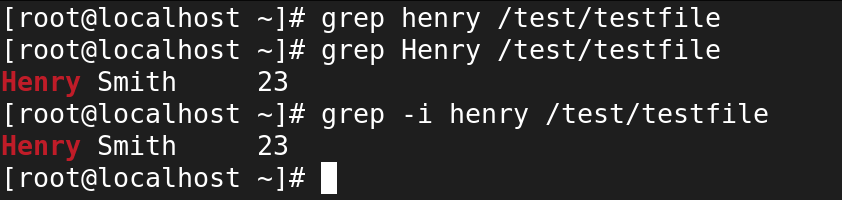
By default, grep performs a case-sensitive search. If you search for Henry, it will not display results for henry. Similarly, if you search for henry, it will not include results for Henry.
#grep henry /test/testfile
[Results do not include Henry]
#grep Henry /test/testfile
[Results do not include henry]
The option -i ignores the case-sensitive search.
#grep -i henry /test/testfile
[Results include both henry and Henry]
Displaying line numbers
By default, it does not show line numbers in the output. The -n option includes line numbers. It displays line numbers at the start. The following command searches for James and displays all lines and their numbers that contain it.
#grep -n 'James' /test/testfile

Searching in all files and sub-directories of a directory
The grep command supports recursive search. It can search all files and directories recursively. To perform a recursive search, use the -r option. If you use this option, grep first searches all files of the specified directory. If the specified directory contains another directory, it also searches that and its subdirectories. Linux saves configurations in text files. This feature enables you to locate the configuration files. For example, using the SSH protocol, the X11-forwarding directive allows you to run graphical applications on a remote server. Suppose, you want to enable it but do not know the configuration file. In that case, you can perform a recursive search for this directive in the /etc directory. The /etc directory contains configuration files for all services.
#grep -r 'X11Forwarding' /etc/
The above grep command searches all files in the /etc and its sub-directories for the X11Forwarding directive and lists all lines that contain it. If you want to know only file names that contain this directory, combine the -r option with the -l option. The -l option lists the file name, including the pattern.
#grep -r -l 'X11Forwarding' /etc/

Searching in specific files
Based on the depth of sub-directories, a recursive search may take longer and consume much memory. Instead of a recursive search, you can search the pattern in specific files if you know file names. To search the pattern in multiple files, specify all file names as arguments after the pattern.
#grep [option] [pattern] [file1, file2, file3, ....]
For example, the following command searches the pattern localhost in the /etc/host.conf, /etc/hostname, and /etc/hosts files.
#grep localhost /etc/host.conf /etc/hostname /etc/hosts

Viewing specific lines before and after the pattern
Use the -B option to view lines before the pattern. To view lines after the pattern, use the -A option. Both options accept line numbers as an argument. This feature is helpful while working on configuration files. Linux configuration files include commented descriptions before directives. It allows you to understand the purpose and function of the directive. For example, you can use the following command to know the purpose of the Listen=NO directive in the /etc/vsftpd/vsftpd.conf file. It displays three lines before the pattern.
#grep -B 3 'Listen=NO' /etc/vsftpd/vsftpd.conf

Similarly, you can use the following command to know which directive allows local users to use the FTP service.
#grep -A 2 'Allow local users' /etc/vsftpd/vsftpd.conf

Conclusion
The grep is a powerful search utility. It allows you to search a text pattern in any given data source. This tutorial explained how to use it for basic operations, such as ignoring cases while searching, searching patterns that include white spaces, finding the pattern in multiple files, and displaying a specific number of lines before and after every match.
Author Laxmi Goswami Updated on 2025-11-18