Enable Sound Service for root user in Ubuntu Linux
The root account has the highest privilege on a Linux system. By default, Ubuntu keeps this account locked. If you unlock the root account and use that to log in, the system does not start the sound service. It means you can not perform any sound-related activity, such as listening to music, watching videos, audio-video calls, etc.
Why does the sound service not work for the root user account?
Many reasons can prevent Ubuntu from playing sound for the root account. The solution explained in this tutorial only works if it is due to Ubuntu's default security function. You can use a regular user account to confirm whether it is due to Ubuntu's default security function. If the sound service works under the regular account, it verifies it is due to Ubuntu's default security function. If not, it is due to any other reason, such as a missing driver, hardware problem, etc. You must fix that issue first.
The following image shows the sound service under both accounts when it works with the default security implementation.

The /var/log/syslog file saves boot time logs. You can use this file to verify Ubuntu's default security feature blocks the sound service at the boot time. This file may contain thousands of entries. You can use the grep command to search the sound service. The pipewire package provides the sound service.
Login from the root account and run the following command.
#grep pipewire /var/log/syslog
If the output contains the following or a similar message, it verifies the sound service is blocked by the default security feature.
PipeWire PulseAudio was skipped because of an unmet condition check (ConditionUser=!root).

Enabling the sound service for the root account
The pipewire package uses the following four configuration files to enable the sound service at the startup.
- /usr/lib/systemd/user/pipewire-pulse.service
- /usr/lib/systemd/user/pipewire-pulse.socket
- /usr/lib/systemd/user/pipewire.service
- /usr/lib/systemd/user/pipewire.socket

All these files include the following conditional statement.
ConditionUser=!root
The above statement instructs Ubuntu not to run scripts from these files under the root account.
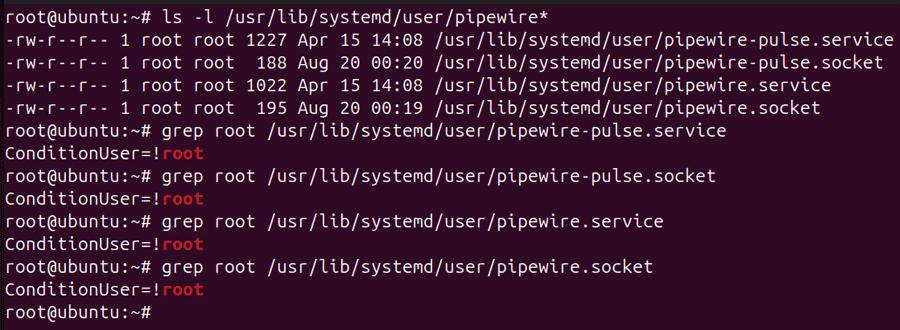
Since these script files are compulsory for the sound service and Ubuntu does not run them under the root account, the root account does not get the sound service. You must remove the above line from these files to enable sound service under the root account.
These files are part of the default package installation. Any change to these files may lost at the next software update. Because of this, directly editing these files is not recommended. Ubuntu supports the override feature. If you create an override file, the system uses the override file instead of the original file. This feature allows you to customize any configuration file or script without modifying the original file.
The /etc/systemd/user/sockets.target.wants/ directory saves override files. Create a symbolic link for these files in this directory. The system automatically creates symbolic links for the following files.
- /usr/lib/systemd/user/pipewire-pulse.socket
- /usr/lib/systemd/user/pipewire.socket

You need to create a symbolic link only for the following files.
- /usr/lib/systemd/user/pipewire-pulse.service
- /usr/lib/systemd/user/pipewire.service
The following commands create symbolic links for the above files.
#ln -s  /usr/lib/systemd/user/pipewire-pulse.service  /etc/systemd/user/sockets.target.wants/
#ln -s  /usr/lib/systemd/user/pipewire.service  /etc/systemd/user/sockets.target.wants/
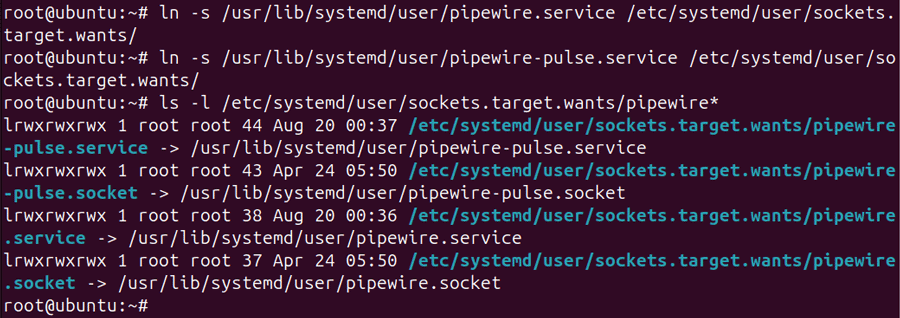
After creating symbolic links, you can comment on this line in these files. Open these files with your favorite text editor, add a # sign before the ConditionUser=!root directive, and save them.
Updating the /etc/systemd/user/sockets.target.wants/pipewire-pulse.service

Updating the /etc/systemd/user/sockets.target.wants/pipewire-pulse.socket

Updating the /etc/systemd/user/sockets.target.wants/pipewire.service

Updating the /etc/systemd/user/sockets.target.wants/pipewire.socket
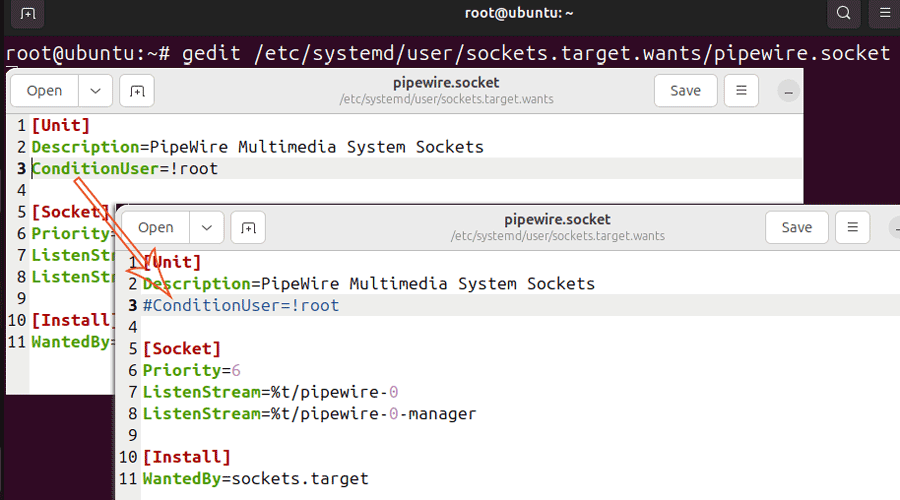
I used the gedit text editor to update these files. It is not a part of the default installation. You can use any editor of your choice. If you want to use the same editor, you can install it using the following command.
#apt-get install gedit
After updating all files, restart the system.

#reboot -f
Verifying the sound service
After the system boots, log in from the root account and check the sound service.

Conclusion
The default installation keeps the root account locked. It also blocks the sound service from running under the root account. This tutorial explained how to enable the sound for the root account.
Author Laxmi Goswami Updated on 2026-05-08