Running and Moving Jobs to Background and Foreground
Linux job management includes various tasks, including pausing and sending a running job into the background, accessing and resuming background jobs, listing and terminating background jobs, and running jobs in the background. This tutorial provides a detailed explanation of these topics.
Linux job management
A Linux job is a command we run on the terminal. The terminal provides a prompt to run a command. When we run a command, the terminal waits until the command has executed before displaying the prompt again. It does not show the prompt until the command is running. This default behavior allows us to run only one job at a time. If we want to run another job, we must wait until the running job finishes. Most of the time, commands execute blazing fast. We face no noticeable delay. However, in some cases, jobs may take longer to execute. For example, printing a large file may take several minutes. In such a situation, waiting can be frustrating. Additionally, it reduces productivity and wastes time if we have other commands to run.
Let us take an example.
John is a network administrator. He takes printouts of daily reports every evening. Printing takes approximately thirty to forty minutes. One day, he gets a call from the web developer while taking printouts of the daily report. The web developer requests to restart the web service. Restarting the web service takes a few seconds to complete. However, he cannot do it in the middle of the printing.

He has to wait until the print job is over. If he waits, the web developer can blame him for any loss caused by not restarting the web service. For example, he can blame him for financial losses and data leaks. Fortunately, nothing like that happens, as John knows how to run another command while one is already running. He sends the printing job in the background. It brings up the command prompt. He runs the command that restarts the web server. After restarting the web service, when the command prompt becomes free again, he brings the print job to the foreground again and resumes it. Running commands in this manner is known as Linux job management. In this tutorial, we will understand this process in detail.

Commands are not jobs
A job is different from a command. A command performs a single task. For example, the ls command lists the contents of the specified directory. The mkdir command makes a directory. The cp command copies the contents of the source directory into the destination directory. A job is the task we want to perform on the command prompt at a given time. If the task we want to perform needs only one command, the command and job are the same.

However, if it requires more than one command, both are different.

Linux allows us to combine and run multiple commands as a single command. If we do that, it will be a single job. In other words, a job can include one or more commands, but a command cannot contain another command. However, a command can take input from another command or give its output to that command. Joining commands in such a way is called piping. Piping allows us to perform specific tasks. These tasks are called jobs.

Let us take an example. Suppose we want to list all installed packages that start with the 'arp' keyword. It is a job. It needs two commands: rpm and grep. The rpm command, with qa options, lists all installed packages. The grep command searches for the pattern in the given stream. We can redirect the output of the rpm command as the input to the grep command. The grep command searches for the 'arp' keyword in the stream and displays all results. In this example, it is a job, and these are commands.

We can run only one job at a time. If we want to run another job, we can wait until the current job finishes or send it in the background. A background is a temporary space in RAM. When we send a job in the background, the shell pauses the running job and saves it in RAM. Shell assigns a unique number to each job. It is called the job number. We need this number to bring the job to the foreground again. Foreground is the place where the shell keeps the running job and provides the command prompt. If there is a running job, it hides the command prompt. It shows the command prompt only when there is no running job.
Moving a job to the background
We have two options to send a running job in the background. We can pause it and send it to the background. If we do this, the job remains paused in the background. It runs only when we bring it to the foreground. The CTRL+Z key suspends the running job and places it in the background. It remains paused and resides in the background until we bring it to the foreground again or terminate it.
#cat > job1
This is a test file.
Ctrl+z

Instead of pausing, we can keep a job running in the background. If we do this, the job executes in the background. For this practice, we need a command that takes a longer time to execute. The sleep command causes a delay. Programmers and developers use it to add a delay between the execution of two commands. It accepts a time as an argument. When we execute it, it causes a delay of the specified time. For example, the following command causes a 10-second delay.
#sleep 10
We can use it to simulate a job that takes a long time to execute. Let's suppose we have a job that takes approximately 100 seconds, and we want to run it in the background. To run a job in the background, we use the ampersand (&) sign with the command.
#sleep 100 &
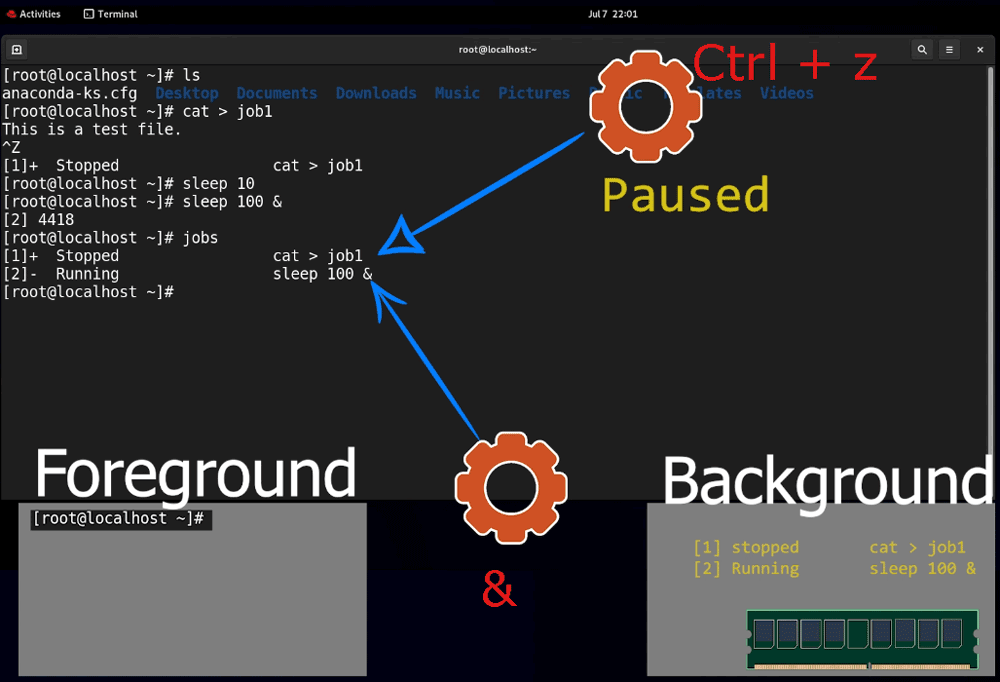
If we use an ampersand with a command, the shell executes the command in the background and returns the command prompt immediately. It shows the job number and the system process number. It places the job number in brackets. The system process number is the number by which the system identifies the job.
Listing background jobs
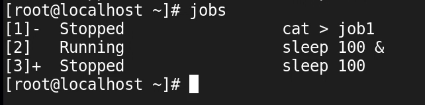
The jobs command lists all jobs placed in the background, along with their current states.
#jobs
Resuming a paused job in the background
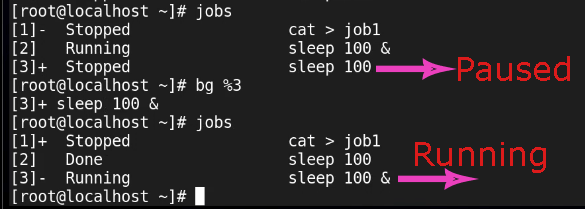
The bg command allows us to start a paused job in the background. It needs the job number with a percent sign as an argument to start the paused job. For example, the following command starts job number 3.
#bg %3
Moving a job to the foreground
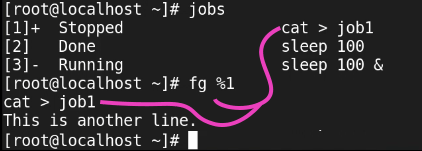
Instead of starting a job in the background, if we want to resume the job in the foreground, we use the fg command. Similar to the bg command, it also needs the job number with a percent sign as an argument. For example, the following command brings job number 1 to the foreground and resumes it.
#fg %1
Accessing background jobs
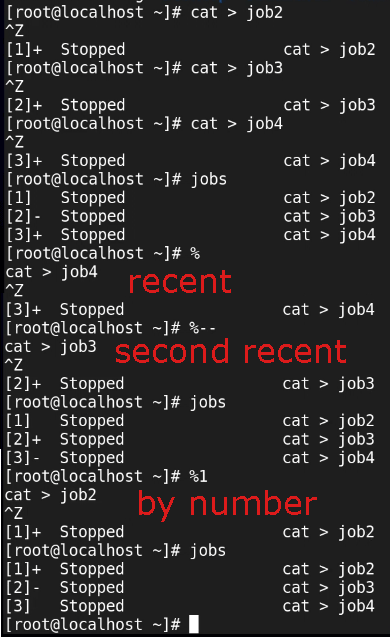
We can access the most recent job without specifying its number. If we do not specify a job number with the percent sign, the shell returns the most recent job. Let us send three jobs in the background in the paused state. Use the jobs command to verify the jobs.
#cat > job2
Ctrl+z
#cat > job3
Ctrl+z
#cat > job4
Ctrl+z
#jobs
Now, let us assess the most recent job. In this case, the most recent job is job number 4. If we do not specify a job number, the shell returns it.
#%
We can also access the job before the recent job by reference. For this, we specify two hyphen signs with the percent sign.
#%--
We can access only the last two jobs without the job number. To access any earlier job, we must specify the job number followed by the percent sign.
#%2
Terminating background jobs
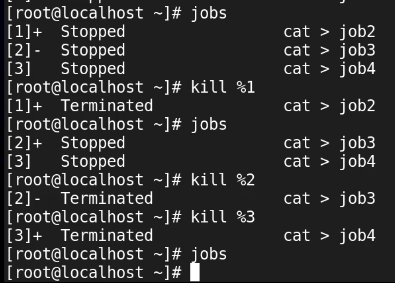
Finally, let us understand how to terminate a background job. The kill command allows us to delete a background job. Similar to the fg and bg commands, it also needs the job number followed by a percent sign.
#kill %[job number]
Let us delete all jobs one by one. Specify the job number as the argument.
#kill %2
#kill %3
#kill %4
To verify the delete operation, use the jobs command.
#jobs
Linux job management commands
| Command | Description |
| % | Bring the most recent job to the foreground |
| %-- | Bring the second most recent job to the foreground |
| %[jn] | Bring the specified job number to the foreground |
| fg [jn] | Bring the specified job number to the foreground |
| bg [jn] | Resume the specified job number in the background |
| Ctrl+z | Pause the running job and send it to the background |
| & | Start the job in the background and return the command |
| kill [jn] | Terminate the specified job number |
| jobs | List all background jobs |
Video version
This tutorial is also available in video format. You can watch it to understand the concepts and configuration steps explained in this tutorial in more detail.
Conclusion
Switching jobs between the background and foreground allows us to run multiple jobs simultaneously. We can run bulky jobs in the background while keeping the command prompt available for the simple tasks. This tutorial explained this process in detail through examples.
Author Laxmi Goswami Updated on 2026-02-25