SUID, SGID, and Sticky Bit Explained
SUID, SGID, and Sticky Bit are the special features of the Linux file permissions. SUID allows a user to run a script or an executable program using the user ID of another user account. SGID lets a user define the custom group owner for new files and directories within a directory. The sticky bit allows only the owner to delete the file in a shared directory. This tutorial explains these features in detail through examples.
Basic concepts of SUID, SGID, and the Sticky bit
Standard file permission defines three user types (owner, group, and others) and three permission types (read, write, and execute) for each user type. It maps the permissions with the user types in the following sequences.
Owner (Read, Write, Execute), Group (Read, Write, Execute) and Other (Read, Write, Execute)

The ls -l command shows the current file permission of the specified file.

SUID, SGID, and the Sticky bit modify the execute permission of the standard file permission. SUID replaces the owner's execute permission. SGID updates the group's execute permission. Sticky bit replaces the execute permission for other users. The letter 's' denotes SUID and GUID. The letter 't' represents the Sticky bit.

The following outline explains the meaning of letters the execute permission field can have for all user types.
Owner
x:- Standard execute permission
s:- Standard execute permission is applied and replaced with SUID
S:- Standard execute permission is not present, but SUID is applied
Group
x:- Standard execute permission
s:- Standard execute permission is applied and replaced with SGID
S:- Standard execute permission is not present, but SGID is applied
Others
x:- Standard execute permission
t:- Standard execute permission is applied and replaced with the Sticky bit
T:- Standard execute permission is not present, but the Sticky bit is applied
SUID, SGID, and Sticky Bit permissions
| Permission | Octal notation | Symbolic notation | For Files | For Directories |
| SUID | 4 | u+s | Can execute the file with the permission of the file owner. | No meaning. |
| SGID | 2 | g+s | Can execute the file with the permissions of the group owner. | Files created in the directory get the same group owner. |
| Sticky bit | 1 | +t | No meaning. | Prevent users from deleting files of other users. |
Key points
- SUID modifies only the owner's execute permission. It has no meaning for the group owner and others. It applies only to files. It does not affect directories.
- SGID modifies only the group owner's execute permission. It has no meaning for the owner and others. It applies to both files and directories. For files, it allows users to run the file with the group owner's permission. For directories, it changes the group owner of files created inside an SGID-enabled directory to the group owner of the SGID-enabled directory. By default, the user's primary group becomes the group owner. This default behaviour changes inside an SGID-enabled directory. Within an SGID-enabled directory, the group owner is always the group owner of the SGID-enabled directory.
- The Sticky bit has no meaning for the owner and group owners. It modifies only the execute permission sets for other users. It applies only to directories. For files, it has no meaning. It prevents users from deleting other users' files inside the directory.
Managing SUID, SGID, and Sticky bit
The chmod command manages SUID, SGID, and the Sticky bit with the standard file permissions. It accepts new permissions in two notations: symbolic and octal.
Symbolic notation
Symbolic notation uses the following syntax.
#chmod [user type][+/-][bit type] file/directory
The following command enables SUID on the /testfile.
#chmod u+s /testfile
The following command disables SUID on the /testfile.
#chmod u-s /testfile

The following command enables SGID on the /testfile.
#chmod g+s /testfile
The following command disables SGID on the /testfile.
#chmod g-s /testfile

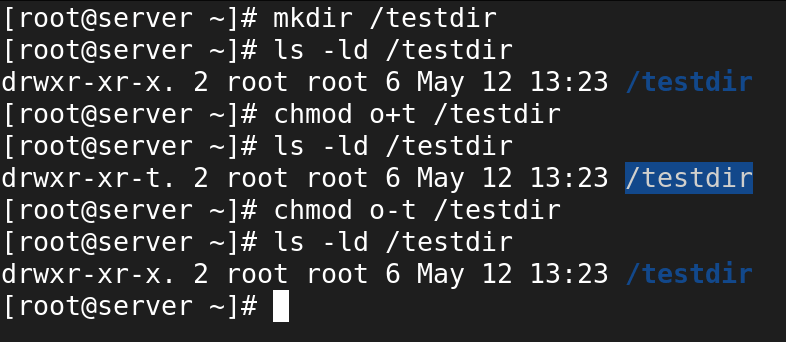
The following command enables the Sticky bit on the /testdir.
#chmod o+t /testdir
The following command disables the Sticky on the /testdir.
#chmod o-t /testdir
Octal notation
Octal notation uses the following syntax.
#chmod [SUID/SGID/Sticky bit] [octal value of the default file permission]
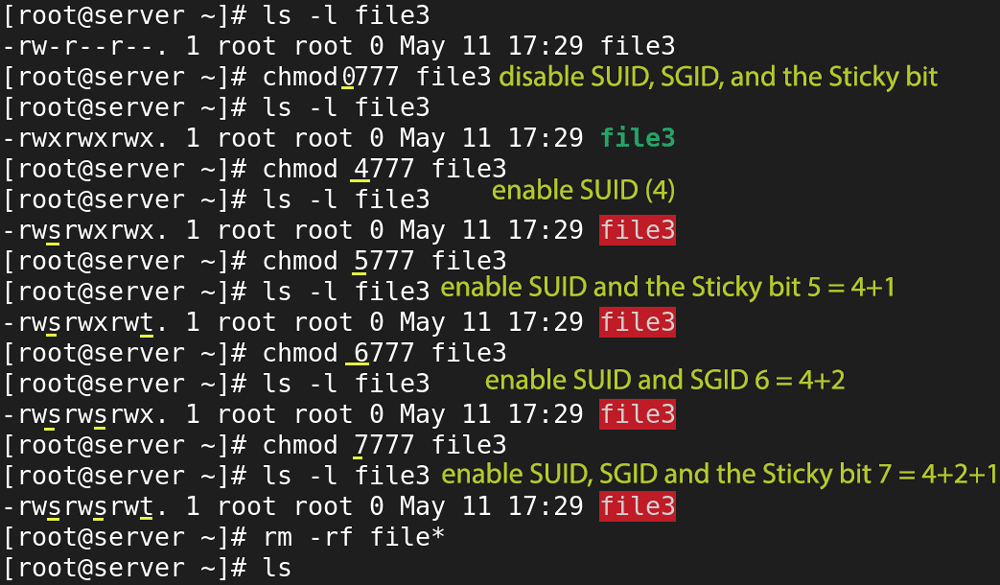
It uses numbers instead of letters. It uses number 4 for SUID, 2 for SGID, 1 for the Sticky bit, and 0 for the no special permission. To enable two or all permissions, you can add the numbers. For example, to enable both SUID and SGID, use 6 (4+2). Similarly, to enable all three bits, use 7 (6+4+1). You must specify the default file permission with these bits. If you skip that, it will update the default file permission. For example, if you use the following command to enable SUID, it will remove all permissions apart from the read permission for others.
#chmod 4 testfile
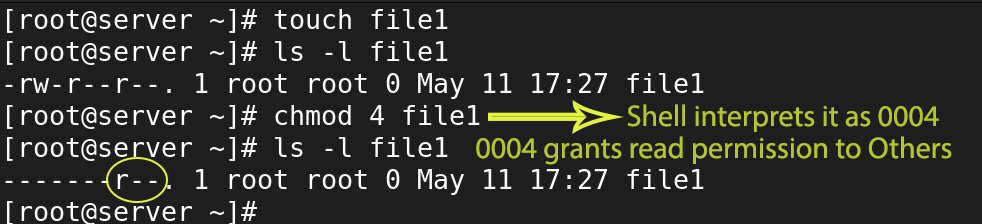
To use octal notation, first, you need to view the current file permissions. Use the current file permissions with the special bit value you want to enable. Create a test file and change its default file permissions to 777. Enable SUID, SGID, and the Sticky bit and verify them.
SUID (Set User ID)
The user who runs a program owns the program while it is running, no matter who the actual owner of that program is. For example, the user X owns a program P. If the user Y runs this program, it runs under the user account of Y. If the user Y does not have execute permission, it fails to run. SUID solves this issue. It allows the program's original owner to own it, even while another user runs it.
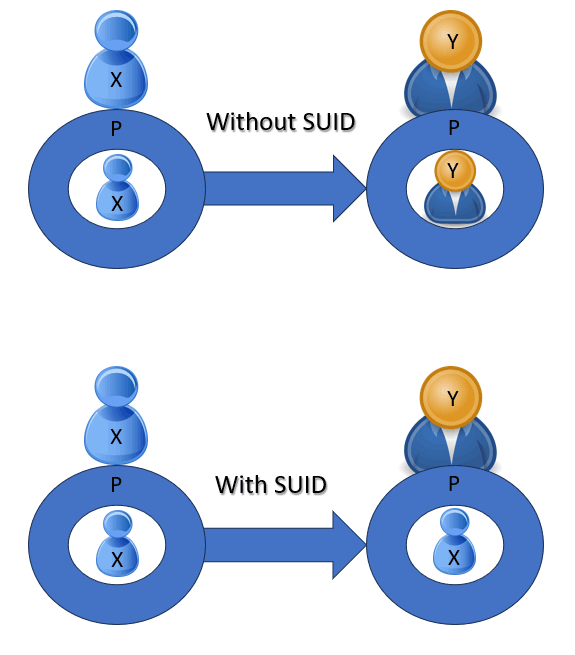
Generally, the root user installs applications, but regular users use them. While running these applications, a user may have to modify files that the root owns. In that case, the user needs to run that application with the root having ownership so that the application can have the necessary permissions to change those root-owned files. For example, the /etc/shadow file saves passwords for local user accounts. The passwd command allows a user to change his password. The root user owns both. With default permissions, a user can not change a file owned by the root user. SUID solves this problem. It allows the user to change the file as the root user. To verify this, use the following steps.
- Log in with a regular user.
- Check the /etc/shadow file permissions and verify that only the root user can update and manage this file.
- Check the file permissions of the /usr/bin/passwd command and verify that it has the SUID bit instead of the execute bit in the owner section of the file permissions.
- Run the passwd command and change the password. The passwd command runs under the root account and lets the user change his password.
$ls -l /etc/shadow
$ls -l /usr/bin/passwd
$passwd

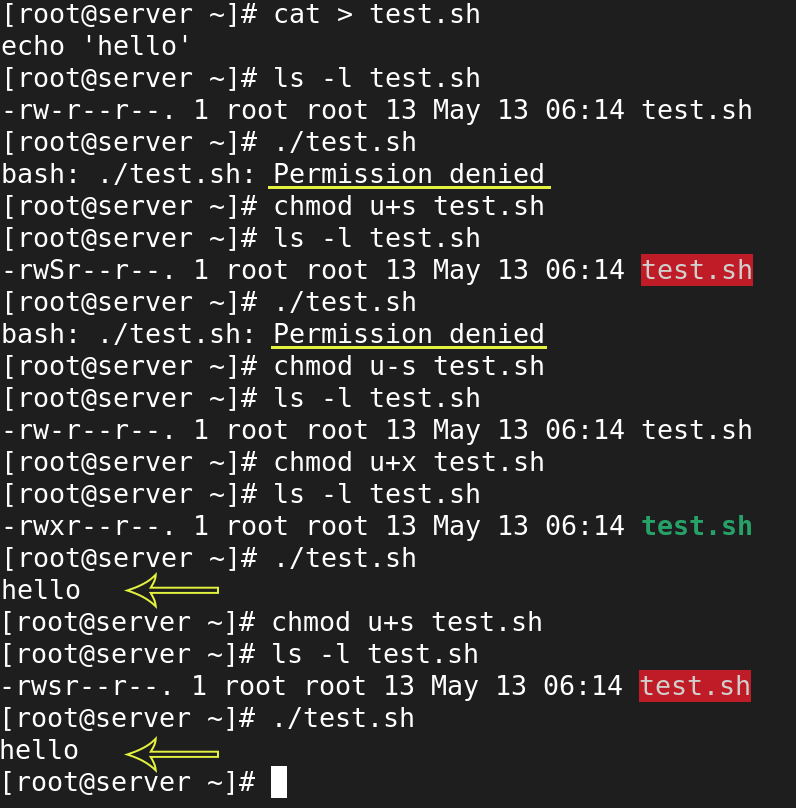
SUID has no meaning if the owner does not have the execute permission. It allows other users to run the file with the owner's execute permission. If the owner itself has no execute permission, it cannot do anything. The file permission uses the letter S to show the situation in which you enable SUID on a file where the owner has no execute permission. To verify this, use the following exercise.
- Create a simple script file.
- The default file permission does not enable execute permission on files.
- Enable SUID without enabling execute permission.
- Run the script file. It fails to run. It verifies that SUID cannot make a file executable.
- Enable execute permission and rerun the script. The script runs.
SGID (Set Group ID)
For a file, SGID works similarly to SUID. It allows a user to run a program owned by a group. The group retains ownership when run by users from another group. Typically, administrators do not use SGID for this purpose. For it, they generally use SUID. They use SGID mainly on a shared directory to assign a custom group owner for all files and directories created within it. By default, when a user creates a file, the user's primary group becomes the file's group owner. This default behaviour allows only the owner to modify or update the file. It enhances the system security. However, in several circumstances, it could create permission-related issues.
Let us take an example.
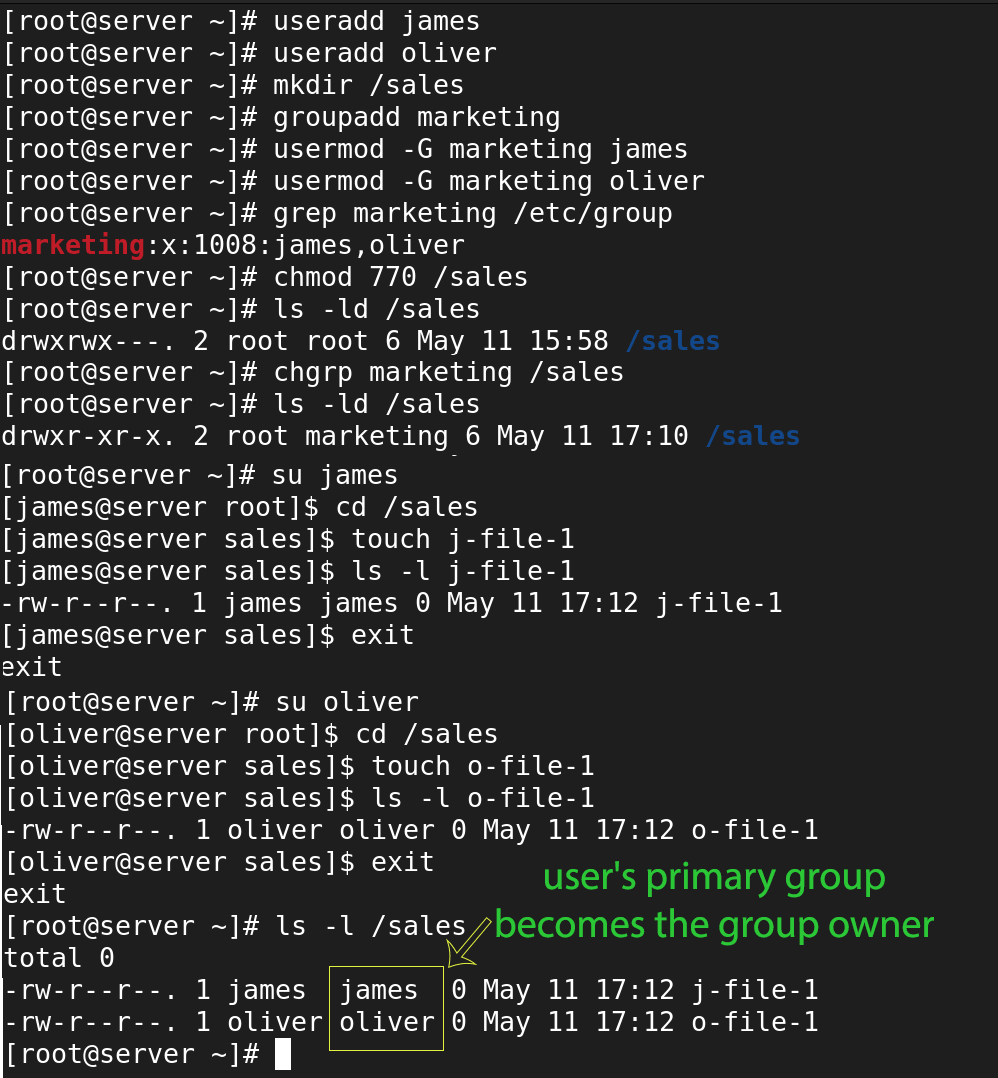
James and Oliver work in Sales department. Both are members of the marketing group. As an administrator, you want to set up a shared environment where all members in the marketing group share files in the shared directory. You created a shared directory for the marketing group and instructed all group members to use that for project-related files. However, with the default file permission, it is not possible. The default file permissions allow only owners to modify their files. If you extend this permission to the group owner, it still does not work. The shell assigns the user's primary group as the group owner, not the secondary group. For example, if James creates a file, the group owner will be James. If Oliver makes a file, Oliver will be the group owner. In both cases, they do not get the group ownership permissions. Use the following steps to verify this.
- Log in with the root account.
- Add two users: James and Oliver.
- Create a group: marketing.
- Add James and Oliver to the marketing group.
- Create a shared directory /sales.
- Change the group ownership of the /sales directory to marketing.
- Change the default file permission of the /sales directory to 770.
- Change the user account to James and the directory to /sales.
- Create a file and check its group owner.
- Change the user account to Oliver and repeat the process.
- Verify that the user's primary group becomes the group owner in both cases.
#useradd james
#useradd oliver
#mkdir /sales
#groupadd marketing
#usermod -G marketing james
#usermod -G marketing oliver
#grep marketing /etc/group
#chmod 770 /sales
#ls -ld /sales
#chgrp marketing /sales
#ls -ld /sales
#su james
$cd /sales
$touch j-file-1
$ls -l j-file-1
$exit
#su oliver
$cd /sales
$touch o-file-1
$ls -l o-file-1
$exit
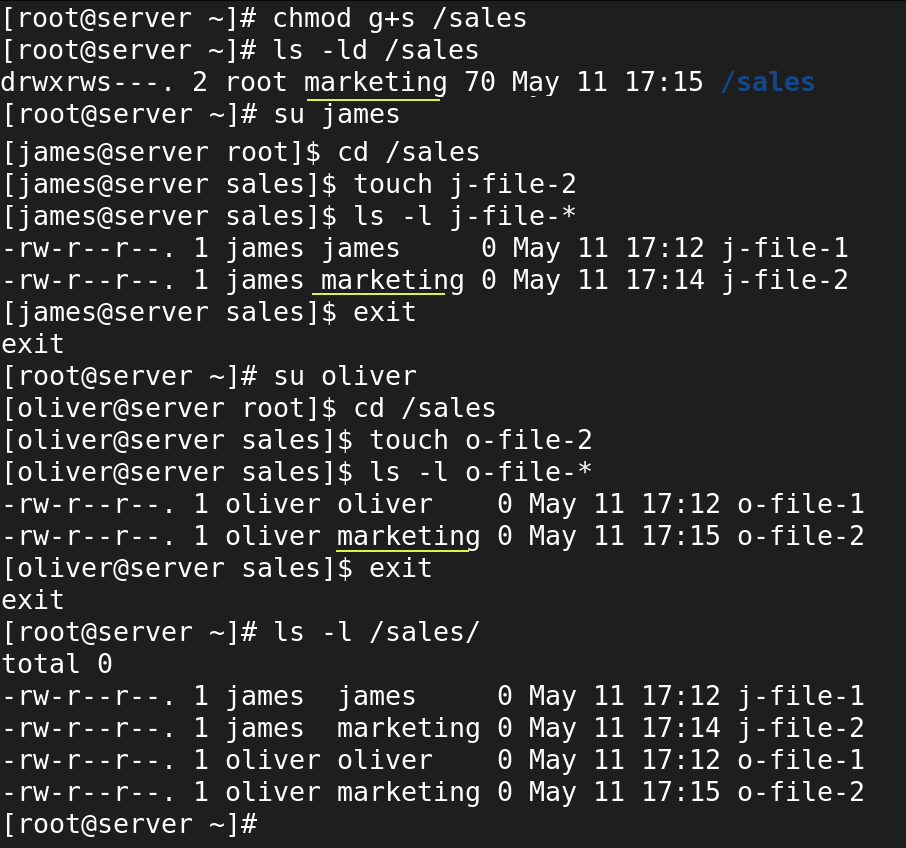
If the group owner of a file is the user's primary group, it does not get the permissions you set on the user's secondary group. Since marketing is the secondary group, its permissions do not apply. In this case, you can configure SGID on the /sales directory. If you enable SGID on the /sales directory, all new files and directories users create inside this directory will get the configured group owner instead of the user's primary group.
- Enable SGID on the /sales directory
- Change the user account to James
- Create a file and check its group owner
- Switch user account to Oliver
- Create a file and check its group owner
- Verify the group owner of the new files
#chmod g+s /sales
#ls -ld /sales
#su james
$cd /sales
$touch j-file-2
$ls -l j-file-*
$exit
#su oliver
$cd /sales
$touch o-file-2
$ls -l o-file-*
$exit
#ls -l /sales/
Sticky bit
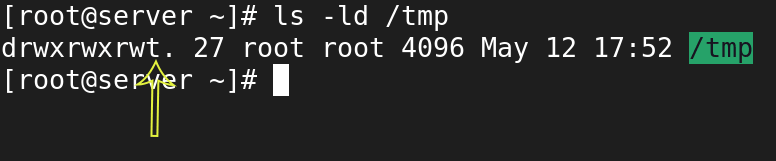
Administrators use the Sticky bit to protect files against accidental deletion in an environment where multiple users create files in the same directory. The default file system allows all users and applications to save their temporary data in the /tmp directory. It enables the Sticky bit on this directory by default to prevent users from deleting other users' files.
Exercise
- Add two user accounts: user1 and user2
- Create a directory: /tmpdata
- Change its permission to 777
- Change the user account to user1
- Change directory to /tmpdata
- Create a file
- Switch user account to user2
- Delete the file created by user1
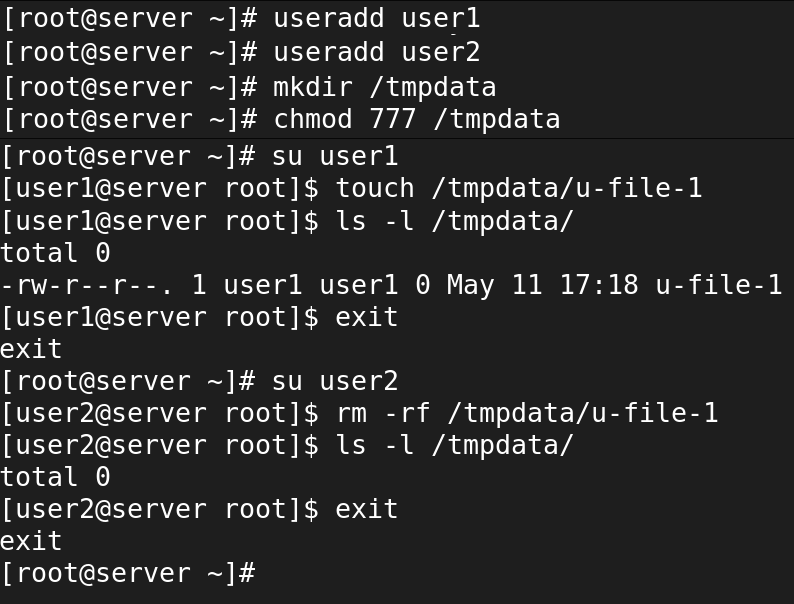
- Enable the Sticky bit on the /tmpdata directory
- Switch the user account to user1
- Create a file
- Change the user account to user2
- Delete the file created by user1. It will fail. It verifies that if the Sticky bit is enabled, only the owner can delete the file.

If the Sticky bit is enabled, a user can delete files only if either of the following is true:
- The user is the owner of the file.
- The user is the owner of the directory where the file exists.
Because of this second condition, you cannot use the Sticky bit to prevent users from removing files from their home directory. As the user owns his home directory, he always has permission to remove files from this directory. To verify this, use the following steps.
- Add a new user account: user3
- Enable the Sticky bit on his home directory
- Create a test file in his home directory
- Change the user account to user3
- Delete the file created by the root user

This tutorial is part of the tutorial " Linux file permission Explained with Examples.". Other parts of this tutorial are as follows:
Chapter 1 Linux File Permission Explained in Easy Language
Chapter 2 How to use chmod command in Linux Explained with Examples
Chapter 3 How to change default umask permission in Linux
Chapter 4 SUID, SGID, and Sticky Bit Explained
Chapter 5 How to set immutable bit with chattr command
Conclusion
SUID, SGID, and the Sticky bit are part of the default file permissions. This tutorial explained how these work through various examples. By learning these, you can effectively manage Linux file permissions.
Author Laxmi Goswami Updated on 2025-12-20