The find command in Linux
Linux includes thousands of files and directories. Finding a specific file or directory is similar to locating a particular book in a library. If you know the location of the book, you can easily get it. However, if you do not know its location, finding it could be a challenging task. In that case, you can use the find command. It allows you to search the path of any files and directories in the file system.
The find command syntax
The find command uses the following syntax.
#find [argument - where to search] [option] [argument - what to search]
It takes a directory name as an argument, followed by several options that specify the type of search and the search criteria. It searches within the specified directory and its subdirectories for files that meet the given criteria.
The find command options
It supports various options to define the requirements. The following table lists essential options.
| Option | Description |
| -name | Searches for files with a pattern in the name. |
| -lname | Searches for symbolic link files. |
| -group | Searches for files belonging to the group name. |
| -gid | Searches for files belonging to a group according to group ID. |
| -user | Searches for files belonging to a user. |
| -uid | Searches for files belonging to a user according to user ID. |
| -size | Searches for files with the size in blocks. |
| -ls | Provides a detailed listing of each file, with owner, permission, size, and date information. |
| -exec | Executes command when files found. |
LAB setup (optional)
You can use the find command to find any file or directory. However, using a custom setup helps you understand its functionality more effectively. Create a directory structure as shown in the following image.

Specifying the target directory
To specify the target directory path, you can use both relative and absolute methods. In the relative method, the path name starts from the current directory and goes up to the destination file or directory. In it, a single dot represents the current directory. Double dots represent the parent directory. The following commands use relative methods to specify the destination directory.

The first command finds a file named file1 in the current directory. The second command finds a file named d2file1 in the parent directory.
In the absolute method, the path starts from the root directory and goes up to the object. The pwd command shows the absolute path of the current directory. You can use it to build the destination path. The following command finds the file named file1 in the current directory. It uses the absolute method to specify the destination directory.
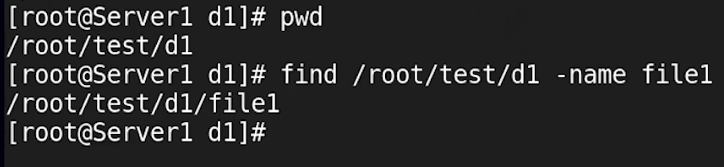
The find command uses the same method to display the result in the output. If you use the relative method to specify the destination directory, the result shows the path names relative to the current directory. If you use the absolute method, it also displays the complete path in the output.

By default, it includes only path names in the output. The ls option allows you to view detailed information about each result in long format.

It is a case-sensitive command. A name in the capital case is different from the same name in the small case. It finds files and directories only in the specified case.

It also supports wildcard characters. A wildcard character allows you to search for files that match a pattern. In wildcard characters, a question mark (?) represents a single character. You can use it to find a pattern that includes any character at a specific position. For example, the following pattern represents files whose names contain the file keyword and one extra character.

If you use a wildcard in the pattern, you must enclose the pattern in the quotas. If you do not enclose a pattern that includes a special character, the command treats the special character as a regular character and returns no result. It also consists of the reason in the output as a hint.
#find . -name file?
find: paths must precede expression: 'file2'
find: possible unquoted pattern after predicate '-name?'

The find command examples
So far, you have used the find command to search files in a custom setup. Now, let us take a few examples from the Linux file system. The fstab file saves partition information. Suppose you do not know its location. You can use the find command to locate this file.

The /etc directory contains all system configuration files. You can use the find command to list them. A configuration file name ends with a conf extension.

By default, it includes both file and directory names in the output. To find only directories, use the d option. The following command lists all the directories in the /etc directory that start with the letter d.

Conclusion
The find command is a powerful tool for searching files and directories within the file system. By understanding its syntax and options, you can efficiently search for specific files based on various criteria, whether using relative or absolute paths. By utilizing this command effectively, you can streamline your workflow and navigate the extensive file structure of Linux with ease.
Author Laxmi Goswami Updated on 2026-05-16