How to Navigate the Linux Command Line: A Beginner’s Guide
Navigating the Linux file system using only the command line can feel intimidating at first, but mastering terminal navigation boils down to three foundational commands: pwd, ls, and cd.
Whether you are working locally on Ubuntu or managing a remote cloud server, understanding how to pinpoint your location, inspect files, and traverse directories will give you the confidence to navigate any Linux environment.
Table of Contents
- 1. Decoding the Linux Shell Prompt
- 2. Pinpoint Your Location with
pwd - 3. Inspect Files and Directories with
ls - 4. Move Between Folders with
cd - 5. View Hidden Files and Special Directories
- 6. Crucial Top-Level System Directories
- 7. Speed Up Your Workflow with Tab Completion
- Quick Reference Cheat Sheet
1. Decoding the Linux Shell Prompt
Before typing your first command, take a look at the terminal shell prompt. A typical Bash prompt appears like this:
rick@computernetworkingnotes:~$
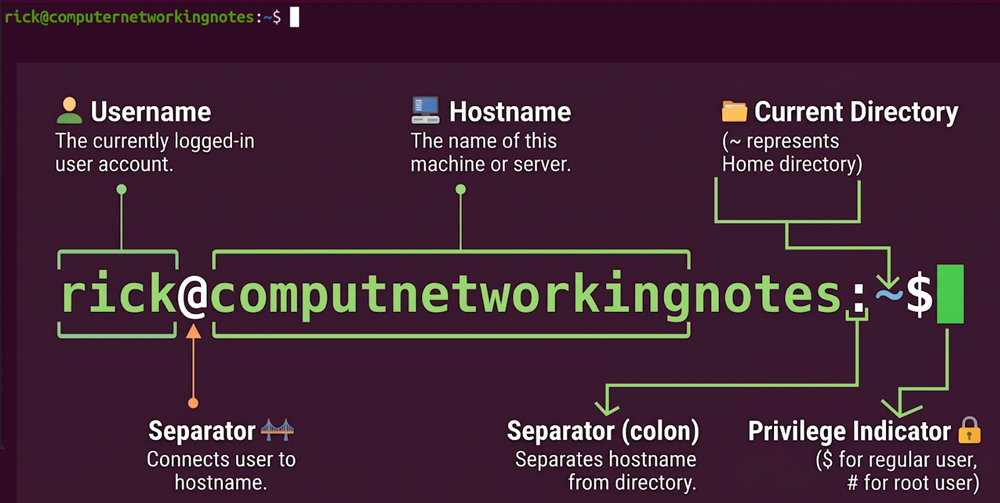
Each segment provides essential context about your current session:
rick: The username of the currently logged-in account.@: Separates the username from the machine's hostname.computernetworkingnotes: The hostname of the computer or virtual machine.:: Separates the host information from the directory path.~(Tilde): Shorthand representing the current user's home directory.$: Indicates an unprivileged, regular user shell (a superuser or root prompt uses#).
2. Pinpoint Your Location with pwd
When navigating nested folders, it is easy to lose track of where you are. The pwd command stands for Print Working Directory.
Running pwd outputs the absolute path of your current working directory:
pwd
Output:
/home/rick
Understanding the Path Structure
- The leading forward slash (
/) is the root directory—the top of the entire Linux hierarchy. - Inside
/, you find thehomedirectory. - Inside
home, you find the specific user directory,rick.
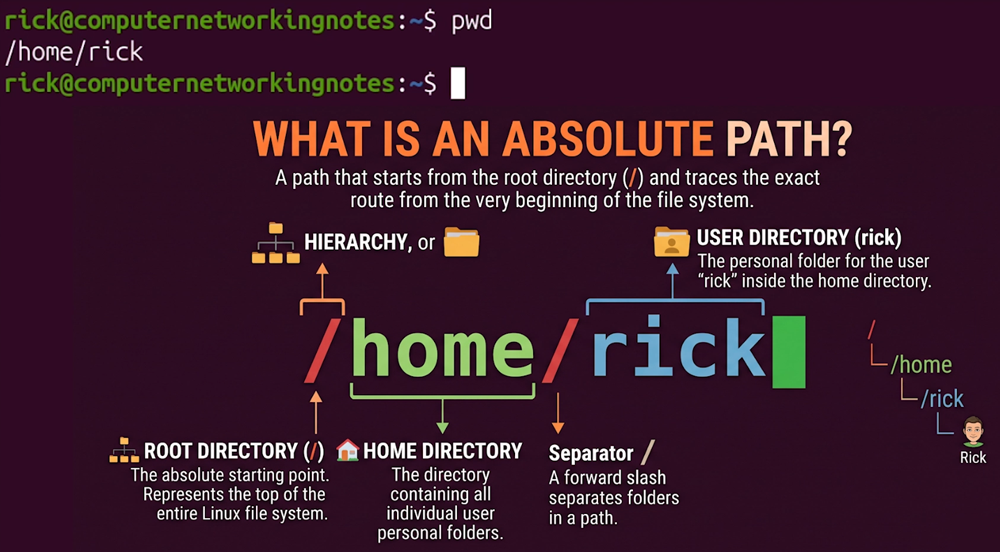
A path that starts with
/is known as an absolute path because it specifies a direct route starting from the very top of the file system.
3. Inspect Files and Directories with ls
The ls command stands for list. It displays files and folders inside a given directory.
Basic Listing
ls
By default, ls shows non-hidden files in the current folder. You can also inspect a specific directory without switching into it:
ls /home/rick
# or using the tilde shortcut:
ls ~
Identify File Types with ls -F
Terminal colors are not always consistent across different shells. To reliably distinguish file types, use the uppercase -F flag:
ls -F
This appends visual indicators directly to entry names:
/indicates a directory.*indicates an executable file.@indicates a symbolic link (shortcut).- No indicator denotes a standard regular file.

Read Detailed Metadata with ls -l and ls -lh
To view file permissions, sizes, and modification dates, pass the lowercase -l option for long listing format:
ls -l
Sample Output:
-rwxr-xr-- 1 rick staff 14336 Nov 6 14:42 script.sh
Breaking down the seven columns:
- File Type & Permissions: The first character denotes the entry type (
-for regular file,dfor directory). The following nine characters represent read (r), write (w), and execute (x) permissions for the owner, group, and others. - Hard Link Count: The number of hard links pointing to the file.
- Owner: The user account that owns the file.
- Group: The group associated with the file.
- File Size: Defaulted in raw bytes.
- Modification Timestamp: Date and time the file was last updated.
- File Name: The name of the file or folder.
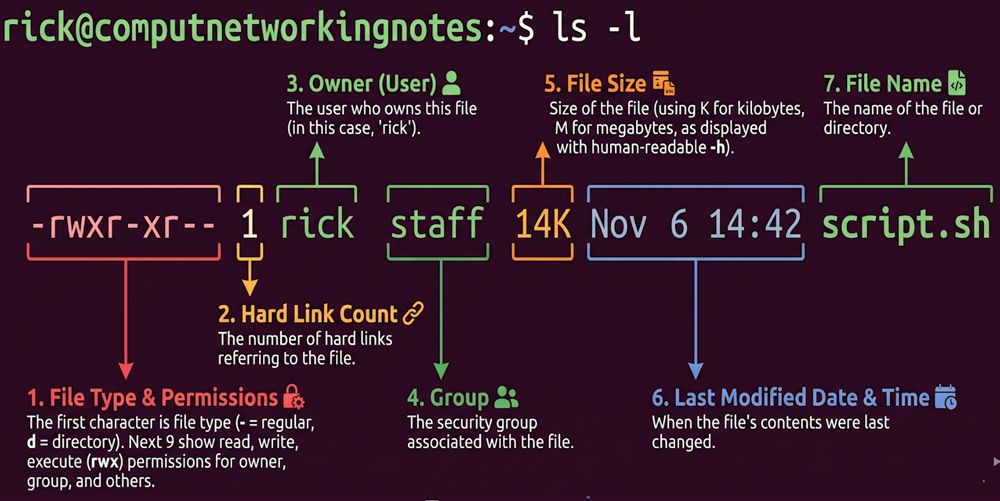
Pro Tip: Combine-lwith-h(ls -lh) to get human-readable file sizes displayed in kilobytes (K), megabytes (M), or gigabytes (G).
4. Move Between Folders with cd
The cd command stands for Change Directory.
To navigate into a folder within your current directory, specify its name:
cd Downloads
Verify your new working directory with pwd:
pwd
# /home/rick/Downloads
Absolute Paths vs. Relative Paths
- Absolute Path: Begins at the root directory (
/) and works from anywhere on the system. - Relative Path: Starts from your current directory. If you are already inside
/home/rick, simply runningcd Downloadsnavigates you there without typing the preceding folders.
Quick Return Shortcuts
To jump straight back to your user home directory from anywhere in the system, run either:
cd
# or
cd ~
6. Crucial Top-Level System Directories
Listing the root directory (ls /) reveals several essential system locations:
| Directory | Purpose |
|---|---|
/bin & /usr/bin | Essential executable binaries and user command tools. |
/etc | Host-specific system-wide configuration files. |
/home | Home directories for regular user accounts. |
/root | Dedicated home directory for the superuser (root). |
/var | Variable data files, including system logs (/var/log) and caches. |
/tmp | Temporary scratch space cleared automatically on reboot. |
Note on Permissions: Attempting to enter restricted locations likecd /rootas a standard user will result in aPermission deniederror. Listing a directory does not grant permission to enter it.
7. Speed Up Your Workflow with Tab Completion
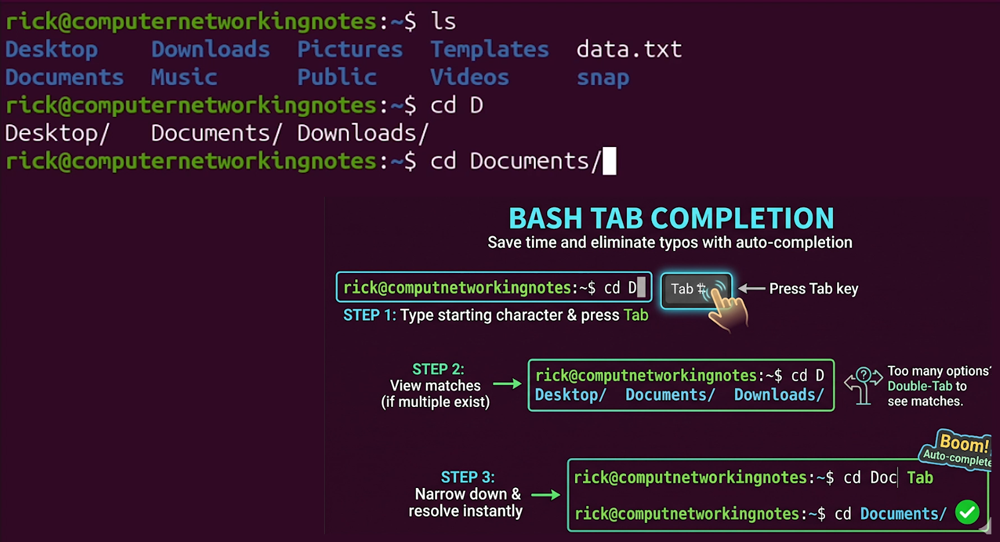
Manually typing directory paths invites spelling mistakes and wastes time. Modern Linux shells feature built-in Tab completion:
- Type the first few characters of a command, file, or path:
cd /h
- Press Tab. The shell auto-completes the directory to
/home/. - If multiple folders match your input (such as
Desktop,Documents, andDownloads), press Tab twice to show all available candidates. - Add another letter (e.g.,
cd Doc) and press Tab to complete toDocuments/instantly.
Desktop GUI Shortcut
If you prefer browsing folders in a graphical file manager (like GNOME Files), right-click any empty space and choose Open in Terminal. A shell session will launch with the working directory set directly to that folder.
Quick Reference Cheat Sheet
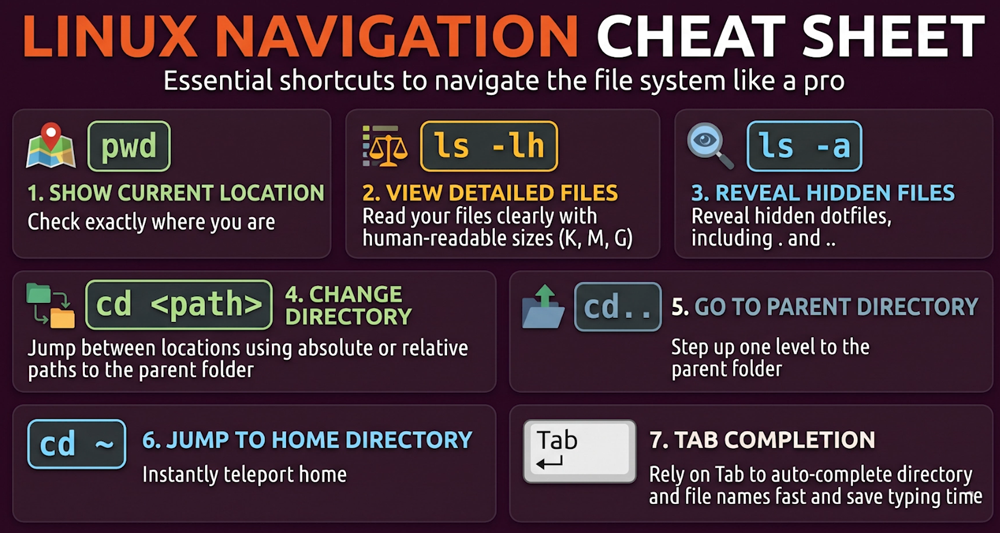
| Command / Flag | Action |
|---|---|
pwd | Display current working directory path |
ls | List visible files and directories |
ls -lh | Long listing with human-readable file sizes (K, M, G) |
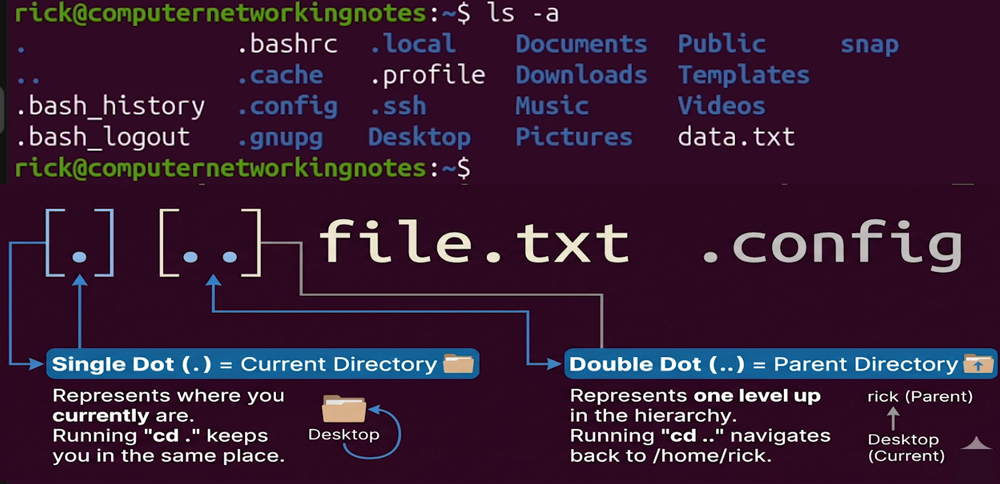
ls -a | List all files including hidden dotfiles |
cd <dir> | Switch to the specified directory |
cd .. | Step up one level to the parent directory |
cd ~ or cd | Jump straight to your home directory |
| Tab | Auto-complete paths and commands |
Author Laxmi Goswami Updated on 2026-11-08