Mastering Bash Aliases: How to Create Custom Shortcuts in Linux
Think about how often you find yourself typing out long, repetitive commands or multi-stage pipelines in the terminal. Even when a command works perfectly, having to re-enter complex flags, long paths, and multiple arguments every time slows your workflow to a crawl. Wouldn't it be easier to replace that entire command sequence with a short, memorable nickname? That is exactly what Bash aliases allow you to do. An alias is essentially a text-substitution rule that maps a custom keyword to an existing command or a sequence of piped utilities.
In this guide, you will learn how to:
- Create custom command aliases.
- Persist them permanently across terminal reboots using
~/.bash_aliases. - Combine aliases with standard input streams using
xargs. - Understand when an alias is sufficient and when you should upgrade to a full Bash function.
What Is an Alias?
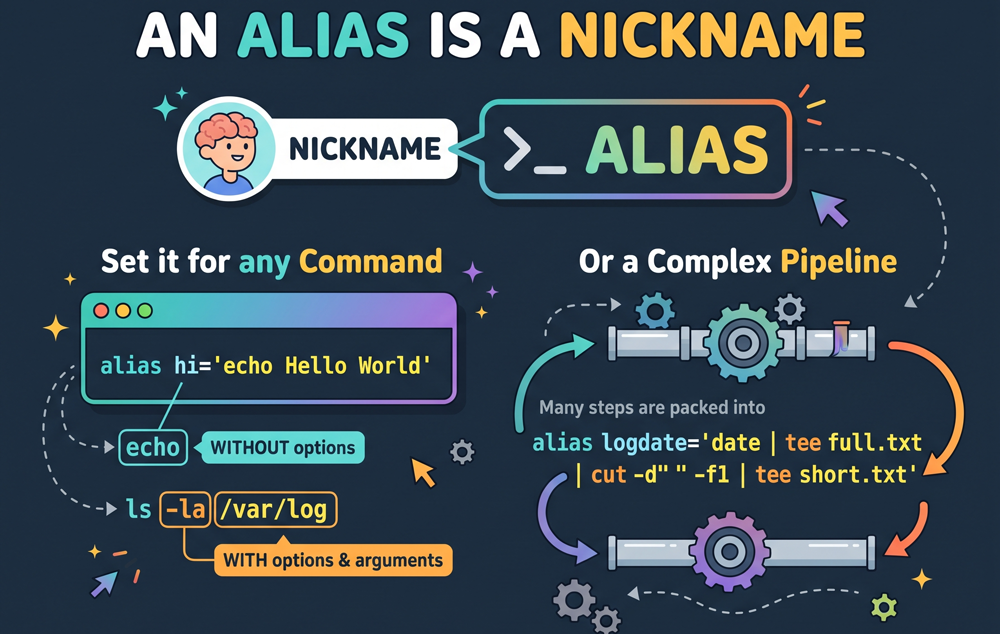
At its simplest, an alias is shorthand for a command. Instead of typing:
ls -la --color=auto
You can define a shortcut like ll. When the shell encounters ll, it swaps in the full string before executing the command.
While you can type alias ll='ls -la' directly into an active terminal session, that alias will disappear the moment you close the window. To make our shortcuts permanent, we store them in a configuration file.
There are two types of aliases: temporary and permanent
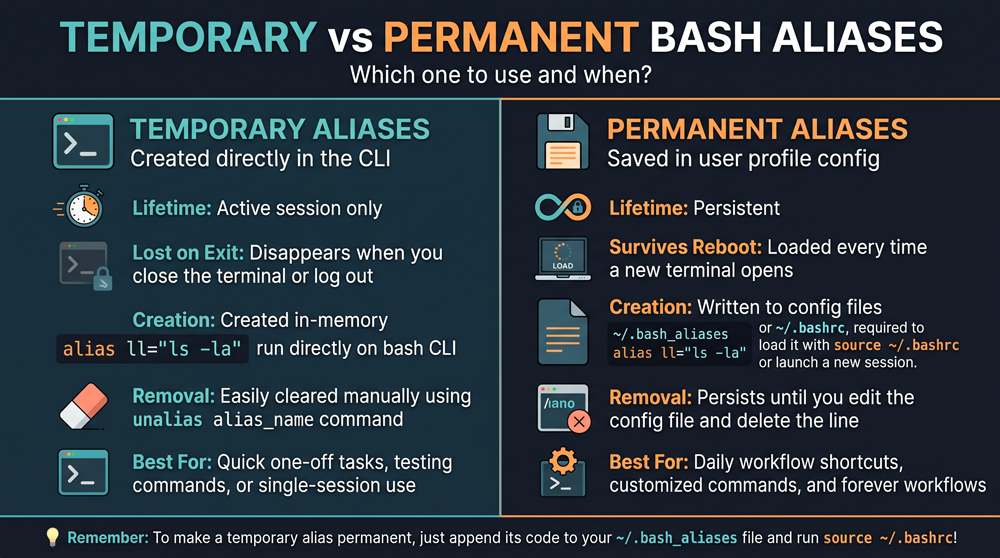
Temporary Aliases:
Defined directly in the running terminal session (e.g., alias ll='ls -la'). They only exist in memory for that specific session and disappear as soon as you close the terminal or log out.
Permanent Aliases:
Stored inside a shell configuration file (such as ~/.bashrc or ~/.bash_aliases). Because the shell reads these files each time an interactive session starts, these aliases remain available after closing the terminal or rebooting the system.
Creating and managing a temporary alias
To create a temporary alias, use the following command.
$alias alias_name=''
Replace alias_name with the name you want to use for your alias. Write the complete command, including options and arguments, inside the quotes.
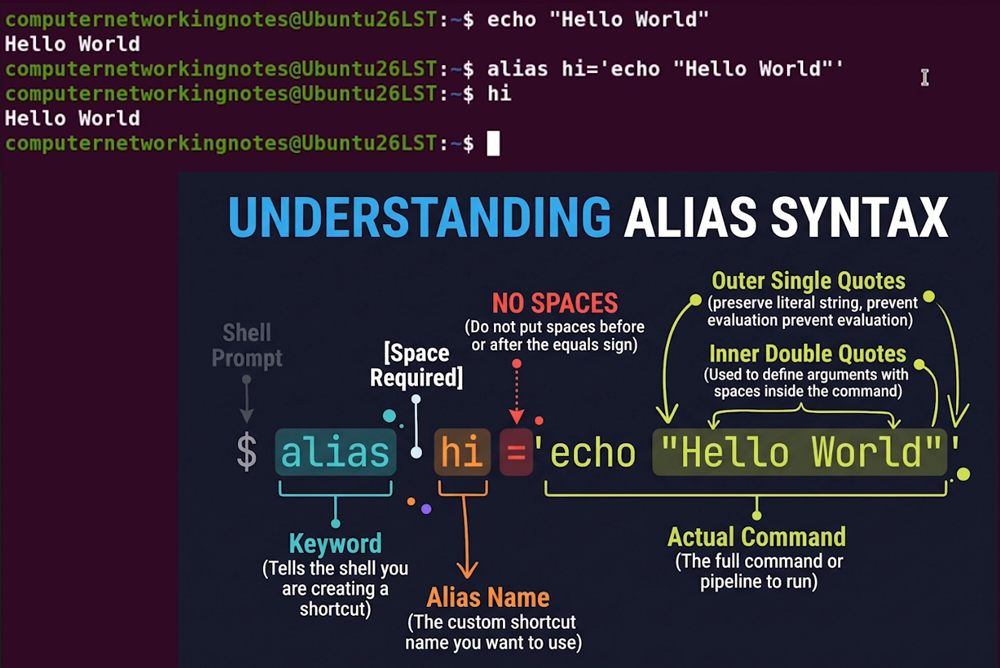
Without any options or arguments, the alias command lists all aliases.
$alias
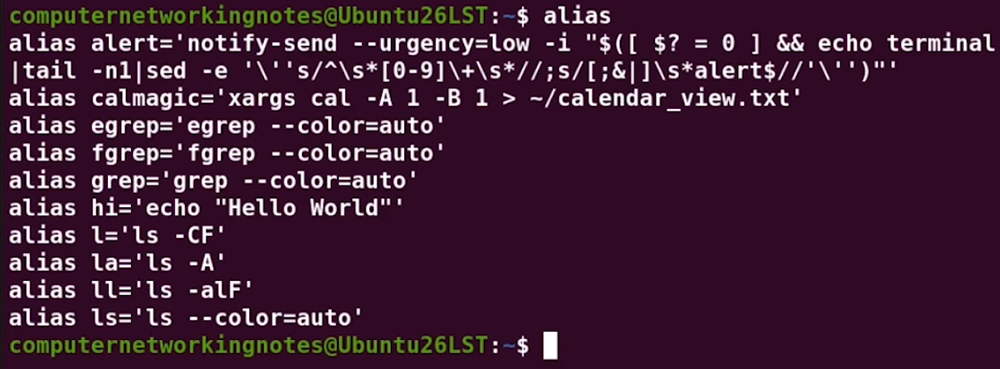
To view what an alias is linked to, specify the alias name with the alias command.
$alias [alias name]
Shell automatically removes a temporary alias when you close the terminal. However, if you want to remove it without reopening the terminal, use the unalias command.
$unalias [alias name]

Creating and managing a Permanent alias
In distributions such as Ubuntu, Debian, and Fedora, your interactive shell reads a configuration file named .bashrc in your home directory every time a new terminal window is launched.
By default, standard .bashrc setups contain a check that looks something like this:
if [ -f ~/.bash_aliases ]; then
    . ~/.bash_aliases
fi
This code snippet checks: "Does a file named .bash_aliases exist in this user's home directory? If so, load it."
Storing custom shortcuts in .bash_aliases rather than directly appending them to .bashrc keeps your core environment configurations clean, portable, and easy to back up.
Creating the File
Open your terminal (Ctrl + Alt + T) and create or open the file using a terminal text editor such as nano:
nano ~/.bash_aliases
Why the leading dot?
In Linux, files starting with a period (.) are hidden by default. They will not show up in a standard ls command or file manager window unless you pass the -a flag (ls -a) or press Ctrl + H in your desktop file manager.
Creating Your First Alias
Let's build a practical example. Suppose you frequently run a multi-command pipeline to log and inspect the current date:
- Retrieve the system timestamp using
date. - Save the full timestamp into a file named
fulldate.txtin your home folder. - Extract just the abbreviated day of the week using
cut. - Save the day of the week into a file named
shortdate.txt.
Here is the raw pipeline:
date | tee ~/fulldate.txt | cut -d ' ' -f 1 | tee ~/shortdate.txt
Breaking Down the Data Flow:
date: Outputs the current timestamp to standard output (stdout).tee ~/fulldate.txt: Writes the stream tofulldate.txtwhile simultaneously passing it downstream.cut -d ' ' -f 1: Uses a space as a delimiter to grab field 1 (e.g.,Mon,Tue).tee ~/shortdate.txt: Saves the extracted day toshortdate.txtand prints it to the terminal screen.~: Resolves dynamically to your active user's home directory path.
Packaging into an Alias
Instead of typing that command sequence every time, give it a nickname called getdates.
Open ~/.bash_aliases in your text editor and add the following definition:
alias getdates='date | tee ~/fulldate.txt | cut -d '\'' ' -f 1 | tee ~/shortdate.txt'
Syntax Rules to Remember:
- No Spaces Around
=: Bash interprets spaces as argument delimiters. Writingalias getdates = '...'will cause a syntax error. - Use Single Quotes: Enclosing your command in single quotes (
'...') ensures that variables are evaluated when the alias runs, not when the file is read.
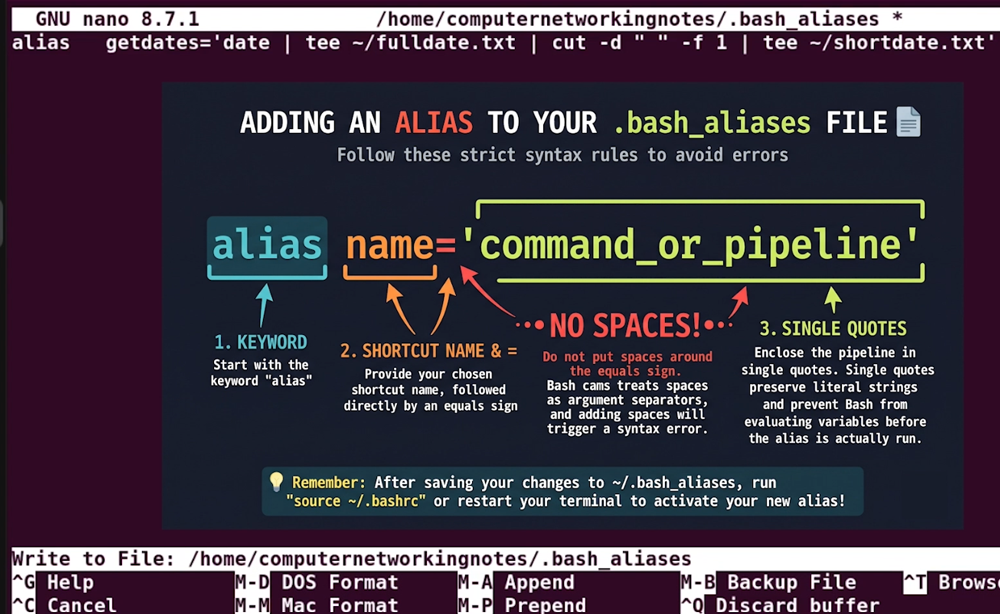
Save the file and exit your editor (in nano, press Ctrl + O, then Enter to save, followed by Ctrl + X to exit).
Activating and Verifying Aliases
Because .bash_aliases is read when a shell initializes, existing terminal sessions will not detect changes immediately.
To activate your new alias, you can either open a new terminal window or reload your configuration immediately using source:
source ~/.bashrc

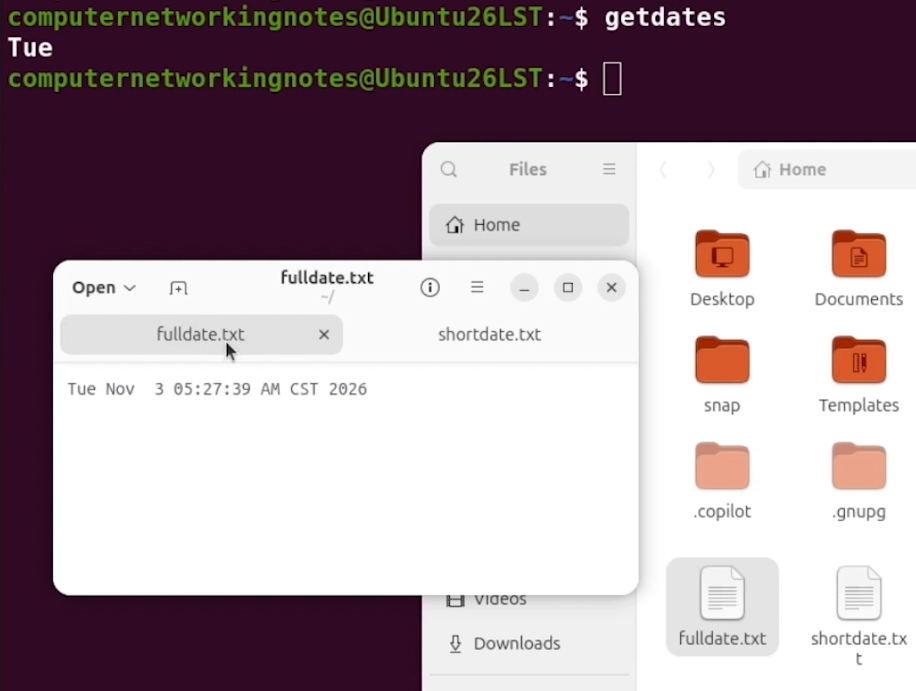
Now, run your shortcut:
getdates
Verify that the files were created as expected:
cat ~/fulldate.txt
cat ~/shortdate.txt
Inspecting an Alias
If you ever forget what an alias does under the hood, use the type built-in utility:
type getdates
Bash will output the exact command string mapped to that name. To see all active aliases on your system, simply run alias with no arguments.

Piping Data and Using xargs
A common question is: Can aliases accept positional arguments?
By default, Bash aliases do not accept positional arguments. If you run:
myalias argument1
Bash simply appends argument1 to the very end of your alias string. If you need that argument placed in the middle of a command, a standard alias cannot handle it directly.
However, an alias can accept standard input via a pipe (|) if the first command in the alias reads from stdin. If the command expects arguments instead of standard input, you can bridge the gap using xargs.
Example: Building a Calendar Shortcut
The Linux cal command displays calendar grids. Running:
cal -A 1 -B 1 12 2026
Displays December 2026, alongside one month before (-B 1) and one month after (-A 1).
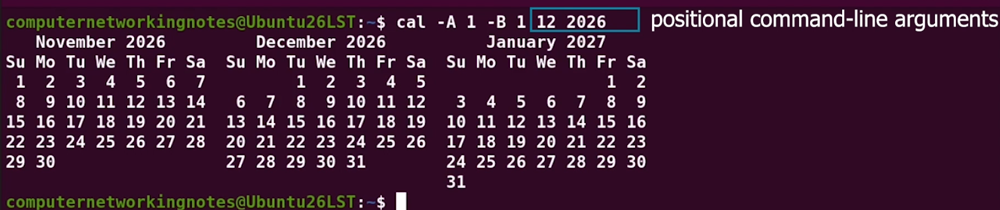
Because cal expects the month and year as positional command-line arguments (rather than from standard input), piping dates into cal directly will not work. xargs resolves this by converting incoming text from standard input into arguments.
Add this alias to your ~/.bash_aliases:
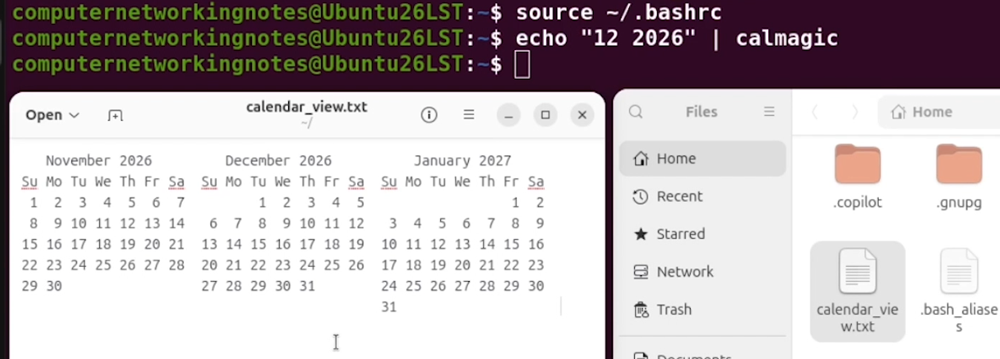
alias calmagic='xargs cal -A 1 -B 1 > ~/calendar_view.txt'
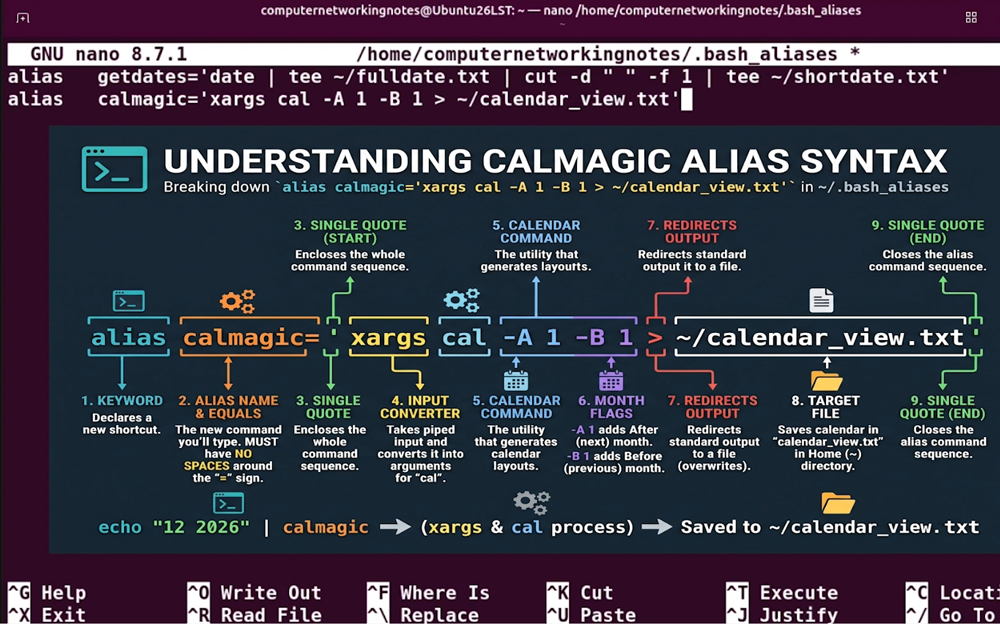
Reload your environment:
source ~/.bashrc
Now, pipe input into your new alias:
echo "12 2026" | calmagic
What Happens Behind the Scenes:
echo "12 2026"sends the text string down the pipe.- Bash expands
calmagictoxargs cal -A 1 -B 1 > ~/calendar_view.txt. xargscollects12and2026from the pipe and passes them as arguments tocal.- Output redirection (
>) writes the 3-month calendar view directly to~/calendar_view.txt.
Verify the result:
cat ~/calendar_view.txt
Aliases vs. Bash Functions: When to Switch
While aliases are convenient, they have structural boundaries. Knowing when to switch to a Bash function will save you time and prevent hard-to-debug shell behavior.
| Feature | Bash Alias | Bash Function |
|---|---|---|
| Best For | Short nicknames, default flags (ls -la) | Complex workflows, automation scripts |
| Positional Parameters | ❌ Appends to end only | ✅ Full support ($1, $2, $@) |
| Logic & Control Flow | ❌ Not supported | ✅ Supports if/else, case, loops |
| Syntax Overhead | Minimal (alias name='cmd') | Slightly higher (defined with { ... }) |
If you need to accept custom parameters dynamically into the middle of a command without piping through xargs, define a function in your ~/.bash_aliases or ~/.bashrc instead:
getcal() {
    cal -B 1 -A 1 "$1" "$2"
}
You can then run getcal 12 2026 directly.
Summary Checklist
- Create: Add shortcuts to
~/.bash_aliasesusingalias name='command'. - Formatting: Keep equals signs free of spaces (
=), and wrap commands in single quotes. - Reload: Run
source ~/.bashrcto apply changes to an active shell. - Inspect: Run
type <alias_name>or list all shortcuts withalias. - Remove: Use
unalias <alias_name>to disable a shortcut during the active session. - Scale Up: Use
xargsfor piped standard input, or switch to a Bash function when your logic requires positional parameters.
Author Laxmi Goswami Updated on 2026-11-06