Introduction to the Bash Linux Terminal
To enter and execute a command, we need a terminal. A terminal is a graphical tool that emulates a historical Linux terminal in a GUI desktop environment. It lets you run all commands straight from your desktop environment. It is available on all Linux flavors and versions.
There are many ways to open a terminal. The easiest way is to right-click anywhere on the desktop and click Terminal.

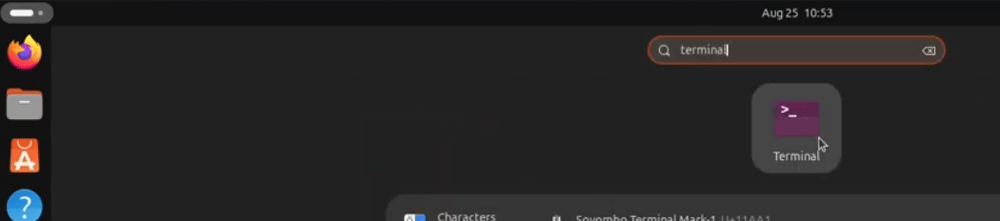
You can also open it from the dash menu. If you hover over it, it shows frequently used applications and a search box. Type Terminal in the search box, then click the Terminal icon to open it.
It offers many options to customize its appearance and make your task easier. For example, you can adjust its size, open a new terminal, and change the fonts. Let's change the font type and increase its size. This makes commands more visible and easier to read when you type.

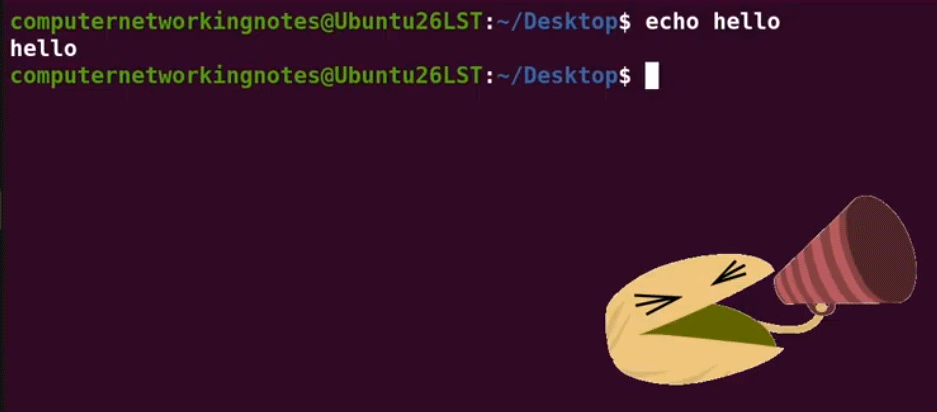
Now, let's run a fun command called echo. It prints whatever you give it as input. Type echo, then press space, then type the word you want to print. Let's say hello to our computer. To run a command, press Enter. It's just like a cave or a well that returns what you yell out.
$echo hello
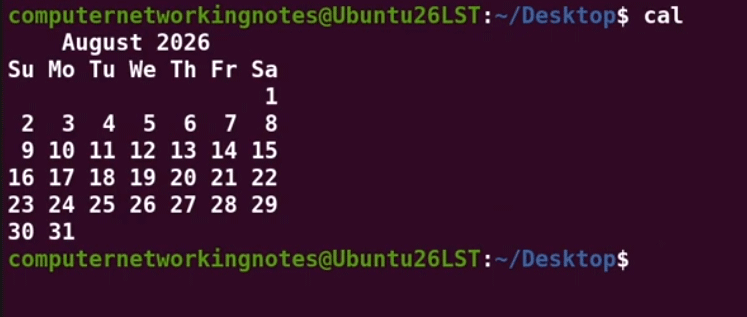
Now, let's try another command called cal. It will show a calendar for the current month. This is the default behavior. What makes Linux commands interesting is how you don't have to stick with the default behavior.
$cal
You can customize command behavior to do exactly what you want. For example, instead of the current month, you can view the entire year by typing that after cal. For example, let's view the current year's calendar.
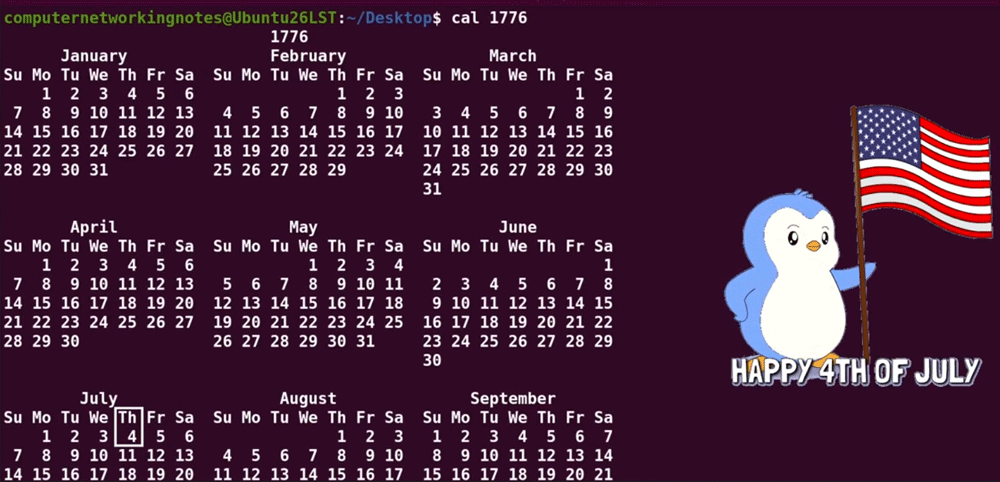
You are not limited to the current year. You can view any year's calendar. For example, let's view the calendar for 1776 (the year America gained its freedom and declared independence). The information you provide to a command is called an argument. For example, in the following syntax, cal is the command, and 1776 is an argument.
$cal 1776
You can also give each command something called an option. An option lets you customize the command's behavior. Instead of typing current year, you could type -y. This would give the cal command the -y option.
$cal -y

Commands for practice
The date command displays today's date, time, and time zone.
$date
The clear command clears the terminal screen.
$date

The shell keeps a history of all commands you run. The UP/Down arrow keys let you scroll through this history. To run a previous command, press the up arrow key until it appears on the screen again. Once the desired command appears, press Enter to run it.
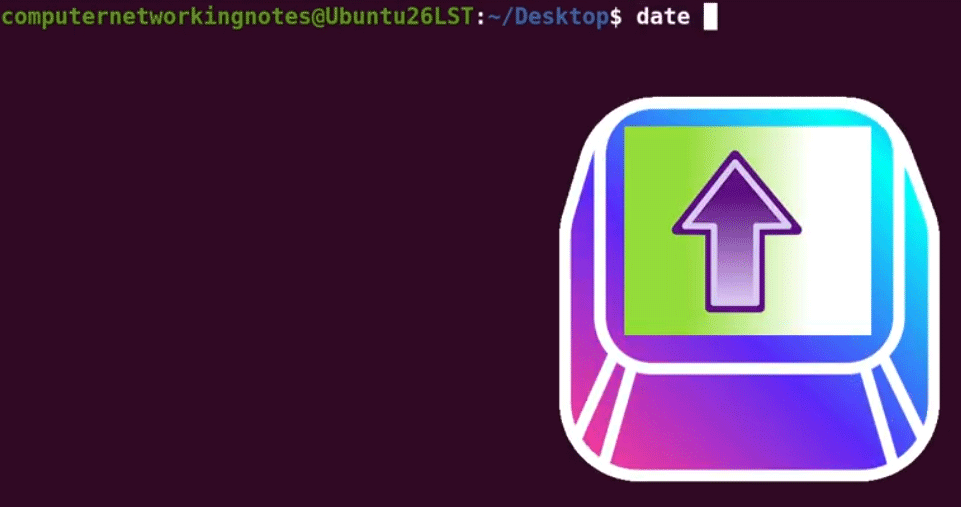
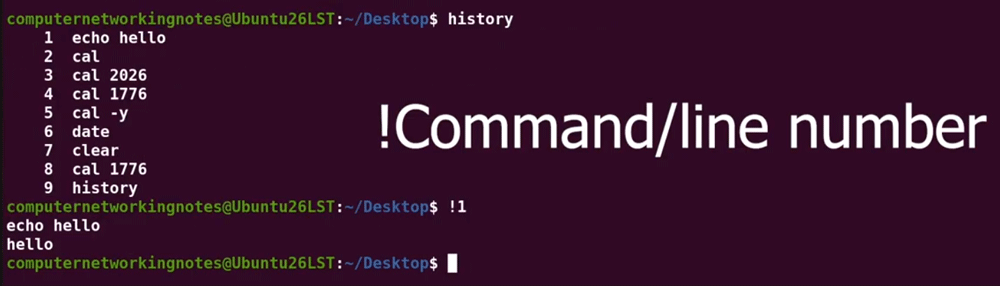
You can also view your entire command history with the history command. Type history and press Enter to see all previous commands with their line numbers.
To run a command from the history, type the exclamation mark and its line number. The exclamation mark with the command number lets you run any command from history without cycling through them.
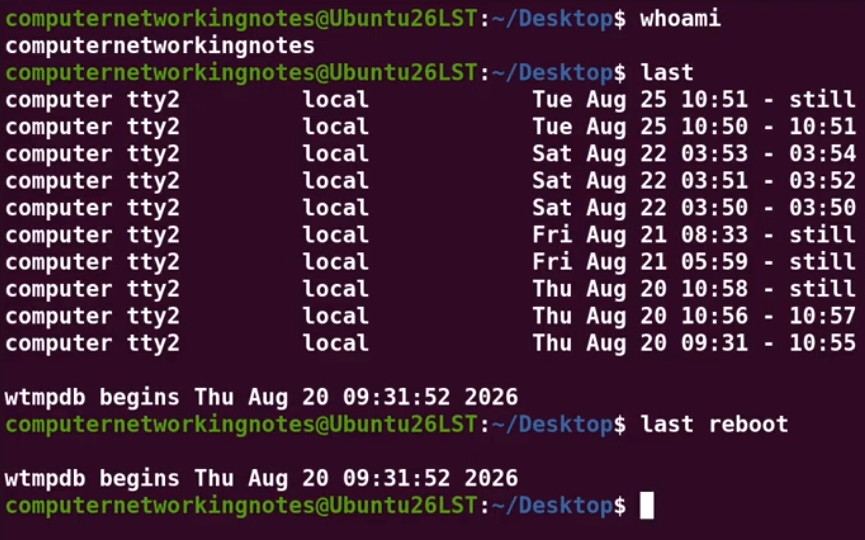
The whoami command displays the login name of the user account used to log in.
Like tracking active users, Linux also records previous successful login sessions, failed login attempts, and the last system reboot. The last command prints the list of users who successfully accessed the system.
The last reboot command prints the system's last reboot time. This command shows when the system was last rebooted.
$whoami
$last reboot
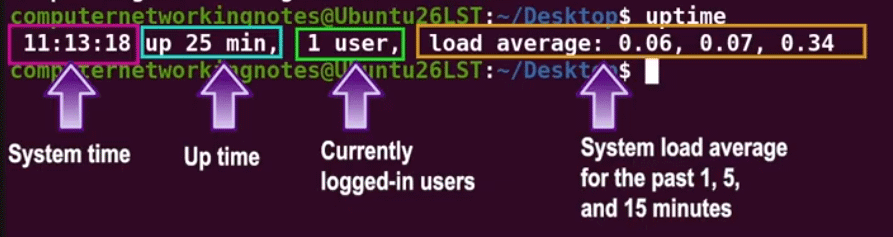
You can use the uptime command to know how long the system has been up. In addition to system uptime, it shows the current system time, the number of currently logged-in users, and the system load average for the past 1, 5, and 15 minutes.
$uptime
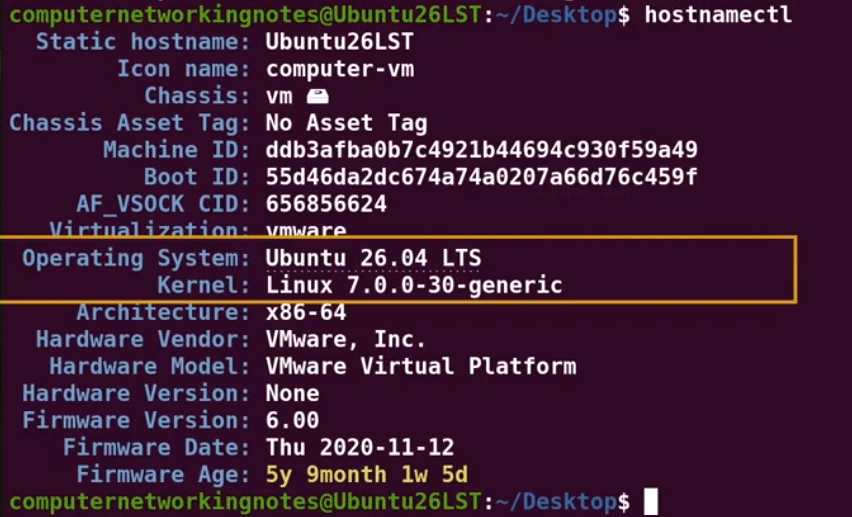
To view detailed system information, use the hostnamectl command. It tells you the hostname, hardware platform, OS and kernel names and versions, and firmware versions.
$hostnamectl
You have executed so many commands. Now, it's time to erase the footprint. Well, it's not necessary on a personal system, but in this tutorial series, you will learn commands for all situations.
Suppose you run a few commands on a user's system and do not want to tell him about them. What can you do? Well. You can erase the history. To clear it, type history and press C, then add a semicolon, then type history and press W. It clears the history, then writes those changes and makes them permanent. After you run this command, if you press the UP arrow key, nothing happens because the history is gone.
$history -c; history -w

Finally, let's say we want to close the terminal. To do that, we can click the X button at the top right or use the exit command. Let's use the exit command.
$exit
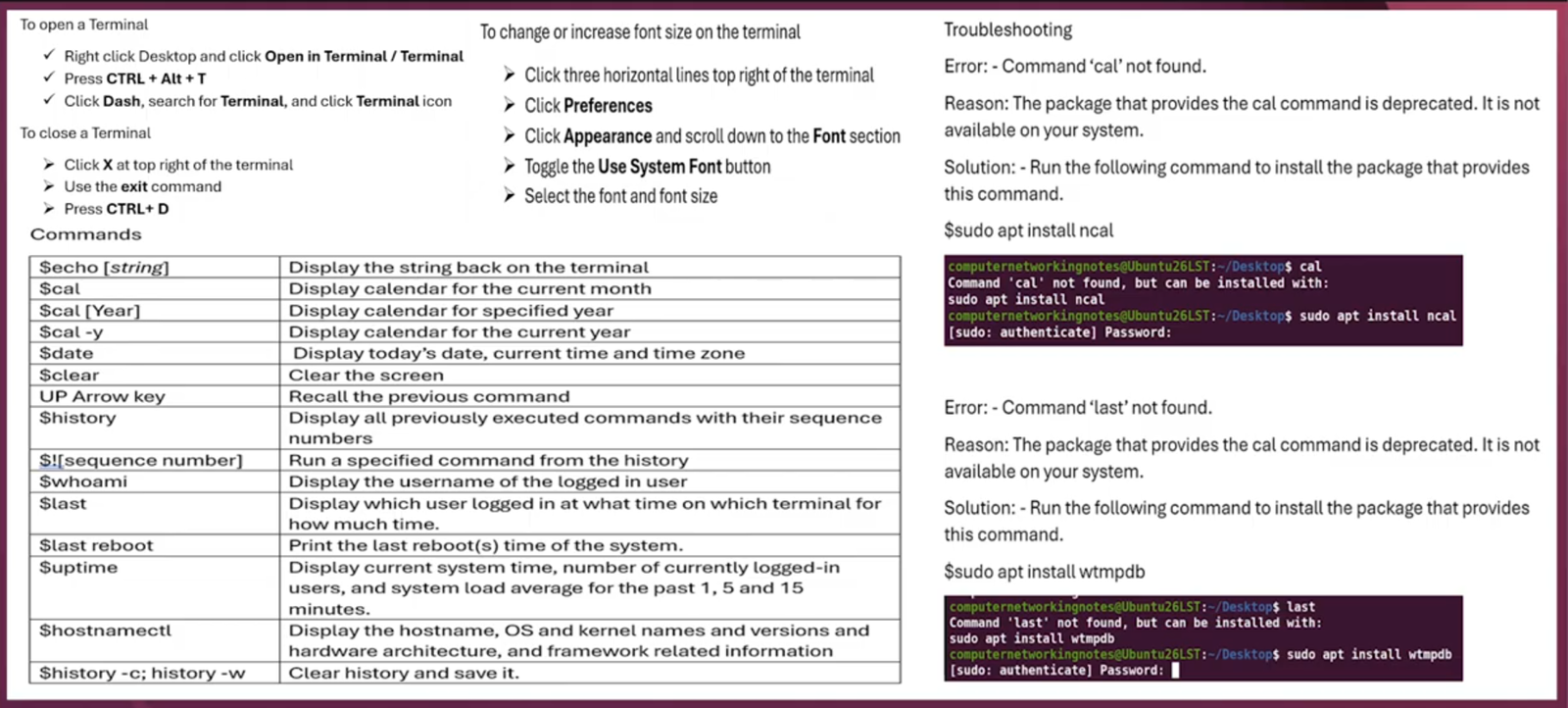
Summary
Video
Conclusion
This tutorial introduces the Linux command line. It explains what a terminal is, how to open it, and how to customize it. Later, it explains how commands are structured and how they are executed. With continued practice and exploration, you'll gain confidence and efficiency in managing Linux systems from the command line.
Author Laxmi Goswami Updated on 2026-10-22