Redirection, Truncating, Appending Explained
Redirection is a shell feature. It lets you save or send a command's output to a file or use it as input for another command. You have two options when saving output to a file: Truncating and Appending. Truncating removes the file's existing contents before saving the output. Appending keeps existing contents and writes the output at the end.
Redirection, Truncating, Appending Examples
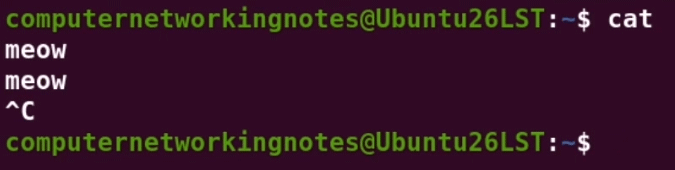
Open a terminal and run the cat command without specifying the file.
$cat
The cat command needs standard input to run. If you specify a file name, it reads that file. If not, it reads from the input stream. By default, standard input is connected to the keyboard. Since you didn't specify a file name, it waits for you to type something.
Type a word for testing and press Enter. It outputs the same input to standard output. Because standard output is connected to the terminal by default, it prints the word you entered.
$cat
meow
meow
To tell the cat command that standard input has finished, press Control + c. It terminates the running command and returns the command prompt.
$cat
meow
meow
Ctrl+c
Now, suppose you want to change where standard output goes instead of sending it to the terminal? More precisely, how can you redirect standard output? Let’s say you want to redirect standard output to a file called outputdata.txt. To do that, type 1, then the greater-than (>) sign, then the file name.
$cat 1> outputdata.txt
In the command above, 1 is the output stream number, and > is the redirection symbol. A command can take input from two places and can give output to two other places. It can take input from standard input and command arguments. It can give output to standard output and standard error. It sends default output to standard output. If an error occurs while running the command, it sends it to standard error.
Standard output is the name of the stream where output goes. It is not the destination. It is the name of the stream or pipe that the data goes down. Every data stream not only has a name like standard output, standard input, or standard error, but it also has a number associated with it. Standard input is number 0. Standard output is 1, and standard error is 2.
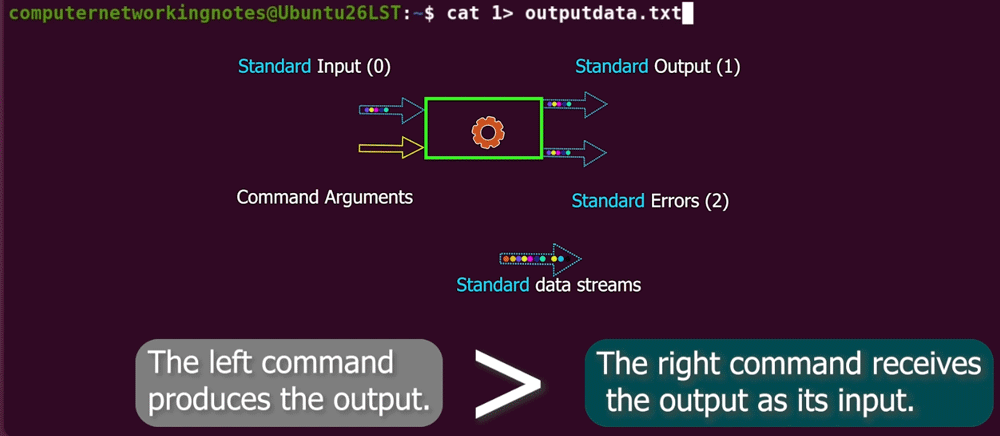
OK, so what you’re doing here is you’re changing the destination of where stream number one points. In other words, you are redirecting standard output because standard output is number one. That’s why you type 1 here. It instructs the command to put data stream number one into the outputdata.txt file.
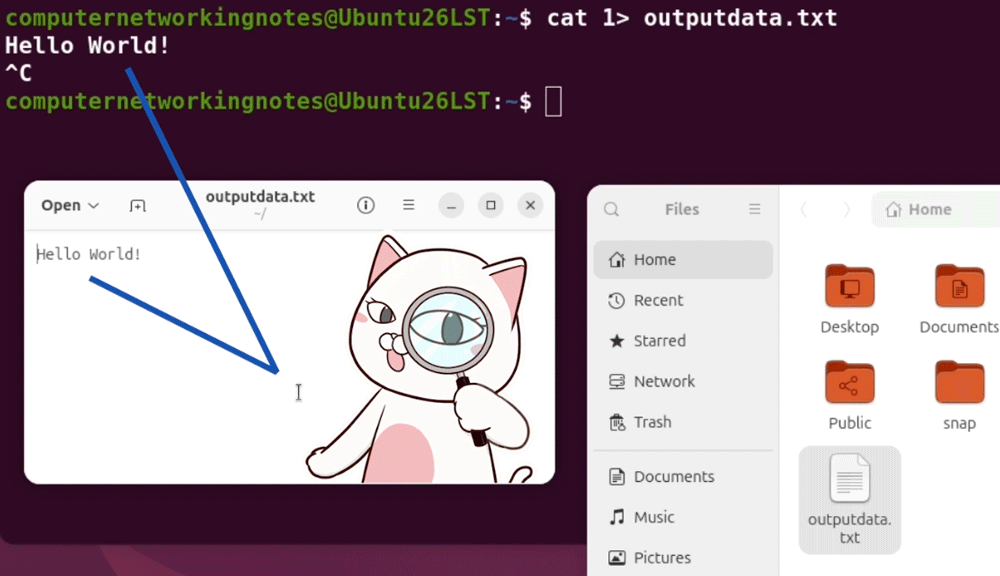
Okay, so instead of pointing the standard output stream at the terminal, which is where it points by default, you’re pointing it towards a file called outputdata.txt in your home folder. Press Enter, then type Hello World (or whatever you want) and press Enter.
$cat 1> outputdata.txt
Hello World!
This time the typed text doesn’t appear on the screen. This is because standard output isn’t the terminal this time. It is a text file. So anything you type here goes to that text file. To verify this, exit the cat command by pressing Control + c.
$cat 1> outputdata.txt
Hello World!
Ctrl+c
Now, navigate to the home folder. Click Files, then open the home folder. You'll see a file called outputdata.txt. Inside it, you'll see the text you typed in the terminal.
Since standard output is what you usually redirect, Linux lets you skip the number 1. In other words, you can get the same outcome without typing the stream number. Let’s do this.
First, delete the file outputdata.txt, generated in the previous step.
Now, run the same command again without typing the stream number. Type some text for testing and press Enter. Exit the cat command and check the home folder again.
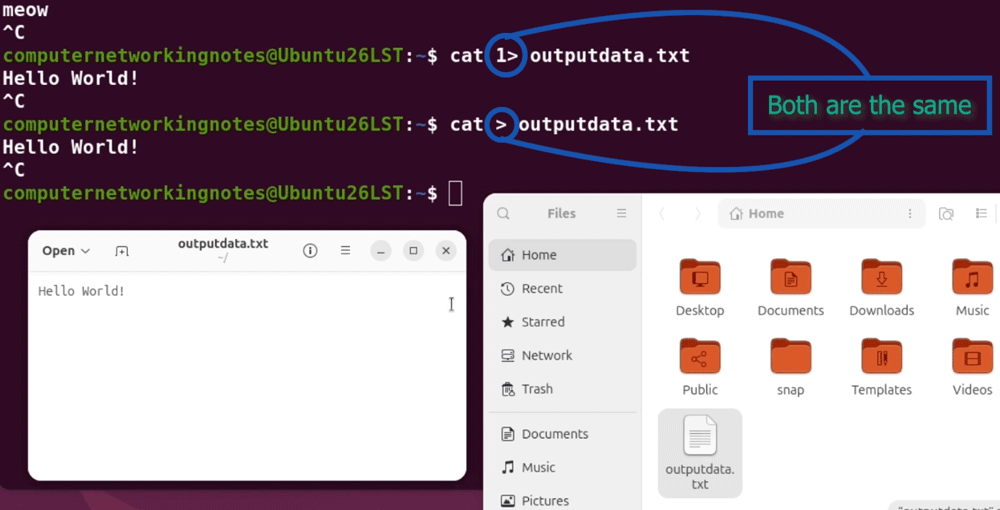
As you can see, it created the same output file, and inside it is the text you typed for testing.
So you don’t have to put the stream number with the redirection sign. However, if you do use them, do not add a space between the stream number and the redirection sign. It would be incorrect.
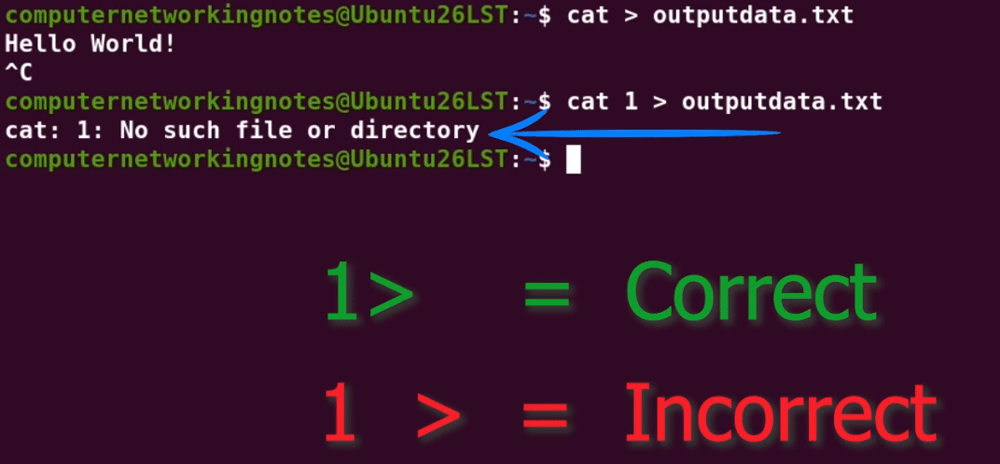
By default, redirection removes everything in a file before writing to it. This feature is called truncation. You can verify this by adding more text to an existing file.
Let’s add the text Linux to the file outputdata.txt so that it says Hello World and then Linux.
$cat 1> outputdata.txt
Linux
Let’s check it out. Press Control + c to exit the cat command.
$cat 1> outputdata.txt
Linux
Ctrl+c
Now, when you check the outputdata.txt file, you expect it to contain Hello World Linux. Right. But when you open it. It just says the word Linux. What happened to the text that says Hello World?
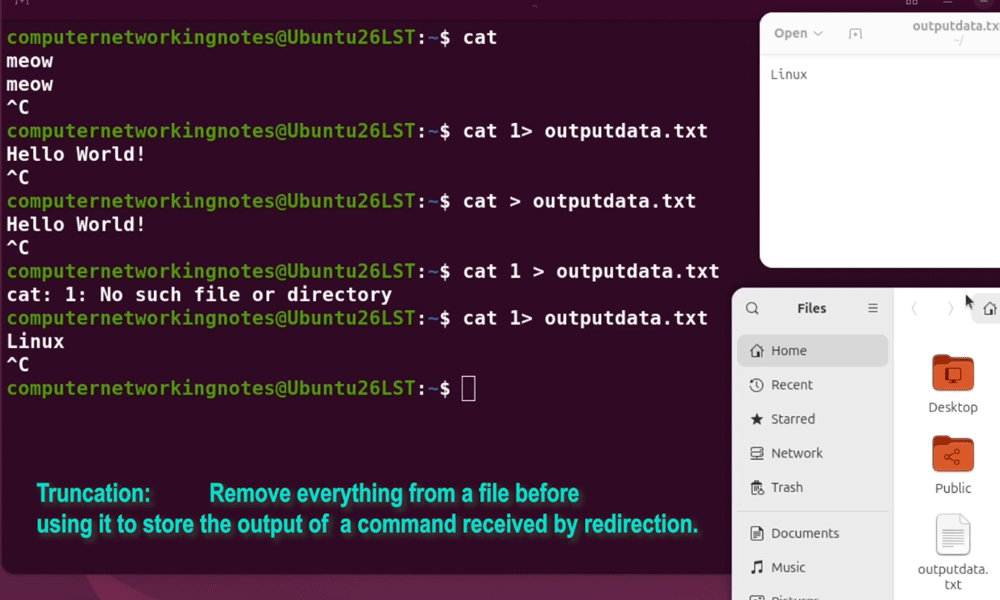
Actually, Linux emptied your file and then wrote Linux to it. It is a bit annoying and not what you expected. So how can you write to a file again using Redirection without truncating it?
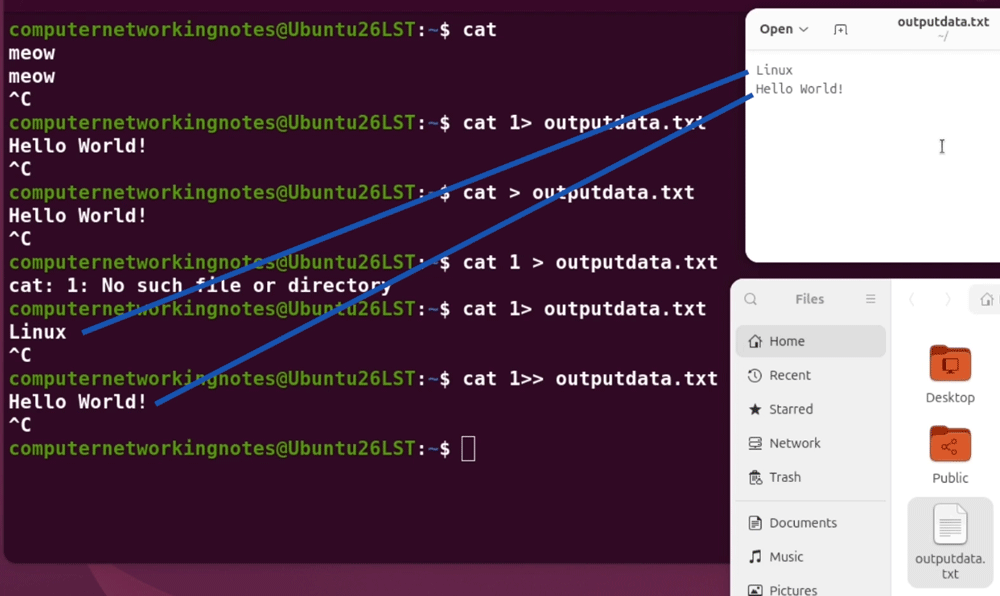
To do that, use two greater-than signs for redirection.
$cat 1>> outputdata.txt
Hello World!
Ctrl+c
Now let’s look in the output file again. Now it has Hello World after Linux.
Video
Conclusion
Redirection, truncating, and appending are three essential shell features that let you save and send a command's output to a file or to another command as input. In this tutorial, I explained how these features work with examples. Learning and mastering these fundamental features helps you perform your daily tasks more effectively.
Author Laxmi Goswami Updated on 2026-11-02